Introduction
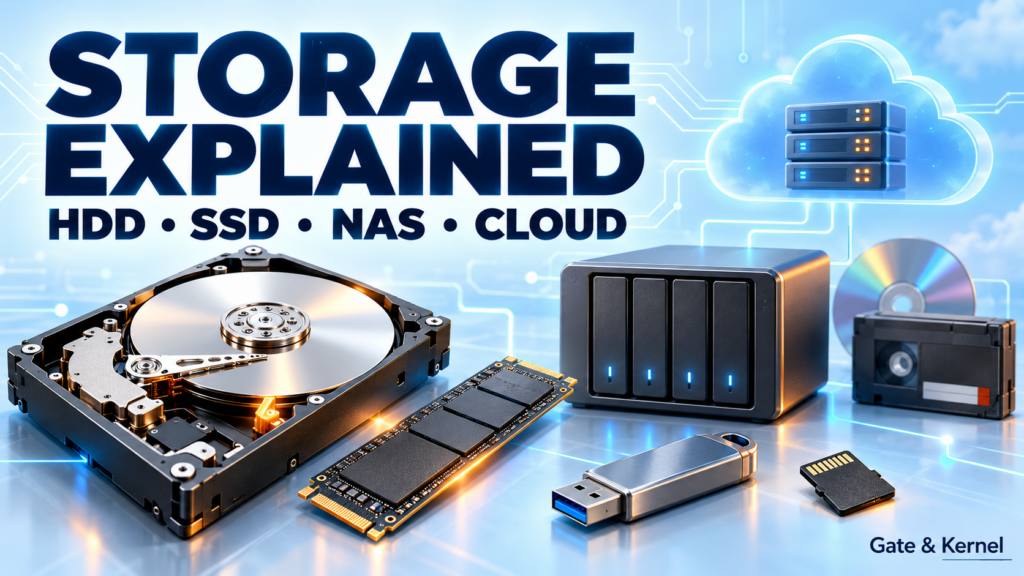
Your computer might start from an SSD, save videos on a hard drive, read a camera’s memory card, and synchronize documents with the cloud. These are all ways to store data, but they describe different parts of the storage system.
Some names describe the recording medium. Others describe a connector, a physical shape, or the way files are accessed. Understanding those differences is more useful than memorizing a list of devices.
This guide explains the major storage technologies, how they work, and where each fits. It also shows why the fastest drive is not always the best choice—and why no storage device replaces a backup.
Chapter 1: Understanding the Storage System
Storage keeps operating systems, applications, and files after power is removed. Ordinary system RAM is temporary working memory: applications use it while running, and its contents normally disappear when power is lost.
Four questions help classify storage. What holds the data: magnetic material, flash memory, or an optical recording layer? How does the device communicate: SATA, PCIe, USB, or a network? What is its physical format: a 3.5-inch drive, a 2.5-inch drive, an M.2 module, or a memory card? And where is it accessed: directly from your computer, through a NAS, or through a cloud service?
For example, an external SSD uses flash memory inside an enclosure, connects through USB, and provides direct-attached storage. Cloud storage also depends on physical hardware; the hardware is simply operated remotely.
The operating system adds another layer. A physical drive can contain multiple partitions and volumes, while a file system organizes their files. Seeing C: and D: in Windows does not prove that the computer has two physical drives. Disk Management reveals how those volumes relate to the underlying disks.
Chapter 2: Hard Disk Drives—Magnetic Storage with Moving Parts
A hard disk drive, or HDD, records information magnetically on rotating platters. An actuator moves the read/write heads to the required tracks, and the drive waits for the relevant data to rotate beneath them.
This mechanical movement explains an HDD’s main limitation. Reading a large, continuous file can be relatively efficient, but accessing many small files scattered across the disk requires repeated positioning and waiting.
Common rotational speeds include 5,400 and 7,200 revolutions per minute, or RPM. RPM is not the same as transfer speed: recording density, drive design, and the workload also matter. Capacity has grown far beyond the old 500 GB to 2 TB range; modern high-capacity HDDs store tens of terabytes.
HDDs remain useful for large media collections, backup repositories, and storage where cost per terabyte matters more than instant access. Technologies such as heat-assisted magnetic recording, or HAMR, help increase recording density. When selecting a drive for a NAS or frequent rewriting, also check its workload rating and whether it uses conventional or shingled magnetic recording, known as CMR and SMR.
There is no universal three-to-five-year expiration date. Mechanical wear, operating conditions, manufacturing variation, and physical shock all affect reliability. Keep a separate backup from the beginning.
Chapter 3: Solid-State Drives—Electronic Storage without Mechanical Seeking
A solid-state drive, or SSD, stores data in NAND flash memory. Its controller manages data placement, error correction, and wear across the flash cells. Modern SSDs commonly use 3D NAND, which stacks memory cells in multiple layers.
Without moving heads or spinning platters, an SSD can access small pieces of data much faster than an HDD. That lower access latency helps operating systems boot, applications launch, and computers respond to many simultaneous file requests.
SATA and NVMe describe different storage technologies. SATA SSDs commonly reach roughly 500–550 MB/s in sequential transfers. NVMe is a storage protocol commonly carried over PCIe in personal computers, allowing much higher throughput. Some PCIe 5.0 SSDs exceed 10 GB/s under suitable conditions, but that does not make every application proportionally faster.
M.2 describes a physical form factor, not a speed rating. An M.2 SSD may use SATA or PCIe/NVMe, depending on the device. M.2 2280 means approximately 22 millimeters wide and 80 millimeters long. Check the computer’s supported interface, module length, and cooling requirements.
SSDs are more resistant to mechanical shock than HDDs, but they can still fail. Flash has finite write endurance, often specified as terabytes written, or TBW. This is an endurance rating, not a countdown to a guaranteed failure date. Neither a five-year warranty nor an estimated lifespan makes backups optional.
Chapter 4: USB Storage—The Connector Does Not Tell the Whole Story
A USB flash drive combines flash memory and a controller in a portable device. It is convenient for transferring documents, distributing files, and creating installation media. An external USB SSD usually offers stronger sustained performance, although capabilities vary by model.
USB describes the connection, not the storage medium. A USB enclosure can contain an HDD or an SSD. USB-C describes the connector shape; it does not guarantee a particular data rate.
Current USB performance labels include 5, 10, 20, 40, and 80 Gbps. These are connection capabilities, not promised file-copy speeds. The computer port, cable, enclosure, controller, and storage device must all support the intended performance.
Remember that Gbps means gigabits per second, while GB/s means gigabytes per second. Divide bits by eight before accounting for overhead. A 10 Gbps connection therefore has a raw equivalent of 1.25 GB/s, with real file transfers below that ceiling.
Copying a sample video to an external drive illustrates the complete path. The observed speed depends on both drives, caching, file size, and the connection. One copy operation is a practical demonstration, not a controlled benchmark.
Chapter 5: Memory Cards—Capacity, Speed Class, and Compatibility
SD and microSD cards also use flash memory. They provide removable storage for cameras, drones, handheld systems, and embedded devices. Their compact size does not make every card equally suitable for every workload.
Capacity families matter. SDHC covers capacities above 2 GB through 32 GB; SDXC covers above 32 GB through 2 TB. SDUC extends the standard above 2 TB through 128 TB. These are specification ranges, not a statement that every capacity is available to buy or supported by your device.
Speed-class markings describe defined performance requirements rather than overall quality. For example, V30 identifies a minimum sequential write speed of 30 MB/s under the standard’s conditions. It does not guarantee every random write will achieve that speed. A1 and A2 address application-oriented performance, including random access, rather than replacing video speed classes.
SD Express brings PCIe and NVMe to compatible cards and hosts. However, physical fit alone does not guarantee that a reader supports the card’s fastest mode. Follow the camera or device manufacturer’s capacity, interface, and speed-class requirements.
Chapter 6: NAS—Shared Storage on Your Network
Network-attached storage, or NAS, is a system that serves files over a network. It contains its own processor, operating system, and storage drives, which may be HDDs, SSDs, or a combination.
A NAS commonly connects to a router or switch through Ethernet. Computers can then access shared folders over wired connections or Wi-Fi, often using SMB. Local file sharing can work without internet access as long as the local network remains available.
NAS is not inherently a type of cloud storage, although it can provide private-cloud features and remote access. It centralizes files and backups, but its owner must manage updates, permissions, drive health, and recovery planning. It also does not have to run continuously unless the required services need continuous availability.
Network speed can become the bottleneck. A 1 Gbps Ethernet link has a raw ceiling of 125 MB/s before overhead, even if the drives are faster. RAID can improve availability by tolerating specified drive failures, but RAID is not a separate backup. A UPS can support an orderly shutdown during a power failure; it cannot prevent every kind of data loss.
Chapter 7: Cloud Storage—Remote Infrastructure and Shared Responsibility
Cloud storage keeps data on a provider’s infrastructure and makes it accessible through applications or network services. Familiar consumer services emphasize synchronization and sharing. Cloud platforms also offer object, file, and block storage for applications and servers.
Uploading a file does not make physical storage disappear. The provider operates the drives, servers, and supporting systems. Replication, geographic redundancy, encryption, version history, and retention depend on the service and its configuration; they are not identical across all plans.
Synchronization and backup serve different purposes. A synchronized deletion may propagate to other devices and the cloud. Version history or a recycle bin may help, but only within the provider’s retention rules. Independent backups provide another recovery path.
Online-only files require a connection to retrieve their contents; locally downloaded copies may remain usable offline. Cloud convenience therefore comes with practical considerations: upload speed, account security, ongoing fees, and the time needed to restore large amounts of data.
Chapter 8: Optical Discs and Floppy Disks
Optical drives use a laser to read recorded differences in a disc’s optical properties. Pressed discs, recordable discs, and rewritable discs use different recording methods; not every disc stores data as physically stamped pits.
Familiar capacities include approximately 700 MB for a CD, 4.7 GB for a single-layer DVD, and 8.5 GB for a dual-layer DVD. Standard Blu-ray formats offer 25 GB per single-layer disc or 50 GB for dual-layer media. Higher-capacity formats require compatible equipment.
Optical discs can store ordinary files as well as music, films, and software. Their usefulness depends on available drives, media quality, handling, and future readability. A scratch does not automatically destroy every file, but serious damage can make recovery difficult.
Floppy disks belong mainly to computing history and legacy systems. The familiar 3.5-inch high-density disk held a nominal 1.44 MB, but other formats existed, including 720 KB and 2.88 MB. The flexible magnetic disk inside its shell is very different from an optical disc.
Chapter 9: Magnetic Tape—Modern Storage for Large Archives
Magnetic tape remains an actively developed technology for enterprise backups and archives. It records data along a long magnetic strip inside a cartridge.
Reaching a particular file can require winding to the appropriate position. Once positioned, however, a tape drive can stream large datasets efficiently. Tape therefore suits infrequently accessed data better than everyday application storage.
Modern LTO cartridges hold tens of terabytes. Always distinguish native capacity from compressed capacity: advertised compression gains depend on the data and may be small for already-compressed video or encrypted files.
Removed cartridges stored offline can provide an air gap against network attacks. That protection depends on actually separating and securing the media; tape is not automatically immune to theft, damage, or malicious overwriting while mounted. Long-term archives also need verification, suitable storage conditions, and migration to readable formats and supported drives.
Chapter 10: Choosing Storage and Protecting Your Files
Match storage to the job. An SSD suits operating systems and active projects. HDDs offer economical bulk capacity. Memory cards support portable equipment, USB devices move data, NAS systems share it, and cloud services provide remote access. Tape and optical media serve more specialized offline or archival needs.
Evaluate capacity, compatibility, latency, sustained transfer speed, endurance, and total cost. Also consider how quickly you could recover after a failure. A drive that holds everything is not enough if it holds the only copy.
A useful starting point is the 3-2-1 backup approach: three copies of important data, on two different media or storage types, with one copy off-site. Add an offline or appropriately immutable copy where practical, and test restoration rather than assuming the backup worked.
For example, keep an active video project on an SSD, a backup on a separate external drive, and another backup off-site. After copying a sample file, comparing its SHA-256 hash with the original confirms that those two files currently contain identical bytes. It does not prove that the entire backup is complete or will remain readable forever.
Conclusion
Storage is a combination of recording technology, connections, software, and access methods. HDDs prioritize affordable capacity, SSDs provide low-latency access, and removable media, NAS, cloud services, and tape solve different portability, sharing, and retention problems.
Choose storage for the workload, check compatibility, and plan recovery. The best storage system keeps data both useful today and recoverable when something goes wrong.
Further Reading
- SD Association: Capacity Standards
- SD Association: Speed Classes
- SD Association: Application Performance
- USB-IF: USB4
- Kingston: Desktop and Laptop SSDs
- Seagate: CMR and SMR Drives
- Microsoft: OneDrive Files On-Demand
- Synology: Backing Up a NAS
- Blu-ray Disc Association: Capacity
- IBM: 2.88 MB Diskette Drive
- LTO Program: LTO-10
Technical references checked November 1, 2026. Standards limits, interface rates, product performance, and retail availability are different measurements.