Linux File Hierarchy Structure
When most people first see Linux, they think it looks confusing.
There are folders everywhere.
Directories like /bin, /etc, /proc, /var.
And unlike Windows, there is no C drive or D drive.
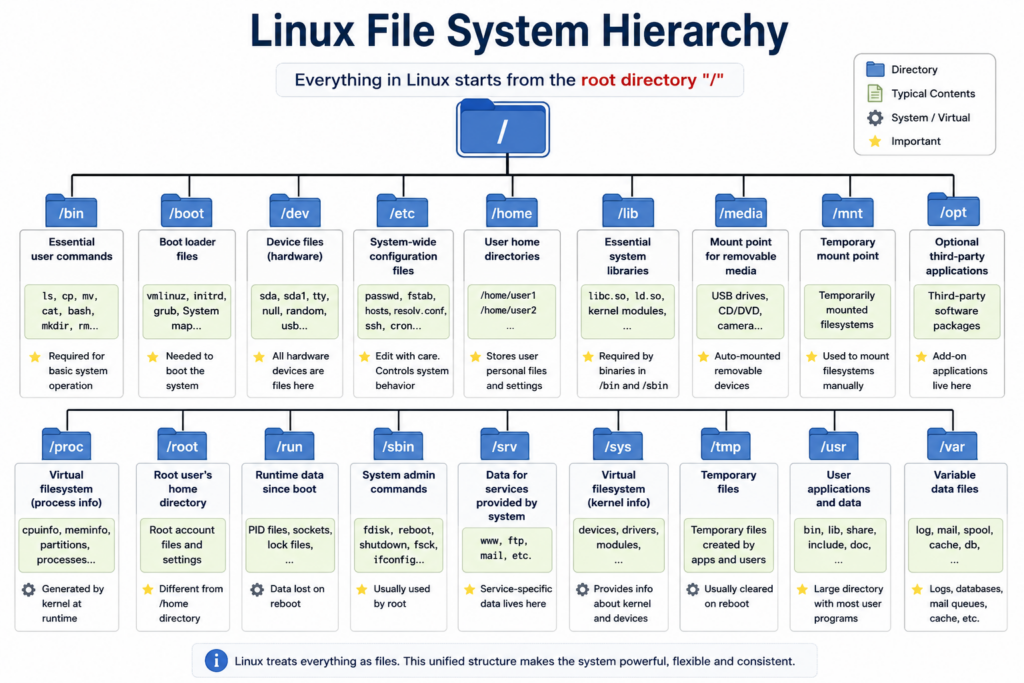
Everything starts from a single /.
At first, this structure can feel strange.
But once you understand how the Linux file hierarchy works, the entire operating system suddenly starts making sense.
In this video, we are going to slowly explore the Linux File Hierarchy Structure.
We will explain:
- What the root directory is
- Why Linux organizes files this way
- The purpose of the major directories
- How Linux separates system files from user files
- Why Linux treats devices and processes like files
- And why this design became one of the foundations of modern computing
By the end of this video, you will understand the structure behind almost every Linux system on Earth.
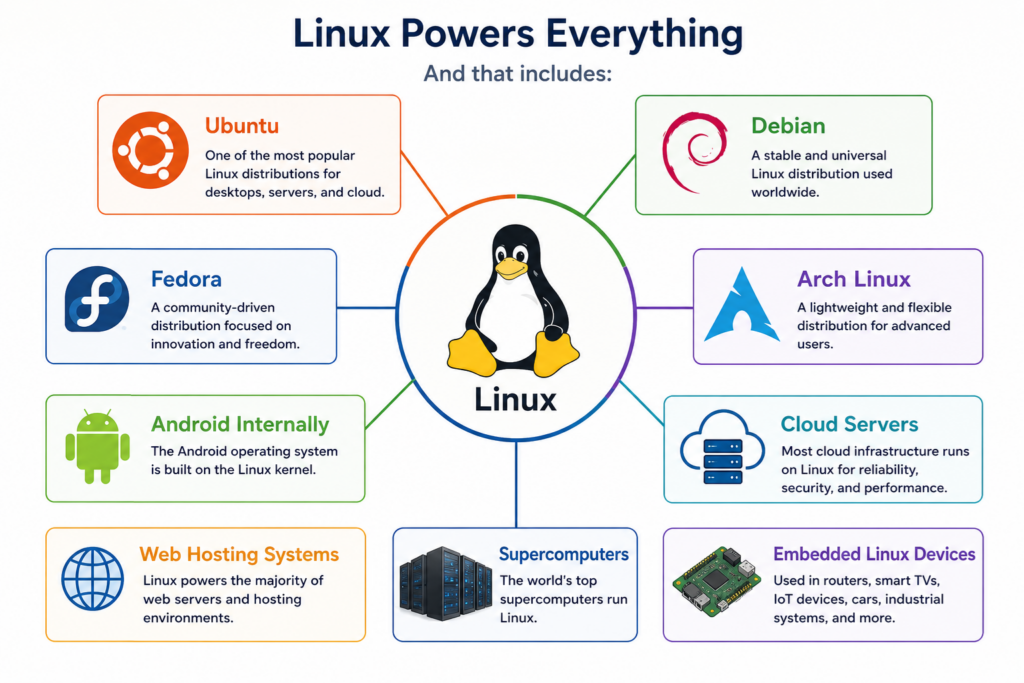
And that includes:
- Ubuntu
- Debian
- Fedora
- Arch Linux
- Android internally
- Cloud servers
- Web hosting systems
- Supercomputers
- And even embedded Linux devices
So let’s begin.
The Linux file system starts with a single directory.
Just one.
That directory is called the root directory.
And it is represented by a single /.
/
Everything in Linux begins here.
Every file.
Every folder.
Every application.
Every device.
Every process.
Everything exists somewhere under this root directory.
This is very different from Windows.
In Windows, storage is divided into drive letters.
For example:
C:
D:
E:
But Linux does not work like that.
Linux creates one unified tree structure.
All storage devices become part of the same hierarchy.
That means:
- Hard drives
- SSDs
- USB drives
- Network storage
All appear somewhere inside the same directory tree.
This design is extremely powerful because the entire system becomes consistent.
Applications do not need to care where the storage physically exists.
Everything looks like part of one filesystem.
This idea became one of the reasons Linux scales so well from tiny devices all the way to massive servers.
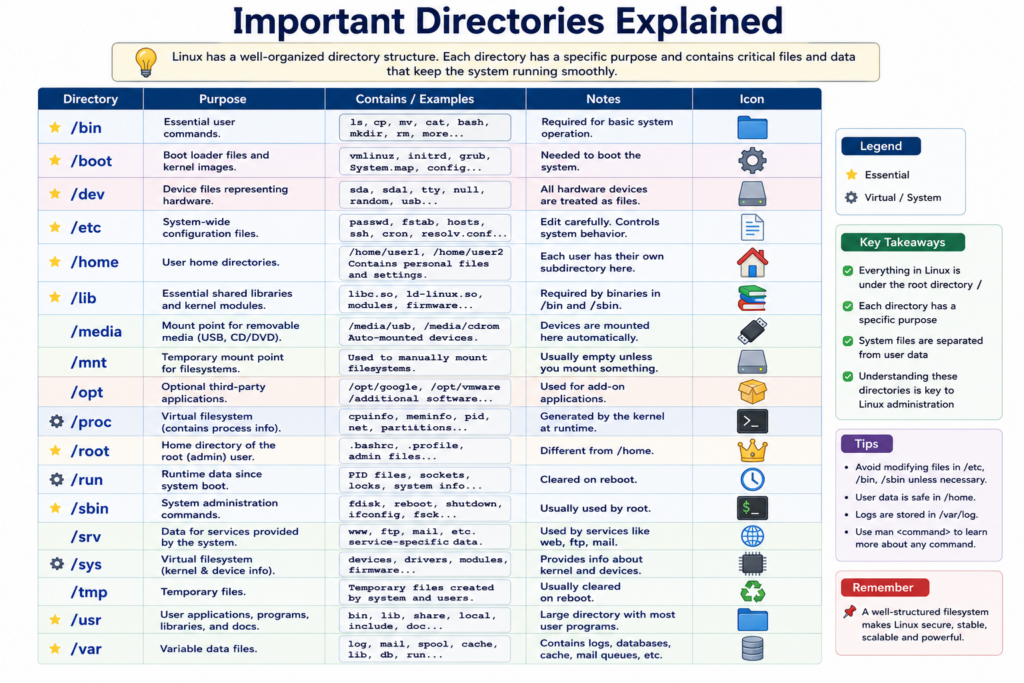
Now let’s look at the major directories.
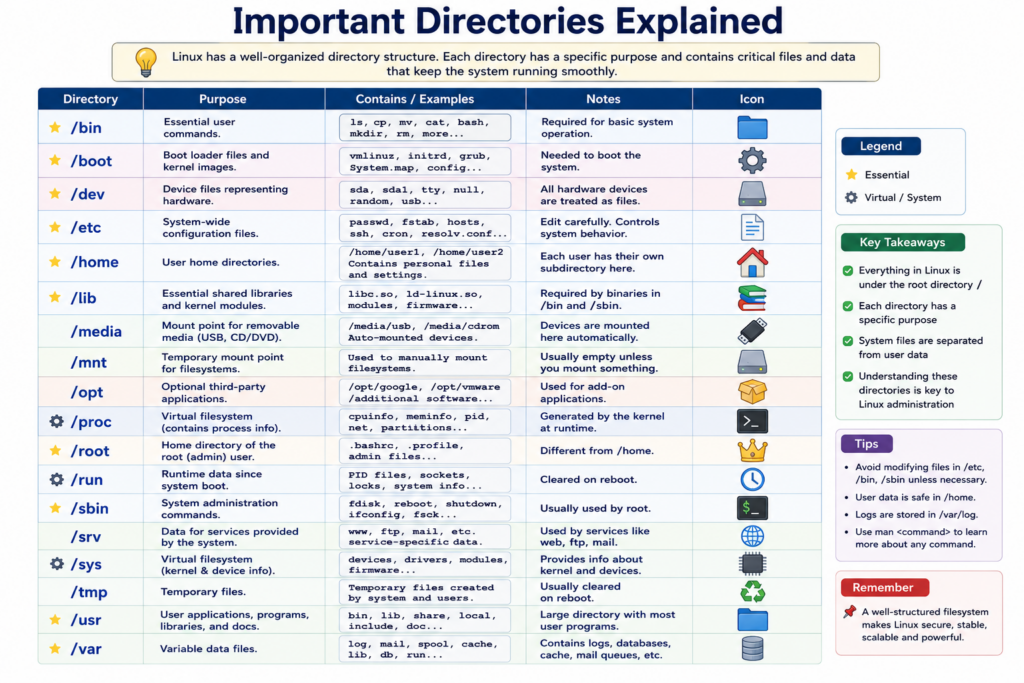
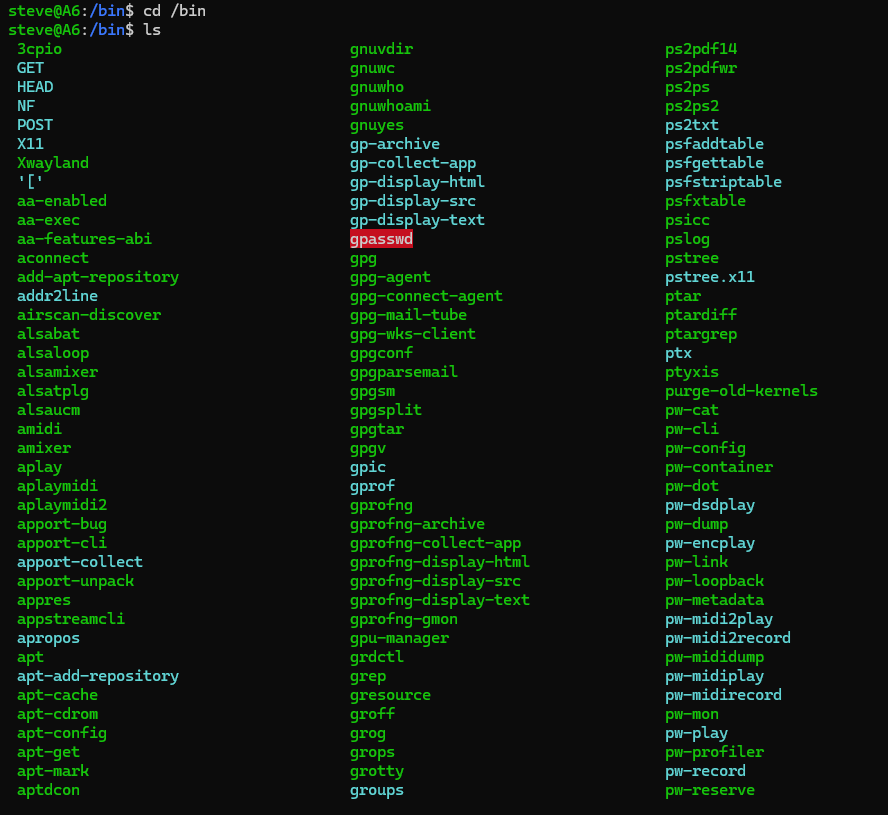
The first Directory is /bin
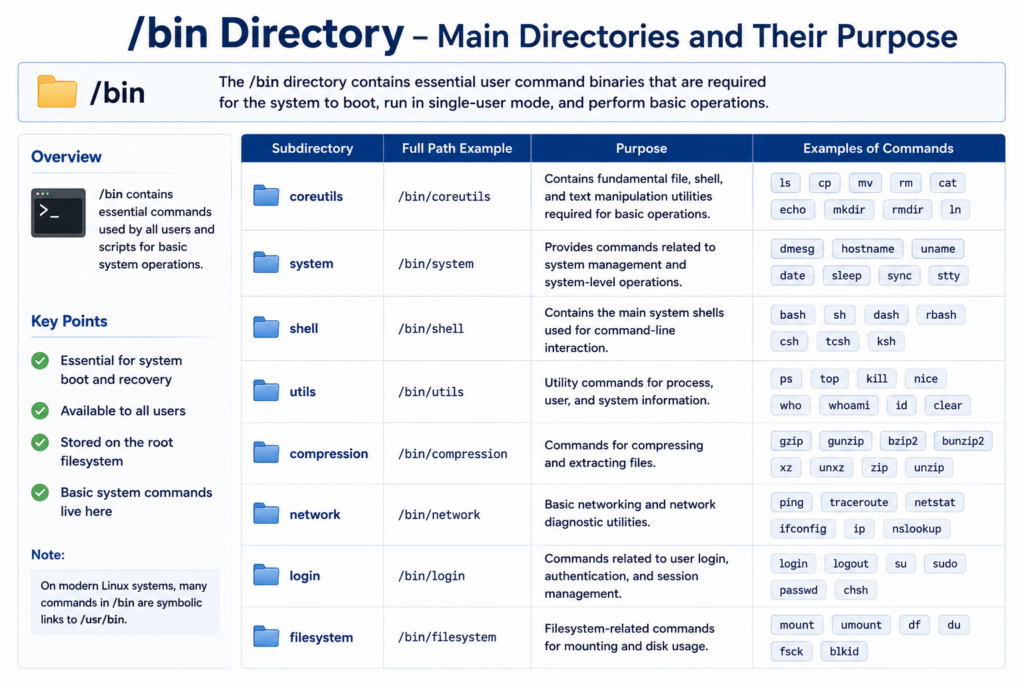
/bin
The word bin comes from binary.
This directory contains essential command-line programs required for the system to function.
Commands like:
ls
cp
mv
cat
bash
These are basic programs Linux users use constantly.
Without /bin, the system could not even perform simple operations.
Historically, /bin existed so the system could still boot and operate even if other partitions were unavailable.
Today, modern Linux systems sometimes merge /bin into /usr/bin internally, but conceptually it still represents essential user commands.
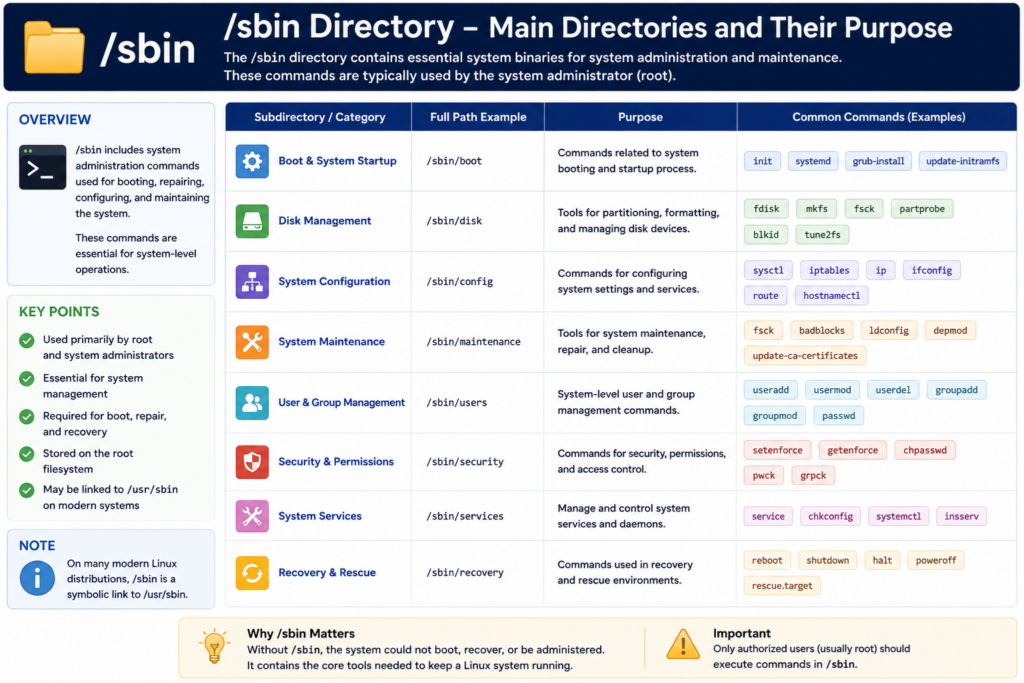
Next is /sbin.
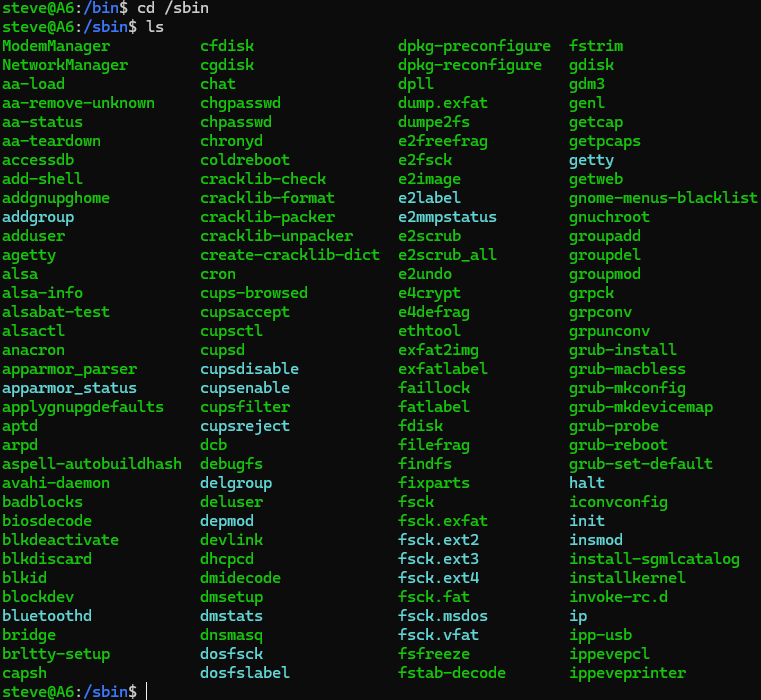
/sbin
The s stands for system.
This directory contains administrative tools used mostly by the root user.
Examples include:
fdisk
reboot
shutdown
mkfs
fsck
These commands are related to system management, disk operations, and maintenance.
Normal users typically do not use these commands frequently.
System administrators use them to control and repair the system.
Now let’s look at one of the most important directories in Linux.
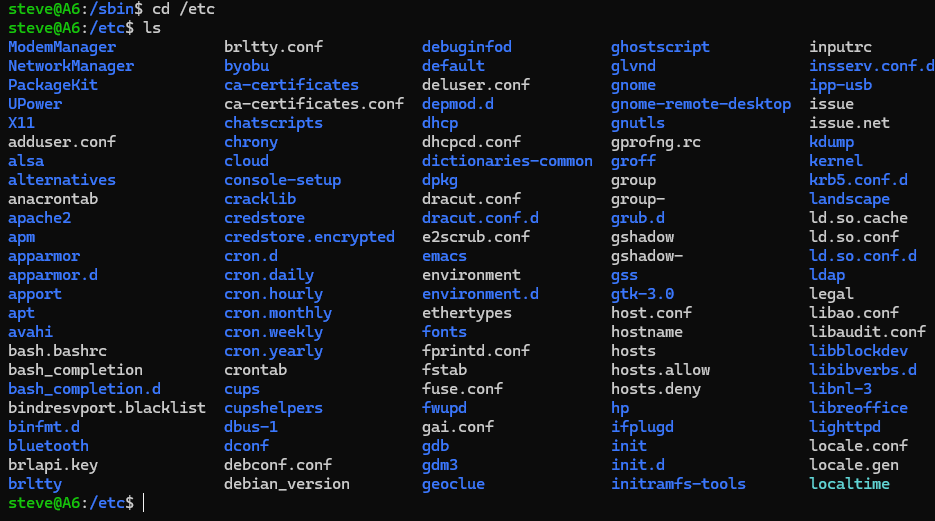
/etc.
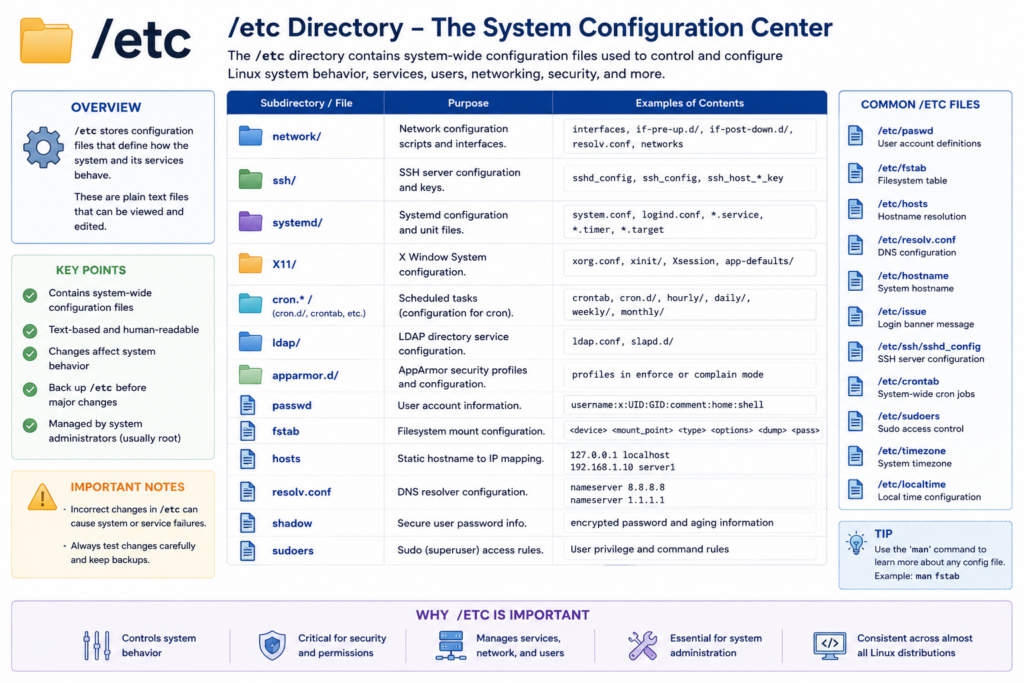
/etc
This directory contains system configuration files.
If Linux were a machine, /etc would be its control panel.
Inside /etc are files controlling:
- Network configuration
- User accounts
- DNS settings
- Services
- Startup behaviour
- File system mounts
- Security policies
Important examples include:
/etc/passwd
/etc/fstab
/etc/hosts
Linux administrators spend huge amounts of time inside /etc.
When something breaks, configuration files are often checked here first.
One reason Linux is powerful is because so much system behaviour is controlled using plain text configuration files.
You can open them, edit them, automate them, and back them up easily.
This philosophy helped Linux become extremely flexible.
Now let’s move to /home.
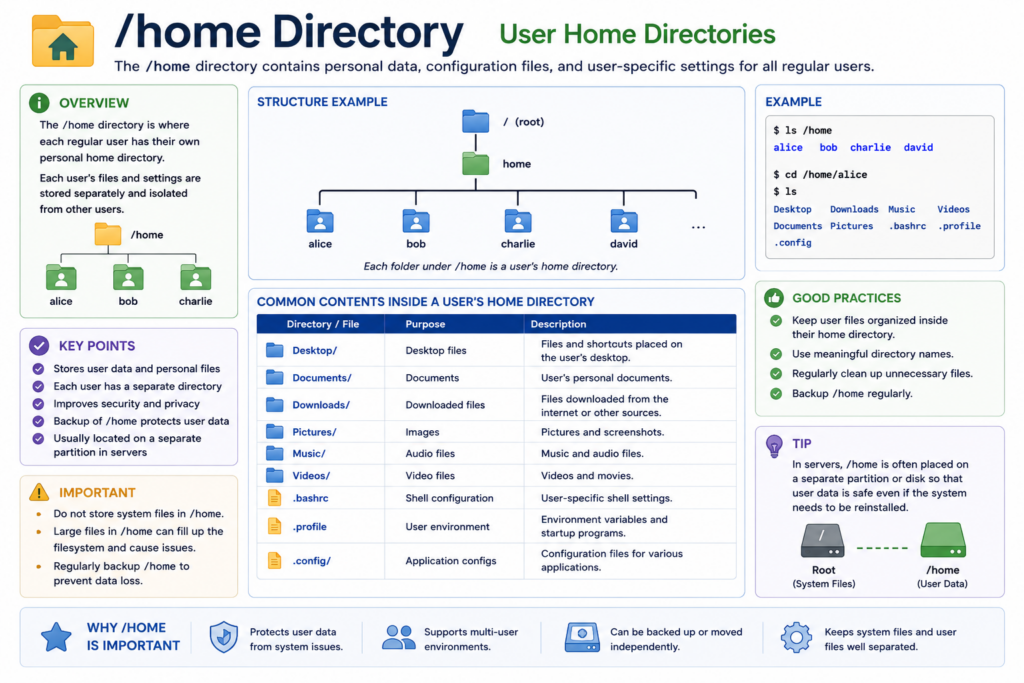
/home
This is where user data lives.
Each user gets a personal directory.
For example:
/home/gary
/home/alice
/home/bob
Inside these directories are:
- Documents
- Downloads
- Pictures
- Videos
- Application settings
- Desktop files
Linux separates user files from system files very carefully.
This separation improves:
- Security
- Stability
- Multi-user support
If a user accidentally damages files inside their home directory, the core operating system can still remain intact.
This separation became critical for servers and enterprise systems.
Now let’s discuss /root.
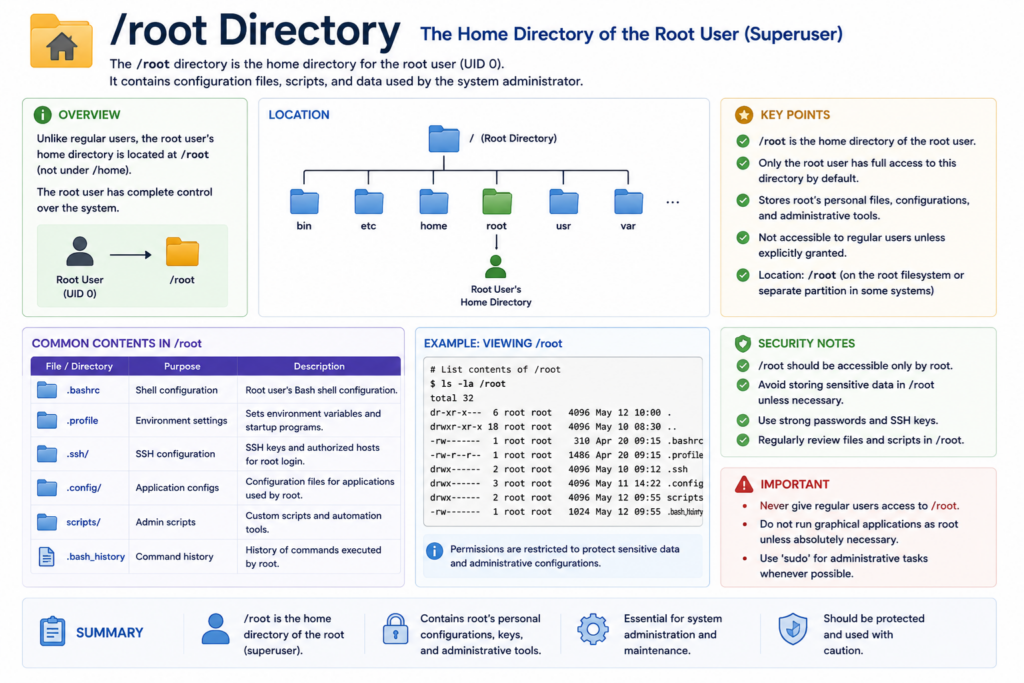
/root
This is the home directory for the root administrator account.
It is different from the root directory itself.
Remember:
/      → root filesystem
/root  → root user's home directory
The root account has full system privileges.
Because of this, its home directory is separated from ordinary users.
Now we arrive at one of the most interesting Linux concepts.
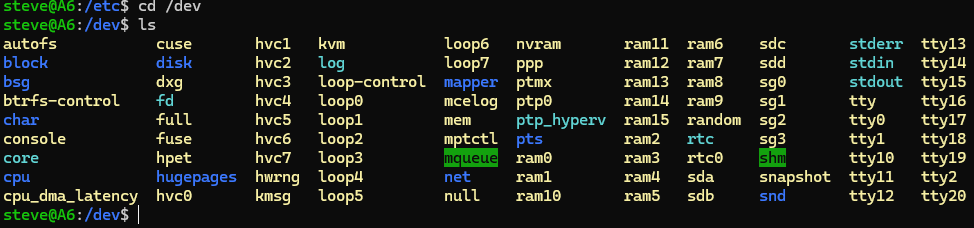
/dev.
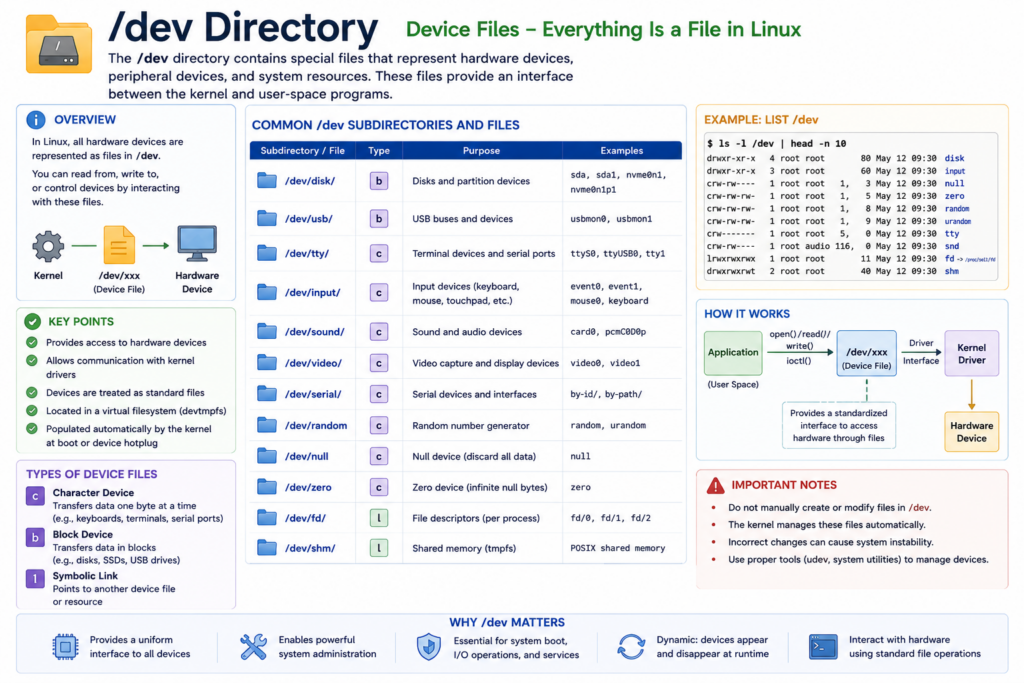
/dev
In Linux, devices are represented as files.
This idea surprises many beginners.
Hard drives become files.
USB drives become files.
Terminals become files.
Even random number generators become files.
Examples include:
/dev/sda
/dev/sda1
/dev/tty
/dev/null
/dev/random
This is one of the most elegant ideas in Unix and Linux design.
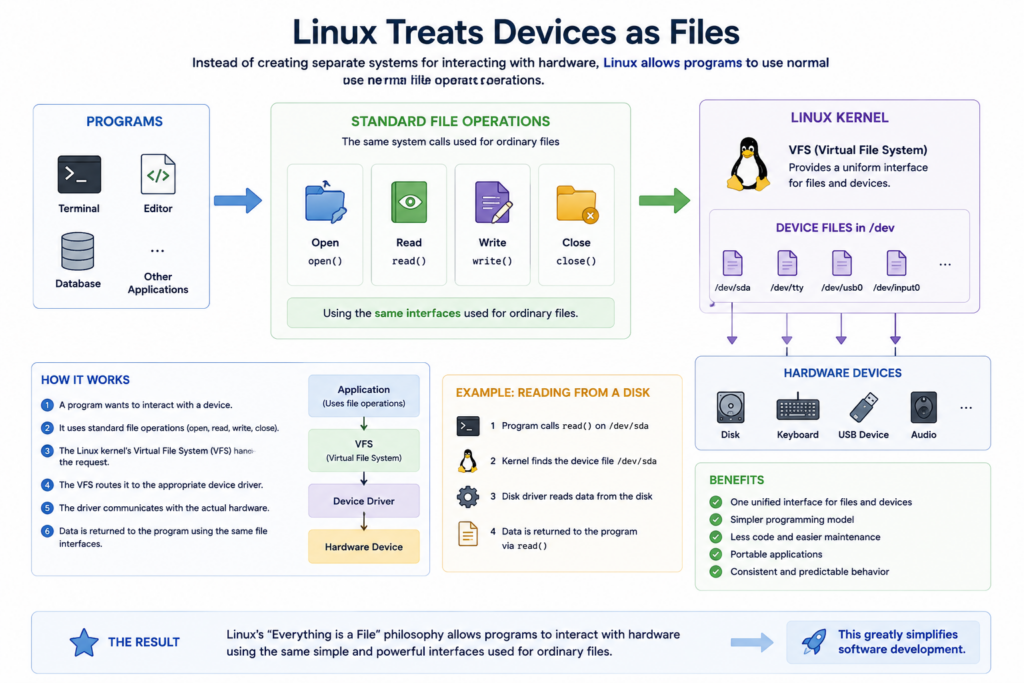
Instead of creating separate systems for interacting with hardware, Linux allows programs to use normal file operations.
Programs can:
- Open devices
- Read devices
- Write devices
- Close devices
Using the same interfaces used for ordinary files.
This greatly simplifies software development.
It also creates a very consistent system architecture.
For example:
cat /dev/random
Reads random data from a device file.
And:
echo hello > /dev/tty
Writes directly to the terminal device.
This design philosophy became foundational to Unix-like systems.
Now let’s look at /proc.
/proc
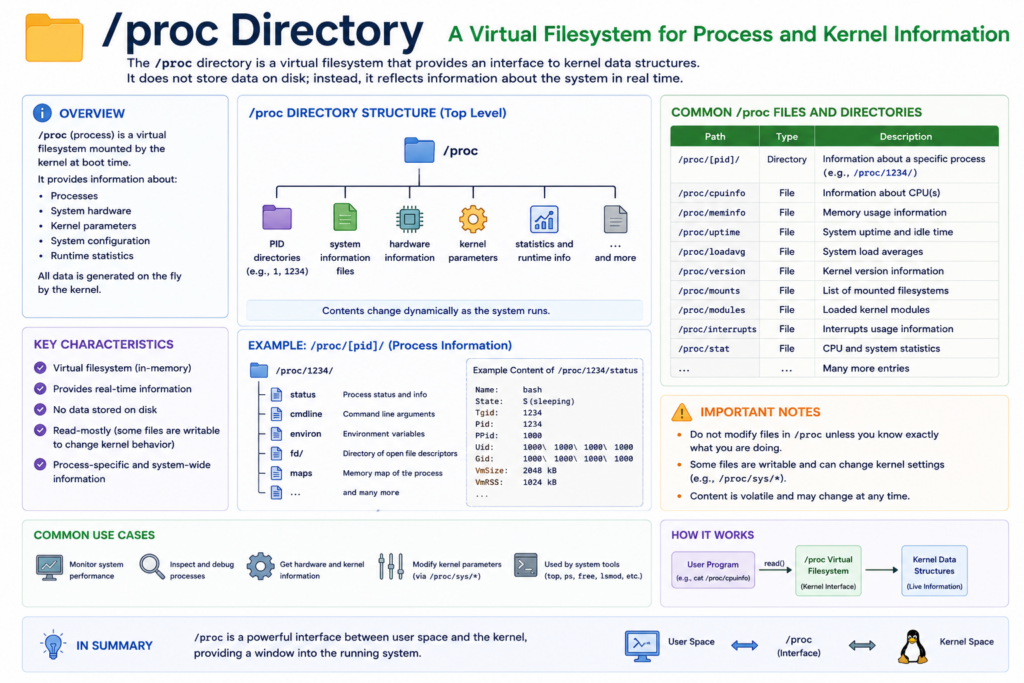
This is not a normal directory stored on disk.
It is a virtual filesystem created dynamically by the Linux kernel.
/proc provides real-time information about:
- Processes
- CPU status
- Memory usage
- Kernel parameters
- System uptime
- Hardware information
Examples:
/proc/cpuinfo
/proc/meminfo
/proc/uptime
When you read these files, the kernel generates information dynamically.
Nothing is actually stored on disk.
This is incredibly powerful because Linux exposes internal system information using the same file abstraction.
Many Linux monitoring tools depend heavily on /proc.
Commands like:
top
ps
vmstat
Internally read information from /proc.
Again, Linux uses files as a universal interface.

Another extremely important directory is /var.
/var
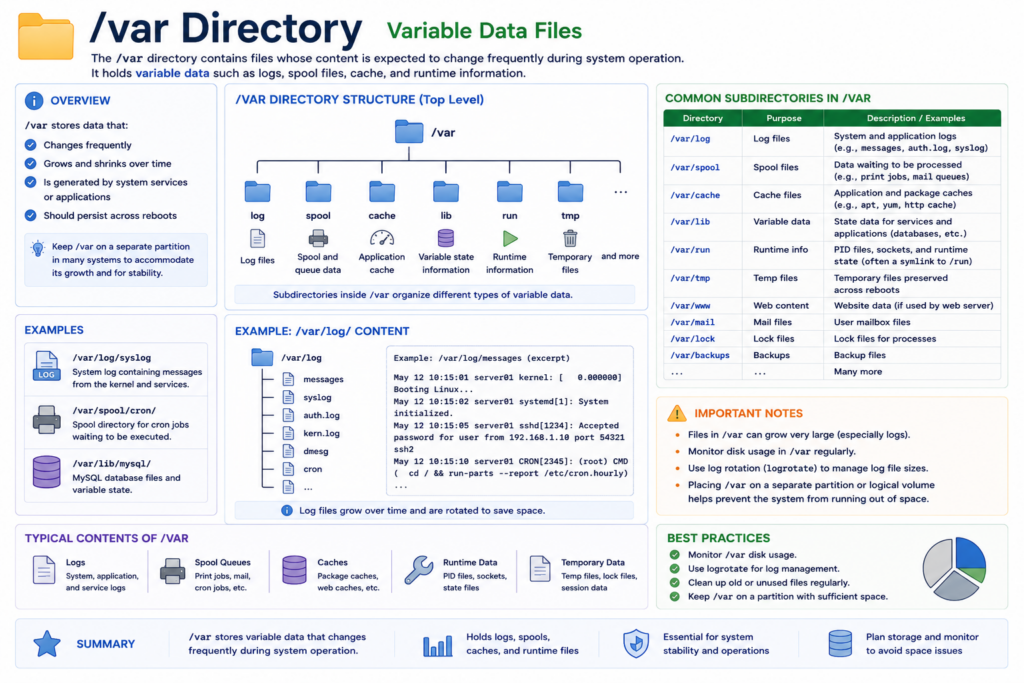
The word var means variable.
This directory stores changing data.
Examples include:
- System logs
- Cache files
- Mail queues
- Databases
- Temporary application data
One especially important location is:
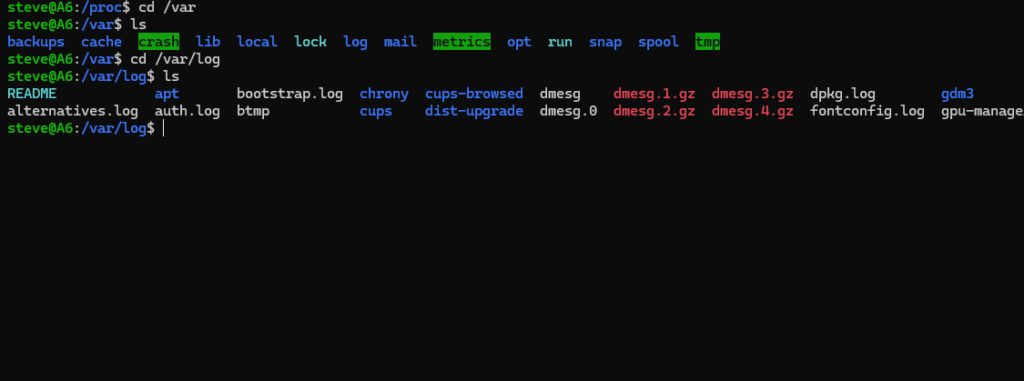
/var/log
This is where system logs are stored.
If a server crashes, administrators often inspect /var/log first.
Linux servers generate huge amounts of logging information.
These logs are essential for:
- Troubleshooting
- Security analysis
- Performance monitoring
- Auditing
/var became critical in enterprise Linux systems because servers constantly generate changing operational data.
Now let’s discuss /tmp.
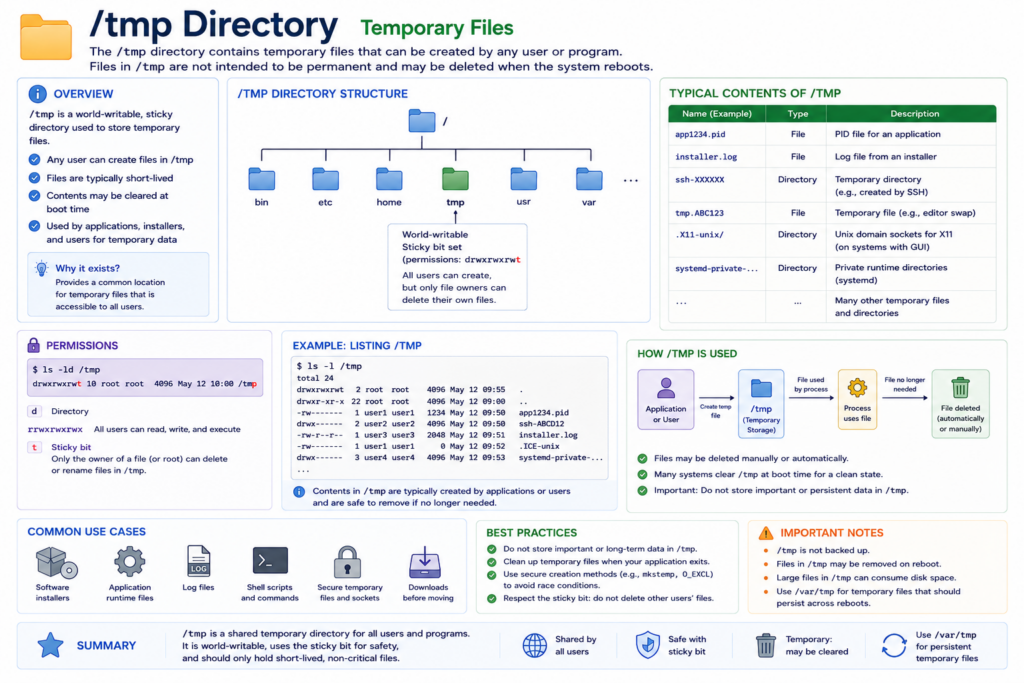
/tmp
This directory stores temporary files.
Applications place short-lived data here.
Many systems automatically clear /tmp during reboot.
Programs use temporary files for:
- Installation processes
- Caching
- Intermediate computations
- Session data
Because temporary files are not meant for permanent storage, users should avoid storing important files here.
Now let’s examine /usr.
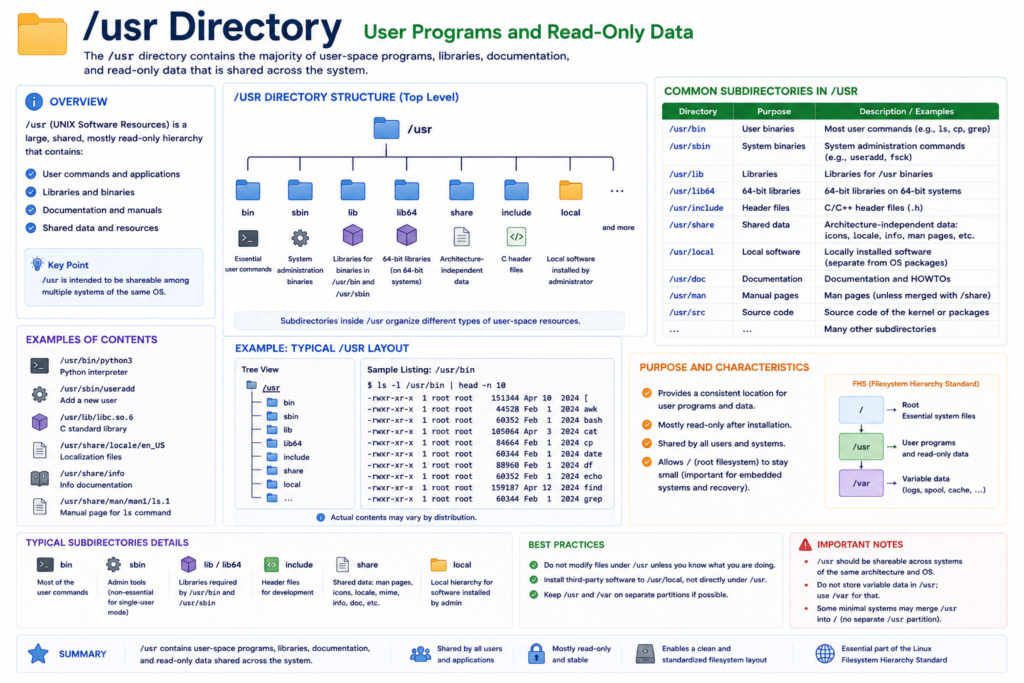
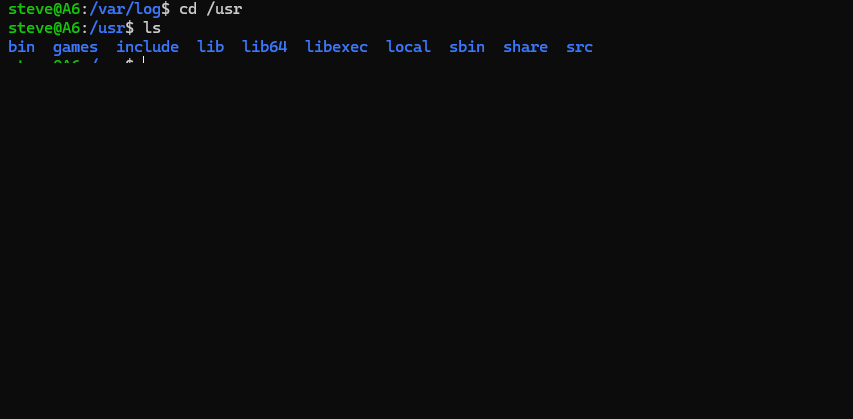
/usr
This is one of the largest directories in Linux.
It contains:
- Applications
- Shared libraries
- Documentation
- User utilities
Examples include:
/usr/bin
/usr/lib
/usr/share
Historically, /usr stood for user system resources.
Over time, it became the main location for most installed software.
Today, huge portions of Linux applications reside under /usr.
Many modern distributions even merge traditional directories into /usr internally.
Now let’s discuss /lib.
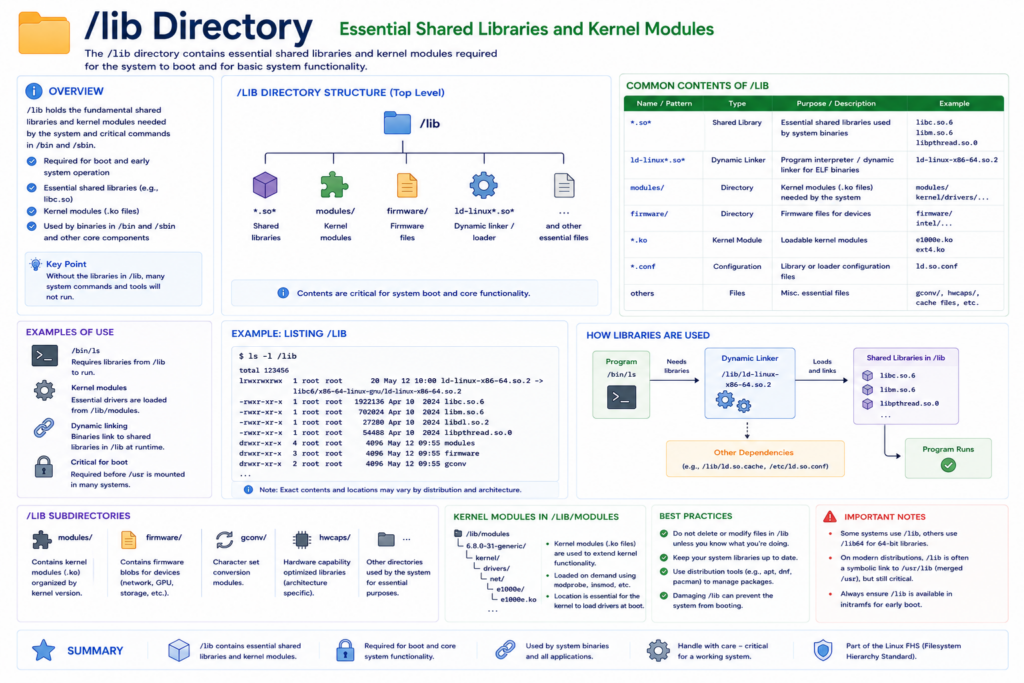
/lib
This directory stores essential shared libraries.
Libraries are reusable pieces of code used by applications.
Instead of every program containing duplicate code, Linux allows programs to share common libraries.
This reduces:
- Disk usage
- Memory usage
- Software duplication
Examples include:
- C standard library
- Dynamic loader
- Kernel modules
Without these libraries, many applications would fail to start.
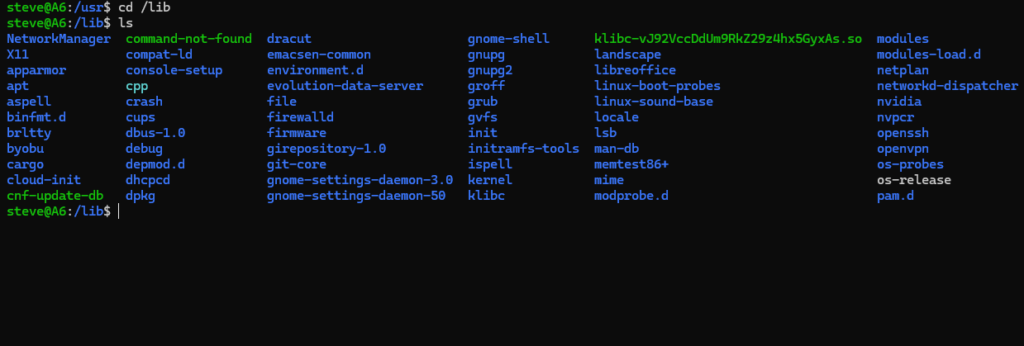
Now let’s look at /boot.
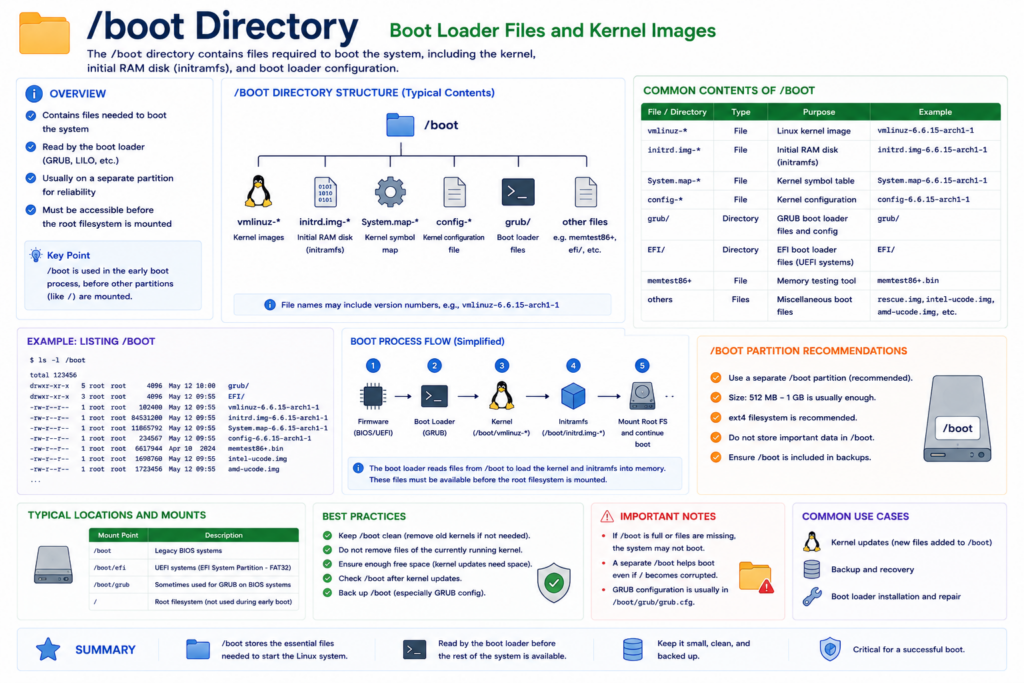
/boot
This directory contains files required during system startup.
Examples:
- Linux kernel images
- Bootloader files
- Initial RAM disk
Without slash boot, Linux cannot start properly.
The bootloader loads the kernel from here during the boot process.
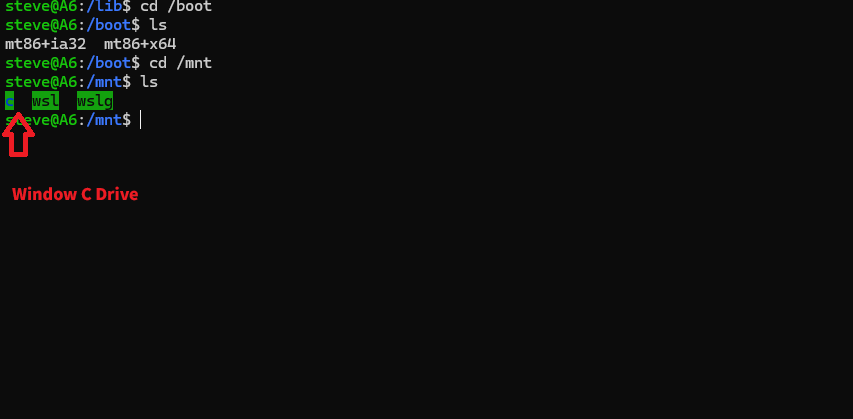
Now let’s discuss slash media and /mnt.
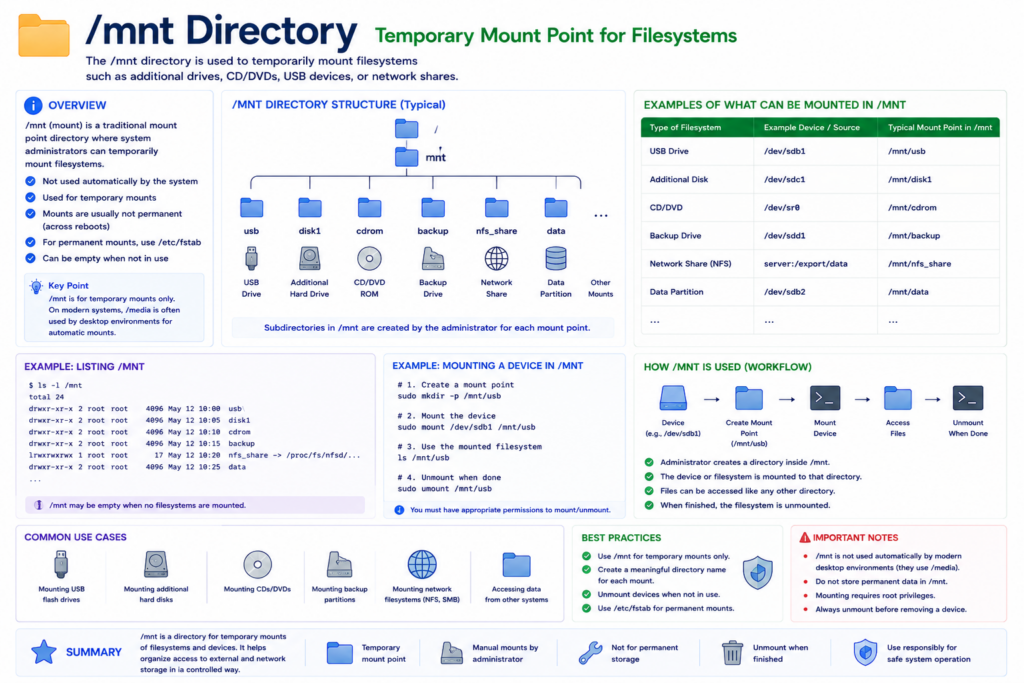
/media
/mnt
These directories are mount points.
Remember earlier we said Linux uses one unified filesystem tree.
When storage devices are attached, they become mounted somewhere inside the hierarchy.
For example:
mount /dev/sdb1 /mnt/usb
This attaches a storage device into the directory tree.
/media is commonly used for automatically mounted removable devices.
/mnt is commonly used for temporary manual mounts.
Now let’s discuss /sys.
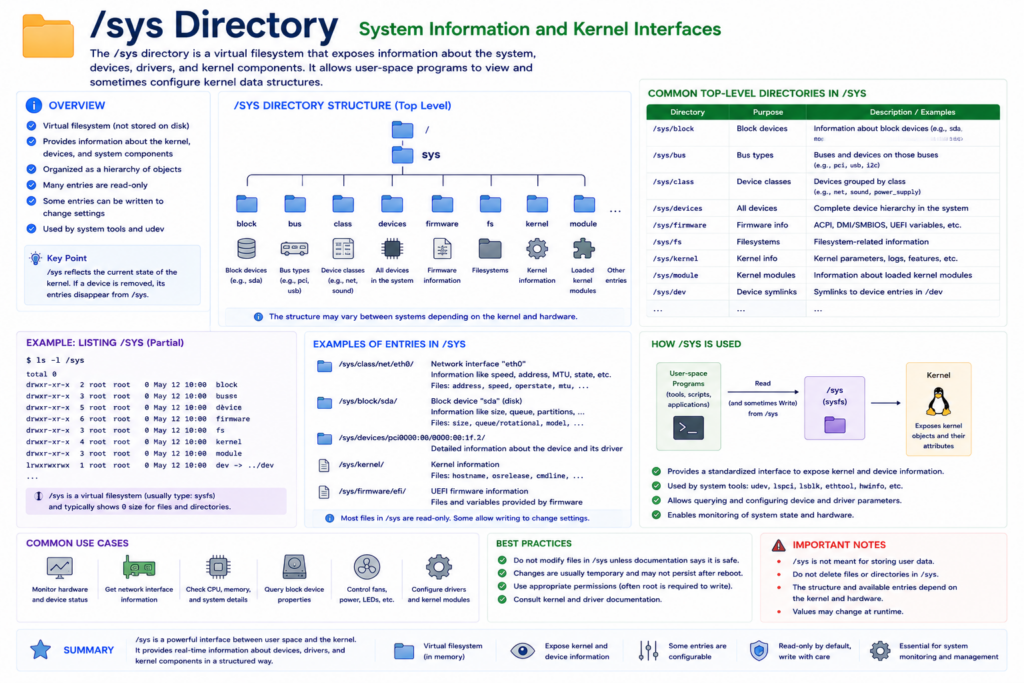
/sys
Like /proc, this is a virtual filesystem.
It exposes kernel and hardware information.
/sys provides a structured interface for:
- Device drivers
- Hardware buses
- Power management
- Kernel subsystems
Modern Linux systems rely heavily on /sys for hardware management.
Now let’s discuss why the Linux hierarchy matters.
At first glance, it may seem like just a collection of folders.
But the hierarchy structure reflects deep design principles.

Linux organizes:
- System files
- User files
- Devices
- Logs
- Runtime data
- Applications
Into predictable standardized locations.
This standardization makes Linux:
- Easier to manage
- Easier to automate
- Easier to scale
Imagine managing thousands of servers.
Because Linux systems follow similar hierarchy standards, administrators know where to look.
Logs are usually in /var/log.
Configuration files are usually in /etc.
User data is usually in /home.
This consistency is one reason Linux dominates modern infrastructure.
Today, Linux powers:
- Most cloud servers
- Most web hosting systems
- Most supercomputers
- Most embedded systems
- Android internally
- Enterprise infrastructure worldwide
And underneath all of that is this hierarchy structure.
A design philosophy inherited from early Unix systems decades ago.
Simple.
Consistent.
Modular.
Powerful.
One of the most important lessons in Linux is this:
Linux treats almost everything as a file.
That single philosophy unified:
- Devices
- Processes
- Storage
- System information
- Hardware interfaces
Into one consistent model.
And the Linux File Hierarchy Structure became the organizational map for the entire operating system.
Once you understand this structure, Linux stops feeling mysterious.
Instead, it starts feeling logical.
And elegant.
So the next time you open a Linux terminal and see:
/bin
/etc
/home
/proc
/var
You will know these are not random folders.
They are carefully designed building blocks that helped Linux become one of the most important operating systems ever created.