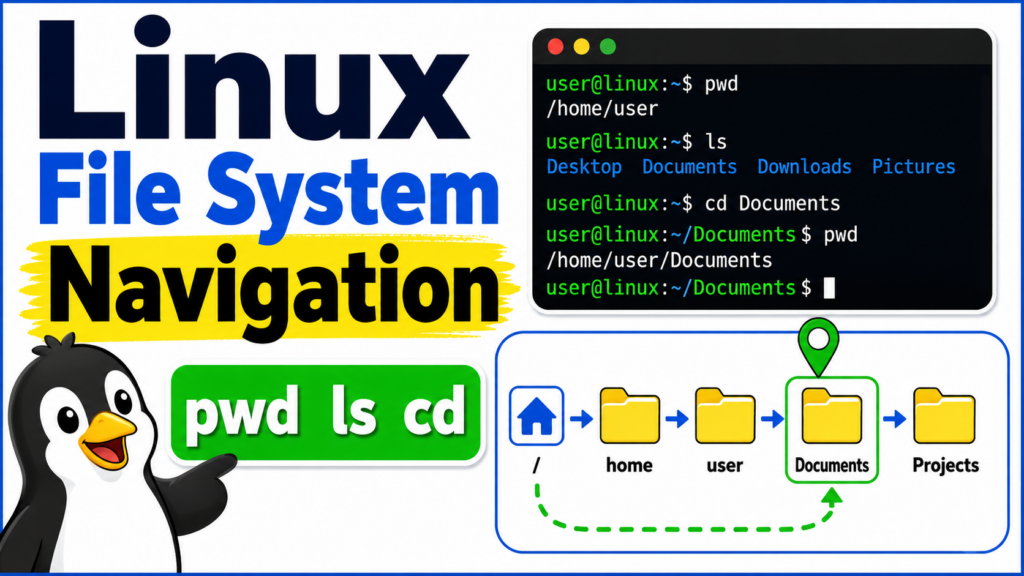
pwd, ls, and cd Explained
Linux File System Navigation Commands
pwd, ls, and cd Explained
Chapter 1 — Introduction
In the previous video, we explored the Linux file system hierarchy.
We learned that Linux organizes files and directories as a single tree.
At the top of that tree is the root directory.
The root directory is represented by a forward slash.
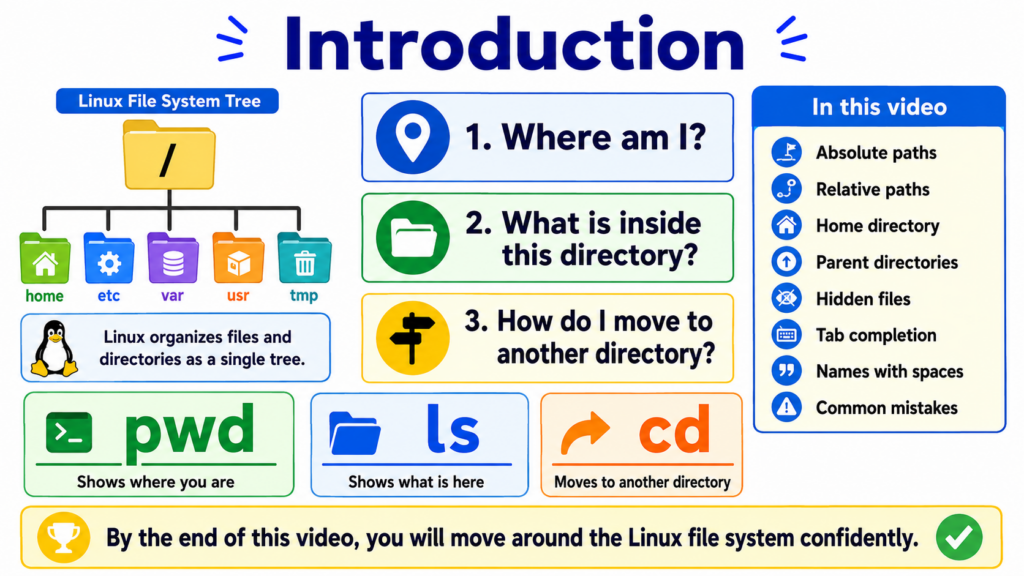
Below it, we find important directories such as:
home
etc
var
usr
tmp
And many others.
But understanding the directory structure is only the first step.
To actually use Linux, we need to know how to move through that structure.
We need to answer three basic questions.
Where am I?
What is inside this directory?
And how do I move to another directory?
Linux provides three essential commands for these tasks:
pwd
ls
And cd
The P W D command tells us where we are.
The L S command shows us what is around us.
And the C D command moves us to another directory.
In this video, we will learn how to use these commands.
We will also explore:
Absolute paths.
Relative paths.
The home directory.
Parent directories.
Hidden files.
Tab completion.
Directory names containing spaces.
And several common mistakes made by new Linux users.
By the end of this video, you will be able to move around the Linux file system confidently.
Chapter 2 — The Current Working Directory
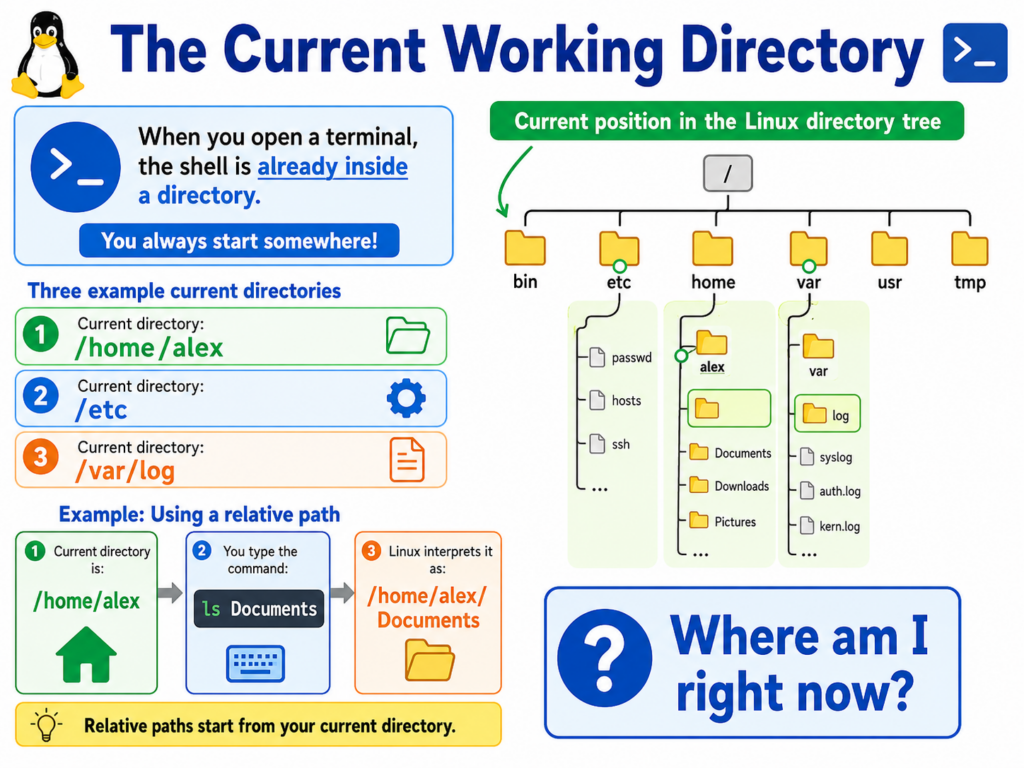
When you open a terminal, the Shell is already located inside a directory.
This location is called the current working directory.
You can think of it as your current position inside the Linux directory tree.
For example, your current working directory may be:
/home/alex
Or it may be:
/etc
Or:
/var/log
Every command that uses a relative file name begins from the current working directory.
For example, suppose your current directory is:
/home/alex
And you run:
ls Documents
Linux interprets the name Documents relative to your current location.
In this case, it means:
/home/alex/Documents
This is why knowing your current working directory is so important.
When a command cannot find a file or directory, the first question should often be:
Where am I right now?
Chapter 3 — Finding Your Location with pwd
The command used to display your current working directory is:
pwd
The name pwd stands for:
Print Working Directory.
Run:
pwd
And the terminal may display:
/home/alex
This means you are currently inside the home directory of the user named Alex.
Suppose you move into the Documents directory:
cd Documents
Now run:
pwd
The output may be:
/home/alex/Documents
The pwd command is especially useful after moving through several directories.
For example:
cd projects
cd website
cd images
pwd
The output may be:
/home/alex/projects/website/images
Whenever you feel lost in the Linux file system, run:
pwd
It gives you your exact location.
Chapter 4 — Listing Files with ls
Once we know where we are, the next question is:
What is inside this directory?
The command used to list directory contents is:
ls
The name ls comes from the word:
List.
Run:
ls
And you may see output such as:
Desktop
Documents
Downloads
Music
Pictures
Videos
These are the visible files and directories inside the current working directory.
The ls command does not move you into any of these directories.
It only shows their names.
You can also list the contents of another directory without entering it.
For example:
ls /etc
This displays the contents of /etc.
But your current working directory does not change.
You can confirm this by running:
pwd
The location remains the same.
This difference is important.
ls looks at a directory.
cd moves into a directory.
Chapter 5 — Useful ls Options
The basic ls command shows only names.
But several options can display more information.
The first useful option is:
ls -l
The letter L means long listing format.
This shows details such as:
File permissions.
Owner.
Group.
File size.
Modification time.
And file name.
A line may look like this:
-rw-r--r-- 1 alex alex 2048 Jun 20 10:30 notes.txt
Do not worry about understanding every field yet.
We will explain file permissions in a later video.
For now, remember that:
ls -l
shows more details than ordinary ls.
Another important option is:
ls -a
The letter A means all.
This includes hidden files and directories.
In Linux, hidden names usually begin with a dot.
Examples include:
.bashrc
.profile
.config
.ssh
These names are normally not shown by plain ls.
To display detailed information and hidden files together, use:
ls -la
Another useful command is:
ls -lh
The letter H means human-readable.
This makes file sizes easier to understand.
Instead of displaying a size only in bytes, Linux may show:
4K
12M
2G
You can combine all three ideas:
ls -lah
This displays:
A long listing.
Hidden files.
And human-readable sizes.
For beginners, these are the most useful forms:
ls
ls -l
ls -a
ls -la
ls -lh
Chapter 6 — Changing Directories with cd
The command used to move to another directory is:
cd
The name cd stands for:
Change Directory.
Suppose the current directory contains a directory named Documents.
To enter it, run:
cd Documents
Now run:
pwd
You may see:
/home/alex/Documents
You have changed the current working directory.
To enter a system directory, you can use its full path:
cd /var/log
Now:
pwd
will display:
/var/log
The cd command works only with directories.
You cannot use it to enter a regular file.
For example:
cd notes.txt
will fail if notes.txt is an ordinary file.
The Shell may display a message such as:
Not a directory
Chapter 7 — Absolute Paths
There are two main kinds of Linux paths.
Absolute paths.
And relative paths.
An absolute path begins at the root directory.
The root directory is represented by:
/
Examples of absolute paths include:
/etc
/var/log
/home/alex/Documents
/usr/local/bin
Because an absolute path begins at the root directory, it identifies the same location no matter where you currently are.
For example:
cd /etc
always enters the /etc directory.
It does not matter whether your current directory is:
/home/alex
Or:
/tmp
Or:
/var/log
The path /etc always means the same thing.
Absolute paths are clear and precise.
They are commonly used in:
System administration.
Configuration files.
Shell scripts.
And documentation.
Chapter 8 — Relative Paths
A relative path does not begin with a forward slash.
Instead, it begins from the current working directory.
Suppose your current location is:
/home/alex
And inside that directory is a directory named Documents.
You can enter it with:
cd Documents
This is a relative path.
Linux begins from:
/home/alex
Then looks for:
Documents
The complete location becomes:
/home/alex/Documents
You could also use the absolute path:
cd /home/alex/Documents
Both commands reach the same directory.
The difference is where the path begins.
An absolute path begins at the root directory.
A relative path begins at the current working directory.
Relative paths can also contain several directory names.
For example:
cd projects/website/images
Linux starts from the current directory.
Then enters projects.
Then website.
Then images.
Relative paths are often shorter and faster to type.
But their meaning depends on your current location.
This is why pwd and cd are used together so often.
Chapter 9 — Dot and Double Dot
Linux provides two special directory names.
A single dot means:
The current directory.
It is written as:
.
Two dots mean:
The parent directory.
They are written as:
..
Suppose the current directory is:
/home/alex/Documents
Running:
cd ..
moves up one level.
The new location becomes:
/home/alex
Run:
cd ..
again.
Now the location becomes:
/home
You can move upward two levels in one command:
cd ../..
The single dot is often used when referring to something in the current directory.
For example:
./script.sh
means:
Run the file named script.sh from the current directory.
You may also see paths such as:
cd ./projects
This means:
Enter the directory named projects inside the current directory.
In this case, the ./ is optional.
The following command usually means the same thing:
cd projects
The double dot is more commonly used during navigation.
For example, suppose you are inside:
/home/alex/Documents
And you want to move into the Downloads directory.
Documents and Downloads are both inside /home/alex.
You can run:
cd ../Downloads
This means:
Move up to the parent directory.
Then enter Downloads.
Chapter 10 — The Home Directory
Every normal Linux user usually has a home directory.
For a user named Alex, the home directory may be:
/home/alex
The tilde character represents the current user’s home directory.
It looks like this:
~
To return home, run:
cd ~
You can also run cd without any path:
cd
This normally returns you to your home directory.
You can combine the tilde with another directory name:
cd ~/Documents
For Alex, this means:
/home/alex/Documents
Another very useful command is:
cd -
This returns you to the previous working directory.
For example:
cd /var/log
cd /etc
cd -
The final command returns you to:
/var/log
Run:
cd -
again, and you may return to:
/etc
This is useful when switching between two directories.
There is also an important distinction between:
/
And:
/root
The single forward slash is the root of the entire file system.
But /root is normally the home directory of the root user.
They are not the same directory.
Chapter 11 — Hidden Files and Directories
Linux normally treats names beginning with a dot as hidden.
Examples include:
.bashrc
.profile
.config
.cache
.ssh
These files are not secret.
They are simply hidden from normal directory listings.
Run:
ls
And they usually do not appear.
Run:
ls -a
And Linux displays them.
Many hidden files contain user settings.
For example:
.bashrc
may contain Bash configuration.
.ssh
may contain Secure Shell configuration and keys.
.config
may contain application settings.
Hidden directories work exactly like other directories.
For example:
cd ~/.config
enters the hidden .config directory inside the current user’s home directory.
The dot at the beginning changes how the name is displayed.
It does not make the directory inaccessible.
Chapter 12 — Spaces and Tab Completion
Linux file and directory names can contain spaces.
Suppose a directory is named:
My Projects
This command will not work correctly:
cd My Projects
The Shell sees the space and treats My and Projects as two separate arguments.
One solution is to use quotation marks:
cd "My Projects"
Another solution is to escape the space with a backslash:
cd My\ Projects
Both commands refer to the same directory.
Tab completion can make this easier.
Suppose the directory is named:
Documents
You can type:
cd Doc
Then press the Tab key.
If there is only one matching name, the Shell may complete it automatically:
cd Documents/
Suppose two directories exist:
Documents
Downloads
Typing:
cd Do
may not be enough to identify one directory.
Pressing Tab again may show both possible choices.
Tab completion is extremely useful.
It reduces typing.
It prevents spelling mistakes.
And it helps with long file names.
It may also automatically escape spaces.
For example, it may complete a name as:
My\ Projects/
Tab completion is not a separate Linux command.
It is a feature provided by the Shell.
Chapter 13 — A Practical Navigation Example
Let us combine everything in a short terminal session.
First, find the current location:
pwd
Suppose the output is:
/home/alex
Now list the visible contents:
ls
Next, display a detailed list including hidden files:
ls -la
Enter the Documents directory:
cd Documents
Confirm the location:
pwd
List the files:
ls -lh
Move back to the parent directory:
cd ..
Now enter Downloads:
cd Downloads
Return to Documents using the previous-directory command:
cd -
Now move directly to a system directory using an absolute path:
cd /var/log
List the contents:
ls -lh
Return to the home directory:
cd
Finally, confirm the location:
pwd
The output should be similar to:
/home/alex
The complete workflow is:
pwd
ls
cd Documents
pwd
ls -lh
cd ..
cd Downloads
cd -
cd /var/log
ls -lh
cd
pwd
This simple exercise includes:
Finding your location.
Listing files.
Entering a directory.
Moving upward.
Using an absolute path.
Using a relative path.
Returning to the previous directory.
And returning home.
Chapter 14 — Why cd Is a Shell Built-In
Most beginners do not need to understand how cd is implemented.
But this small detail helps explain how the Shell works.
Many Linux commands are separate executable programs.
For example, commands such as:
ls
and:
cat
are usually executable files stored somewhere in the file system.
But cd is different.
It is normally built directly into the Shell.
In Bash, you can check this with:
type cd
The Shell may respond:
cd is a shell builtin
Why does cd need to be built into the Shell?
Because every process has its own current working directory.
Suppose cd were an ordinary external program.
The Shell would start the program as a child process.
That child process could change its own directory.
But it could not permanently change the directory of the parent Shell.
When the child program ended, the Shell would still be in the old directory.
Therefore, the Shell itself must perform the directory change.
This is why cd is a Shell built-in command.
You do not need this knowledge to use cd.
But it reveals an important idea:
The current working directory belongs to a running process.
Chapter 15 — Common Beginner Mistakes
The first common mistake is forgetting that Linux file names are case-sensitive.
These are three different names:
Documents
documents
DOCUMENTS
If the directory is named Documents, this command may fail:
cd documents
The second mistake is confusing forward slashes and backslashes.
Linux paths normally use the forward slash:
/home/alex/Documents
Windows paths often use a backslash.
Do not write:
\home\alex\Documents
when working with normal Linux paths.
The third mistake is confusing / with /root.
The root directory is:
/
The root user’s home directory is:
/root
The fourth mistake is trying to use cd with a file.
This will fail if notes.txt is not a directory:
cd notes.txt
The fifth mistake is forgetting to quote names containing spaces.
This may fail:
cd My Projects
This works:
cd "My Projects"
The sixth mistake is assuming that ls moves into a directory.
This command:
ls /etc
only displays the contents of /etc.
It does not enter /etc.
To enter it, use:
cd /etc
The final mistake is using a relative path without checking the current location.
Suppose you run:
cd Documents
and receive:
No such file or directory
First, run:
pwd
Then run:
ls
You may simply be in the wrong directory.
Conclusion
Linux file system navigation is built around three essential commands.
The first command is:
pwd
It answers:
Where am I?
The second command is:
ls
It answers:
What is here?
The third command is:
cd
It answers:
Where do I want to go?
Absolute paths begin at the root directory.
Relative paths begin at the current working directory.
A single dot represents the current directory.
Two dots represent the parent directory.
A tilde represents the current user’s home directory.
cd - returns to the previous directory.
Hidden files and directories begin with a dot.
Names containing spaces require quotation marks or escape characters.
And Tab completion makes navigation faster and more accurate.
The most important pattern to remember is:
pwd — Where am I?

ls — What is here?

cd — Where do I want to go?
Once you understand these commands and path concepts, navigating Linux becomes simple and predictable.
You are no longer moving blindly through the file system.
You always know your location.
You can inspect what is around you.
And you can choose exactly where to go next.
In the next video, we will learn how to create and manage files and directories.
We will explore commands such as:
touch
mkdir
cp
mv
rm
rmdir
These commands will allow us to create, copy, move, rename, and remove files and directories throughout the Linux file system.