Replacing an old hard drive with an SSD can make a computer feel dramatically more responsive. Windows may start sooner, applications may open faster, and switching between tasks may involve less waiting. Yet replacing an already fast SSD with a model advertising twice the speed often produces a much smaller change.
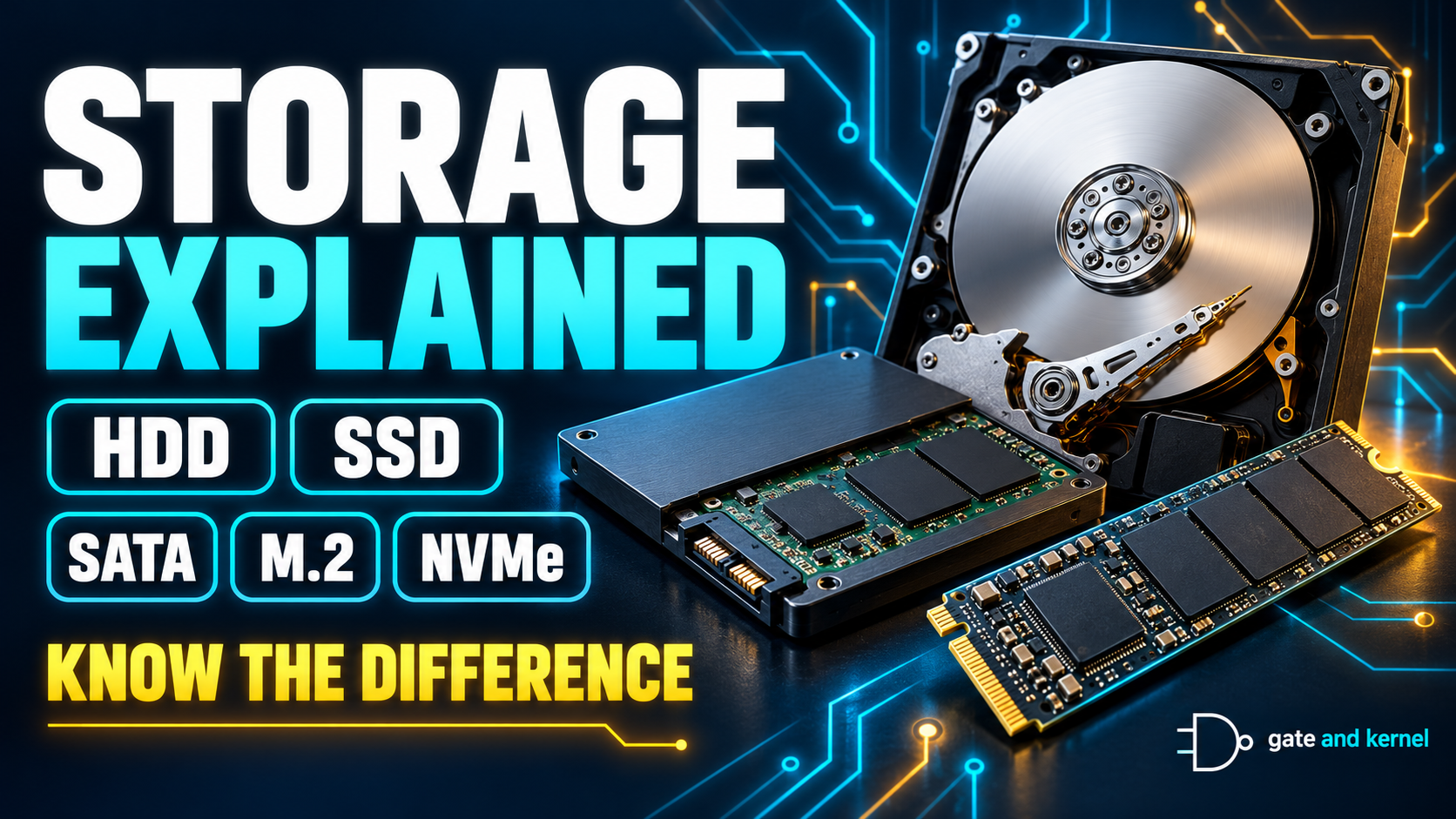
Understanding that difference begins with understanding what storage does. It also requires separating several terms that appear together in product descriptions. HDD and SSD describe storage technologies. M.2 describes a physical form factor. SATA and PCI Express describe connections, while NVMe defines a storage communication interface and command system.
These terms answer different questions. Once those questions are separated, storage specifications become much easier to understand.
Chapter 1 — Where Storage Fits in a Computer
A computer uses several layers of memory and storage. CPU registers and caches keep information close to the processor. RAM provides a larger working area for active programs. SSDs and hard drives retain applications, documents, and other files when the computer is switched off.
When you open a video editor, the operating system loads program code and required data from storage into RAM. The processor works with that information through the memory hierarchy. As editing continues, the application may read more footage and write preview or temporary files.
Saving the project writes its changes to persistent storage. That project file may contain editing decisions and references to source footage rather than a complete copy of every video clip.
RAM and storage therefore perform different jobs. RAM supports active work; storage keeps the files needed before, during, and after that work. A well-balanced computer needs enough of both.
Chapter 2 — What Happens When RAM Runs Low?
When memory becomes constrained, Windows can move some memory contents to a paging file on storage. This helps make physical RAM available for other work. If those contents are needed again, they must be brought back into RAM.
An SSD handles this activity much better than a mechanical hard drive, but accessing storage still takes much longer than accessing RAM. If an application repeatedly waits for memory contents to move between the two, the computer can become noticeably less responsive.
A paging file is not simply emergency RAM that starts working only when a usage meter reaches 100 percent. Windows manages memory continuously, and paging files also support other system functions. Microsoft describes them as a way to support committed memory and, depending on configuration, crash dumps.
The practical lesson is straightforward: a faster SSD can reduce the cost of paging, but it cannot provide the same benefit as having enough RAM for the workload. Before buying a drive to fix slow multitasking, check memory usage as well as disk activity.
Chapter 3 — How a Hard Disk Drive Stores Data
A hard disk drive, or HDD, stores information magnetically on rotating platters. An actuator moves the read/write heads across the platter surfaces to reach different locations.
Reading a file can involve two mechanical delays. The head must move to the appropriate track, and the platter must rotate until the required data reaches the head. These delays are small in human terms but substantial compared with electronic operations.
An HDD works more efficiently when it can read or write a long sequence of nearby data. It struggles more when requests repeatedly jump between distant locations. Opening applications can involve many small reads, making these mechanical delays especially noticeable.
Hard drives remain useful when large capacity matters more than quick access. They can hold media collections, archived projects, and backup copies. However, an HDD being used as a backup must contain a separate copy of data stored elsewhere; simply calling a drive a backup drive does not make its only copy redundant.
Chapter 4 — Why an SSD Feels Faster
A solid-state drive, or SSD, normally stores information in NAND flash memory. It has no rotating platters and no mechanical head that must move to each requested location.
Its controller receives requests from the computer and coordinates access to the flash memory. Removing mechanical positioning delays gives SSDs a major advantage when handling many small requests scattered across storage.
This helps explain why upgrading an operating-system drive from HDD to SSD can transform everyday responsiveness. Starting Windows, opening applications, and accessing many small files all benefit from reduced waiting between requests.
An SSD does not make every operation faster by the same amount. Rendering a video might be limited by the CPU or GPU. Downloading a file might be limited by the internet connection. Opening a program can involve storage access, decompression, security checks, and processor work.
The largest improvement occurs when storage waiting was a major part of the original delay. Once that waiting becomes small, other parts of the task take a larger share of the total time.
Chapter 5 — What SATA Tells You
SATA is a storage connection used by many hard drives and SSDs. In a typical desktop installation, a SATA drive uses a data cable to the motherboard and a separate power connection.
A common SATA SSD comes in a 2.5-inch enclosure. Many desktop hard drives use larger 3.5-inch enclosures, although smaller hard drives also exist. The physical size and the connection are separate characteristics.
SATA connections have limited bandwidth. A SATA SSD can reach that connection limit during large sequential transfers even though its flash memory could potentially support more activity through a different design.
However, an HDD and SSD sharing the same SATA connection do not perform alike. The SSD still avoids the mechanical delays of the hard drive. The connection sets a limit on data movement; it does not determine how quickly the device can locate and prepare each piece of data.
For an older computer with SATA storage support, a compatible SATA SSD can therefore offer a substantial improvement without requiring an NVMe slot.
Chapter 6 — What M.2 Actually Means
M.2 describes a physical form factor and connector arrangement. It does not, by itself, identify a drive’s speed or storage protocol.

An M.2 SSD usually looks like a narrow circuit board that plugs directly into a motherboard socket. A designation such as 2280 describes its dimensions: 22 millimeters wide and 80 millimeters long.

The important distinction is that M.2 SSDs can use different interfaces. Some use SATA, while others use PCI Express. A motherboard socket may support one type or both, depending on its design.
This means two drives can have a similar appearance without being interchangeable in a particular computer. Connector notches provide useful clues, but appearance alone is not enough to establish compatibility.
Before purchasing an M.2 drive, check the computer’s documentation for supported interface, module length, and any installation restrictions. Kingston’s documentation specifically distinguishes M.2 SATA drives from M.2 PCIe drives; M.2 alone is not a performance category.
Chapter 7 — How PCI Express and NVMe Work Together
PCI Express, usually shortened to PCIe, is a high-speed connection used by several types of computer hardware. Graphics cards, network adapters, and many SSDs communicate through PCIe links.
A PCIe link has a generation and a lane count. A specification such as PCIe 4.0 x4 describes both: generation four, using four lanes. The available connection bandwidth depends on these characteristics.
NVMe provides the storage communication model used by modern PCIe SSDs in ordinary PCs. It defines how software submits storage commands and receives completion information. Its queue structure allows the system to manage many outstanding requests efficiently.
For a typical internal NVMe SSD, PCIe carries the communication and NVMe defines the storage commands. M.2 may describe the physical package holding that drive.
These labels therefore fit together: an SSD can use NAND flash, come in an M.2 form factor, connect through PCIe, and communicate using NVMe. None of these descriptions replaces the others.
Chapter 8 — Are C: and D: Separate Physical Drives?
Windows drive letters identify volumes. They do not necessarily identify separate pieces of hardware.
A single SSD can contain multiple partitions. Two of those partitions might hold separate file systems and appear in Windows as C: and D:. Other partitions, such as boot or recovery partitions, may have no drive letter at all.
This distinction matters when copying files. Copying a document from C: to D: does not create protection against physical drive failure if both volumes are on the same SSD. The copy and original still depend on the same device.
Windows Disk Management helps reveal this arrangement by showing disks and their associated partitions or volumes. Inspecting this layout is useful even when you have no intention of changing it. Microsoft documents Disk Management as a tool for viewing and managing disks and volumes.
Separate drive letters can help organize files, but they should not be mistaken for independent backups.
Chapter 9 — Why a Faster Drive May Not Make Everything Faster
The speed advertised on a drive usually describes performance under particular test conditions. It does not describe the duration of every task performed by the computer.
Imagine opening an application. Some time is spent reading files, but additional time may be spent preparing data, loading extensions, and initializing the interface. Cutting the storage portion in half does not cut the entire launch time in half.
Repeated tests can also be misleading. If Windows has already cached the required files in RAM, opening the application again may require much less storage access. A faster second launch does not automatically prove that the drive became faster.
File copying has similar limitations. The source must read the data, the destination must write it, and the connection must carry it. Copying within one physical SSD makes the same device handle both sides.
An upgrade works best when it addresses the actual bottleneck. Moving from an HDD to an SSD often removes a major source of delay. Moving between fast SSDs requires a closer look at the workload.
Conclusion — Read Each Storage Label as a Different Answer
Storage terminology becomes manageable when each term answers a specific question.
HDD and SSD explain the storage technology. A form factor such as M.2 explains the physical package. SATA and PCIe describe connections. NVMe describes how compatible storage devices communicate with software.
The drive is also part of a larger system. RAM capacity, processor performance, software behavior, and the source or destination of a transfer all influence the result.
Understanding these relationships is the first step toward choosing a useful upgrade. The next step is looking inside the SSD itself: its flash memory, controller, caches, and performance under sustained work.