Introduction
Ubuntu, Debian, Fedora, Linux Mint, and Arch Linux are all Linux distributions. They can look different, include different software, and follow different update schedules. Yet they share the same underlying kernel family: Linux.
How can systems built around Linux provide such different experiences?
The answer is that a kernel is only one part of a usable operating system. A computer also needs system libraries, utilities, services, applications, and a way to install and maintain software. A desktop computer usually adds a graphical environment, while a server may operate entirely through command-line tools and background services.
A Linux distribution brings these components together into a coordinated system. Understanding how those pieces fit makes it easier to use Linux, troubleshoot problems, and understand why distributions differ.
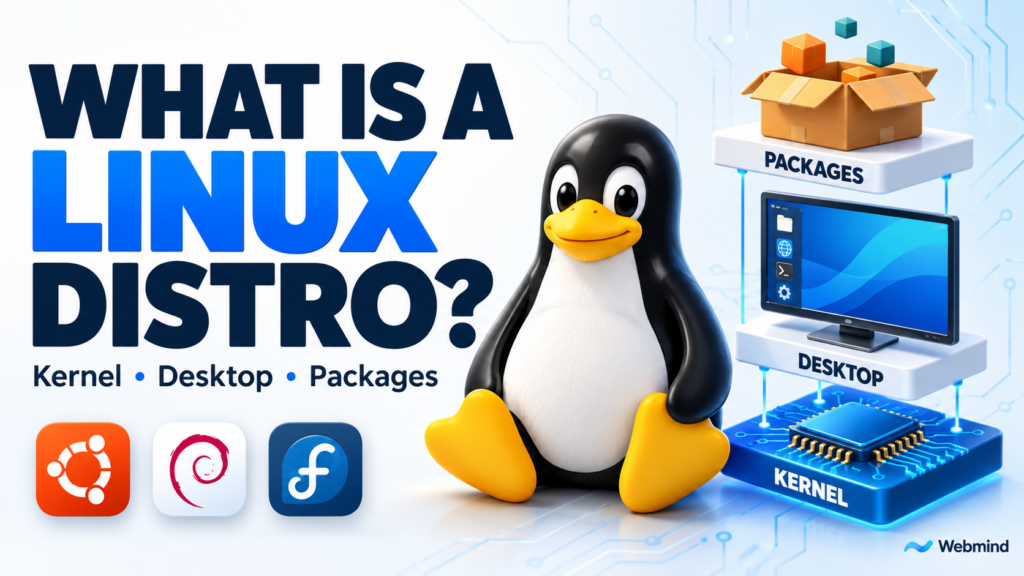
Chapter 1: What Is a Linux Distribution?
A Linux distribution, often shortened to “distro,” is a collection of software built around the Linux kernel and prepared for installation, operation, and maintenance. Distribution maintainers select software, build packages, configure defaults, test combinations, and provide a way to deliver updates.
Most components come from separate projects. The kernel, desktop environment, web browser, compiler, and package manager may all have different developers and release schedules. A distribution integrates their work into something users can install and manage.
This integration is a major part of the distribution’s value. A collection of downloaded programs does not automatically become a reliable operating system. Software versions must work together, dependencies must be available, and security fixes must reach users.
A distribution also represents a set of choices: which software to include, how frequently to update it, which hardware to support, and how long a release will receive maintenance.
Chapter 2: The Linux Kernel — Managing the Computer’s Resources
The kernel is the privileged core of the system. It schedules processes, manages memory, provides filesystem and networking facilities, and controls access to devices through drivers.
When several applications run together, the kernel decides when their threads receive CPU time. When a program accesses a file, the kernel manages the underlying filesystem operations. When data travels over a network, the kernel handles important parts of the networking stack.
Applications normally request kernel services through system calls, often using library functions that provide a more convenient programming interface. The kernel enforces permissions and manages access to shared resources.
The kernel does not provide the entire desktop, web browser, or package manager. Those are separate programs.
You can inspect the running kernel release with uname -r. To identify the distribution, use cat /etc/os-release. These commands answer different questions: which kernel is running, and which distribution provides the surrounding system?
Chapter 3: User Space — Libraries, Shells, and Utilities
Most software outside the kernel runs in user space. This includes applications, background services, command interpreters, and libraries.
System libraries provide functions that programs can reuse. The GNU C Library, or glibc, is common in desktop and server distributions. It supports operations such as memory allocation, string processing, and access to operating-system facilities. Some library operations execute entirely in user space; others invoke system calls.
GNU also provides widely used tools such as Bash, GCC, and GNU Coreutils. However, distributions can choose alternatives. Alpine Linux, for example, uses musl as its C library and BusyBox for many everyday utilities.
A shell interprets commands and coordinates their execution. Bash is one example. Utilities such as ls, cp, and mkdir perform specific tasks.
These components are replaceable. Two systems can use Linux kernels while providing different shells, libraries, and command-line tools.
Chapter 4: From Startup to System Services
On a typical installed computer, firmware begins the startup process. A bootloader or another configured boot mechanism loads the Linux kernel. Many systems also load an initial RAM filesystem, or initramfs, containing tools and drivers needed during early startup.
The kernel then starts the initial user-space process. On many desktop and server distributions, this is systemd, which acts as the system and service manager. It coordinates startup and manages services according to their configuration and dependencies.
Services perform work in the background. Examples include an SSH server, a logging service, a scheduler, or a web server. They can operate without a desktop or a user opening an application window.
Other distributions use different init and service-management systems.
On a systemd-based installation, systemctl list-units --type=service --state=running shows running service units. This provides a practical view of the work happening behind the desktop or terminal.
Chapter 5: The Desktop, the Terminal, and the Shell
A desktop environment supplies the graphical workspace: panels, application menus, settings tools, file management, and window-related functionality. GNOME, KDE Plasma, and Xfce are examples.
The desktop is separate from the distribution. A distribution may offer several desktop editions, and different distributions can provide the same desktop environment. Changing the desktop does not necessarily mean changing the underlying operating system.
Graphical applications also rely on display-system components. Wayland is a modern display protocol used by many Linux desktops. Older X11 applications can often run in a Wayland session through Xwayland, a compatibility component.
A terminal emulator is another graphical application. It provides a window in which a shell can run. The terminal displays text and accepts input; the shell interprets commands.
Command-line tools are useful for beginners as well as administrators. Servers often operate without a desktop because their main job is to provide services.
Chapter 6: Applications, Packages, and Software Repositories
Applications provide the functions people actually want: browsing the web, editing documents, writing software, processing images, or hosting websites. The software included by default depends on the distribution and installation option.
Traditional distribution software is commonly delivered as packages. A package contains files and metadata describing the software, its version, and its dependencies. It may also include installation scripts or service definitions.
A repository is a maintained source of packages and associated metadata. Distribution repositories help users obtain software that has been prepared for their system.
Dependencies matter because programs frequently rely on shared libraries and other components. Installing an application may require several additional packages.
Package origin matters too. Official repositories and third-party repositories have different maintainers and trust relationships. Common signing mechanisms help verify the origin and integrity of repository information or packages, depending on the system. They do not guarantee that every piece of software is harmless.
Chapter 7: What a Package Manager Actually Does
A package manager tracks installed software and coordinates installation, upgrades, and removal. It uses package metadata to identify dependencies and select compatible packages.
Debian and Ubuntu use APT with the underlying dpkg tools. Fedora and conventional RHEL installations use DNF with RPM. Arch Linux uses pacman. Multiple distributions can share the same package-management tools while maintaining different repositories and policies.
On Ubuntu, apt show bash displays package information. The command apt list --installed lists installed packages.
Two maintenance commands illustrate an important distinction. sudo apt update refreshes the local package index, allowing the system to discover available package versions. It does not install those updates. sudo apt upgrade applies available package upgrades within the rules of that operation.
Package management also handles system components, not just optional applications. Libraries, services, and kernels can all arrive through the distribution’s software-management infrastructure.
Chapter 8: Modern Application Delivery and System Updates
Traditional packages remain important, but modern Linux systems can use several software-delivery methods together.
Flatpak provides an application-distribution framework that can work across distributions. Applications use shared runtimes and can bundle additional dependencies, reducing reliance on the host distribution’s particular library versions. Flatpak also provides sandboxing, although an application’s actual access depends on its permissions.
Snap is another packaging and delivery system. AppImage offers a different approach, commonly distributing an application and selected dependencies in a file users can run.
These formats do not eliminate the underlying distribution. The host still supplies the kernel and essential system infrastructure.
Some systems also update the base operating system through coordinated deployments rather than only modifying individual packages in place. Fedora Atomic Desktops provide examples with deployment and rollback mechanisms.
Application packaging and base-system updates are related topics, but they solve different problems.
Chapter 9: What Makes Distributions Different?
Distributions differ in more than appearance. They select different software versions, configure different defaults, and make different decisions about testing, security, installation, and maintenance.
A fixed-release distribution organizes development around named releases. A rolling-release distribution delivers an ongoing stream of updates. Long-term-support releases emphasize an extended maintenance period, although coverage can vary by package and support arrangement.
A newer upstream version is not always necessary to receive a security fix. Maintainers may backport a fix into an older supported version, preserving compatibility while addressing the vulnerability.
Hardware support also depends on several components working together: the kernel, firmware, graphics drivers, and user-space software.
Documentation, community assistance, commercial support, and lifecycle commitments influence the practical experience. They belong to the distribution’s wider maintenance ecosystem.
Choosing a distribution therefore means choosing a software collection and an approach to keeping that collection usable over time.
Chapter 10: Benefits of Using a Linux Distribution
A Linux distribution makes a flexible operating system easier to install, use, and maintain. Its benefits come from both the software it includes and the work maintainers do to keep those components functioning together.
Many distributions are available without a purchase fee, and their open-source components can be inspected, modified, and redistributed under their respective licenses. Commercial support, subscriptions, and some included software may have separate terms or costs.
Users can choose a desktop environment, install only the services they need, and adapt the system for a laptop, development workstation, or server. Lightweight configurations can reduce resource use and extend the usefulness of some older computers, although results depend on hardware support and application requirements.
For developers, distribution repositories provide convenient access to compilers, interpreters, editors, debuggers, and other tools. These are often easy to install even when they are not included by default.
Security and reliability depend on ongoing maintenance. User permissions, security updates, and carefully tested packages provide important foundations, but Linux still requires appropriate configuration and administration. A supported distribution with a suitable update policy can provide a predictable environment for both everyday work and long-running services.
Chapter 11: Inspecting These Components on Your Own System
A few read-only commands can connect these ideas to a real installation.
Start with cat /etc/os-release to identify the distribution. Then run uname -r to inspect the running kernel release. Their output demonstrates why the distribution version and kernel version are separate identifiers.
Run ps -p 1 -o comm= to inspect the name of the process running as PID 1 in your current environment. On a typical systemd-based installation, it reports systemd.
On Ubuntu, use apt show bash to examine a package description. Run ls --version to see how the installed implementation identifies itself; do not assume every distribution provides the GNU version.
These examples work best when you understand the environment being inspected. A container usually shares its host’s kernel. Ubuntu under WSL 2 runs with the Linux kernel supplied through WSL, and its startup behavior depends on configuration.
Different output can reveal a different component choice rather than a problem.
Conclusion
A Linux distribution turns software from many independent projects into an operating system people can install, use, and maintain.
The kernel manages resources and provides essential operating-system interfaces. Libraries, shells, and utilities support programs and command-line work. Startup components and services bring the system into operation. A desktop supplies a graphical workspace, while applications perform useful tasks.
Packages, repositories, and update mechanisms keep these components coordinated. The distribution’s maintainers decide how they are assembled, configured, tested, and supported.
Once these roles are clear, Linux becomes easier to understand. Ubuntu, Debian, Fedora, and Arch Linux share a foundation, while making different choices about the system built around it.