Introduction
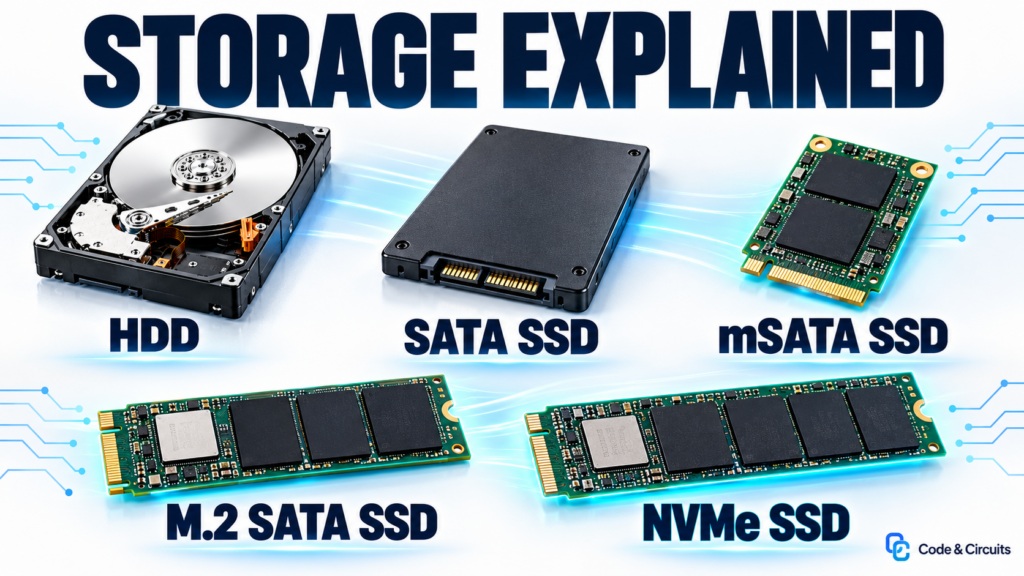
Why can replacing an old hard drive make a computer feel dramatically faster, while replacing one fast SSD with an even faster model sometimes makes surprisingly little difference?
The answer involves more than the speed printed on the box. Storage performance depends on how a drive stores information, how it connects to the computer, what kind of requests it receives, and how the rest of the system uses the data.
Storage terminology can make these relationships difficult to see. HDD and SSD describe different storage technologies. M.2 describes a physical format. SATA and PCI Express describe connections, while NVMe defines how software communicates with compatible storage devices. These terms belong to different layers, even though product descriptions often place them side by side.
This guide explains those layers, shows how modern drives work, and connects the specifications to practical tasks such as starting Windows, loading applications, copying files, and editing video. It also includes Windows exercises for identifying a drive, checking its health, and understanding benchmark results.
The goal is to understand what a storage specification actually tells you—and what you still need to investigate before choosing an upgrade.
Chapter 1: Where Storage Fits in a Computer
A computer uses several kinds of memory and storage because no single technology provides the ideal combination of speed, capacity, cost, and persistence.
CPU registers and caches hold information close to the processor. System RAM provides a larger working area for running programs. SSDs and hard drives retain the operating system, applications, and files when power is switched off.
When you open a video editor, the operating system loads program code and required data from storage into RAM. As you work, the editor may read source footage, generate preview files, and write temporary data. Saving the project records changes on persistent storage.
These activities explain why both RAM and storage matter. More RAM can reduce the need to retrieve data repeatedly, while faster storage can shorten the time spent waiting for data that is not already in memory.
If memory becomes constrained, the operating system may move some memory contents to a paging file. An SSD makes this process less painful than a mechanical drive, but storage remains much slower than RAM. Buying a faster SSD does not provide the same benefit as having enough memory for the workload.
Storage also contains several logical layers. A physical drive can hold a partition table, multiple partitions, and file systems such as NTFS. Windows drive letters identify volumes; they do not necessarily identify separate physical devices.
For example, C: and D: might be two partitions on one SSD. Copying a file between them still uses the same physical drive, and losing that drive can destroy both copies.
Chapter 2: Separate the Technology, Shape, Connection, and Protocol
The most useful way to understand a storage product is to ask four separate questions.
First, what stores the data? An HDD uses magnetic recording, while a typical SSD uses NAND flash memory.
Second, what is the physical format? Examples include 3.5-inch drives, 2.5-inch drives, mSATA modules, and M.2 modules. Servers also use formats such as U.2 and EDSFF.
Third, how does the device connect electrically? SATA and PCI Express, usually shortened to PCIe, are important examples. External storage adds connections such as USB.
Fourth, what command interface or protocol is involved? Many SATA systems use an AHCI host controller interface. Modern PCIe SSDs commonly use NVMe, a storage protocol designed to support efficient access and substantial parallelism.
Consider a drive described as an “M.2 2280 PCIe 4.0 x4 NVMe SSD.” SSD identifies its storage technology. M.2 2280 identifies its physical dimensions. PCIe 4.0 x4 describes the connection generation and lane count. NVMe identifies the storage protocol.
A second product described as an “M.2 SATA SSD” can look similar while requiring a different electrical connection.
That distinction is the source of many upgrade mistakes. A drive can fit into a connector without being supported by the system. Physical compatibility is only one part of compatibility.
NVMe also extends beyond local desktop PCIe drives. The specification family supports network transports, including TCP and RDMA. For an ordinary internal PC upgrade, however, NVMe generally means an SSD connected through PCIe.
Chapter 3: How Hard Drives Work—and Why They Still Matter
A hard disk drive stores information magnetically on rotating platters. An actuator positions the read/write heads over the required tracks, and the drive waits for the relevant part of the platter to rotate beneath a head.
This creates two important delays: seek time and rotational latency.
Reading a large file stored in consecutive locations allows the drive to stream data efficiently. Reading many small pieces scattered across the disk requires repeated mechanical positioning.
This is why a hard drive can perform reasonably well when copying a large video file but struggle while launching applications, installing updates, and servicing many small requests simultaneously.
There is no single speed that describes every HDD. Performance varies with the model, recording method, platter location, workload, and capacity. A modern hard drive may transfer large sequential files at hundreds of megabytes per second, yet remain much slower than an SSD for small random accesses.
HDD specifications may also identify CMR or SMR recording. Conventional Magnetic Recording and Shingled Magnetic Recording organize magnetic tracks differently. SMR can increase storage density, but some implementations can slow substantially during sustained rewriting or demanding rebuild operations. The exact drive model and intended workload matter.
Hard drives remain useful when large capacity at a relatively low cost is more important than low access latency. Examples include media libraries, backup repositories, and bulk storage.
However, mechanical storage is not automatically easier or cheaper to recover. Professional recovery depends on the failure, encryption, platter condition, and availability of compatible parts. Opening a failed drive or moving its platters is specialist work, not a normal repair procedure.
Chapter 4: How SSDs Work
A solid-state drive stores data electronically in NAND flash. It has no rotating platter and no mechanical head that must move into position.
This removes mechanical seek delays and gives SSDs a major advantage when accessing many small pieces of data. That responsiveness is often the most noticeable improvement when upgrading an HDD-based computer.
An SSD contains more than memory chips. Its controller runs firmware, distributes work across flash channels, corrects errors, manages worn blocks, and translates the logical addresses supplied by the computer into physical locations inside the flash.
That translation is handled by the Flash Translation Layer, or FTL.
NAND has an important constraint: data is programmed in pages, but erasing happens in larger blocks. Updating data therefore does not work like repeatedly overwriting the same byte in RAM.
The controller can write a new version elsewhere and mark the previous location as invalid. Later, garbage collection combines remaining valid data and erases blocks so they can be reused.
This internal movement can cause the SSD to write more data to NAND than the computer originally requested. The relationship between internal writes and host writes is called write amplification.
TRIM helps by allowing the operating system to notify a compatible drive that certain logical ranges are no longer needed. The controller can then avoid preserving that obsolete data during later cleanup. TRIM and garbage collection cooperate, but they perform different jobs.
An SSD is therefore a small storage system with its own processor, firmware, housekeeping, and performance limits. Its behavior cannot be predicted from the NAND label alone.
Chapter 5: SATA, mSATA, and M.2 Compatibility
A 2.5-inch SATA SSD is a familiar upgrade for a computer that already supports a 2.5-inch SATA hard drive. In a desktop, the drive normally connects through separate SATA data and power cables. In a laptop, it may connect directly to an internal assembly.
Physical details still matter. The system must have the appropriate bay, connector, mounting arrangement, and drive-height clearance.
SATA 6 Gb/s describes a link rate measured in gigabits per second. It does not mean a drive transfers files at six gigabytes per second. After encoding and protocol overhead, fast SATA SSDs commonly reach approximately 500–560 MB/s in sequential transfers.
mSATA is a smaller card format used in some older laptops and embedded systems. Although its connector resembles Mini PCI Express, an ordinary Mini PCIe socket does not automatically support an mSATA drive. The system must provide the required SATA connection.
M.2 is a different format. Common SSD module sizes include 2230, 2242, 2260, 2280, and 22110. The first two digits identify the width in millimeters, while the remaining digits identify the length. An M.2 2280 module is 22 millimeters wide and 80 millimeters long.
M.2 storage can use SATA or PCIe, depending on the module and slot. A SATA-only module will not work in a PCIe-only storage slot merely because it fits.
Connector notches, called keys, help prevent some incompatible combinations. Many SATA M.2 SSDs use B+M keying, while common PCIe x4 NVMe modules use M keying. However, notch counting is not a complete identification method; some PCIe modules also use B+M keying.
Check the computer or motherboard manual for the supported interface, module length, lane count, and installation restrictions. Some slots share resources with SATA ports or other expansion slots.
A passive adapter can change a compatible connector arrangement. It cannot turn an NVMe drive into a SATA drive. External enclosures use bridge electronics and must explicitly support the installed drive type.
Chapter 6: PCIe Generations, Lane Counts, and NVMe Versions
PCI Express provides high-speed connections using lanes. A lane supports communication in both directions, and multiple lanes can operate together.
An SSD labeled PCIe 4.0 x4 uses a fourth-generation PCIe connection with four lanes.
For PCIe generations 3, 4, and 5, the approximate one-direction bandwidth of an x4 link after line encoding, but before other protocol overhead, is 3.94 GB/s, 7.88 GB/s, and 15.75 GB/s respectively.
Actual storage performance is lower and depends on the drive. High-performance PCIe 3.0 SSDs often advertise sequential reads around 3.5 GB/s; PCIe 4.0 models can exceed 7 GB/s; and some PCIe 5.0 products approach 15 GB/s.
For a concrete example, Samsung lists sequential reads of up to 14,800 MB/s for its 9100 PRO with Heatsink product family. That is a product maximum under specified conditions, not a guarantee for every file transfer.
PCIe normally negotiates a connection supported by both ends. A PCIe 5.0 SSD in a compatible PCIe 4.0 slot will generally operate at PCIe 4.0 speed. Lane count matters too: an x2 connection provides less bandwidth than x4 at the same generation.
PCIe generation and NVMe version are separate specifications. “Gen 5 SSD” normally refers to PCIe 5.0, not NVMe version 5.
As of October 2026, the published NVMe specification family includes NVMe 2.4, released in August 2026. PCI-SIG published the PCIe 7.0 base specification in 2025. A published standard does not mean an existing laptop, motherboard, or retail SSD supports it.
Choose hardware according to its implemented features and verified system support. The newest specification number alone does not tell you how fast an application will run.
Chapter 7: NAND Types, 3D NAND, DRAM, and SLC Cache
NAND cells store information through distinguishable electrical states. Increasing the number of bits stored per cell increases the number of states the controller must distinguish.
SLC stores one bit per cell, requiring two states. In common product terminology, MLC means two bits per cell and four states. TLC stores three bits and uses eight states. QLC stores four bits and uses sixteen states.
Storing more bits in each cell can improve density and reduce cost per gigabyte. It also makes programming and reading more demanding and creates tradeoffs involving endurance and performance.
These categories do not provide a universal lifespan. NAND generation, controller design, error correction, operating conditions, reserved capacity, and workload all influence the finished drive.
TLC is a useful general-purpose choice, while QLC can suit capacity-focused and read-heavy workloads. Neither label should replace checking sustained-write behavior and the model’s endurance rating.
3D NAND describes a different property: the vertical arrangement of memory cells. A drive can use both 3D NAND and TLC, or both 3D NAND and QLC. Samsung’s V-NAND branding refers to its implementation of vertically structured NAND.
SSDs may also include onboard DRAM, which is commonly used to accelerate address mapping and other controller operations. Some DRAM-less NVMe drives use Host Memory Buffer, or HMB, to access a small amount of system RAM for controller purposes.
HMB is not the same as a large dedicated write cache, and a DRAM-less design is not automatically unsuitable. The complete implementation matters.
SLC caching is another separate mechanism. A TLC or QLC SSD can operate part of its flash in a one-bit-per-cell mode to accept writes quickly. Later, the controller reorganizes the data into denser storage.
Once the available cache is exhausted, write speed can fall substantially. Dynamic cache capacity may also shrink as the drive fills. This explains why a short benchmark can look excellent while a much larger transfer slows down.
Chapter 8: Understand Performance Beyond the Largest Number
Sequential throughput measures how quickly a drive transfers large runs of data. It matters when moving large files or feeding workloads that need sustained bandwidth.
Random performance describes access to smaller pieces of data at scattered addresses. It matters when loading programs, accessing databases, and handling many operating-system tasks.
Latency measures how long an individual request takes. IOPS measures input/output operations per second. Queue depth describes how many requests are outstanding.
These metrics answer different questions. A drive can deliver impressive throughput with many simultaneous requests while showing a smaller advantage when an application waits for one request at a time.
The workload also matters. Video editing can involve reading compressed footage, decoding frames, generating effects, and writing caches. A storage upgrade helps when storage is the limiting resource. It does not automatically accelerate a CPU-bound export or a GPU-heavy effect.
File copying has its own limits. Copying from a slow source to a fast SSD remains limited by the source. Copying between two folders on the same SSD makes that device handle both reads and writes.
External storage adds further constraints. A fast NVMe SSD inside a USB enclosure is limited by the enclosure, host port, cable, bridge controller, cooling, and supported transport mode. A USB-C connector describes the connector shape; it does not specify the transfer speed.
The practical question is therefore: which part of the complete path is limiting this particular task?
Chapter 9: Identify Your Storage in Windows
Begin with Task Manager. Press Ctrl + Shift + Esc, open Performance, and select a disk. Depending on the system, Windows can show the model, capacity, drive type, active time, transfer rates, and response time.
Observe the disk while opening an application or copying a file. Active time is not the same as maximum bandwidth. A drive can show high activity while transferring relatively little data because requests are small, scattered, or slow to complete.
Next, open Device Manager and expand Disk drives. Record the exact model name and look it up on the manufacturer’s website. A model name is a starting point; the computer’s service manual is still needed to confirm upgrade compatibility.
PowerShell provides another view. Run the following read-only command:
Get-PhysicalDisk | Select-Object FriendlyName, MediaType, BusType, Size, HealthStatus
This displays storage properties exposed by Windows storage providers. Some systems report an unspecified media type or a controller-related bus type. RAID configurations and USB bridges can hide the underlying connection.
To inspect disk numbers and partition styles, use:
Get-Disk | Select-Object Number, FriendlyName, BusType, PartitionStyle, Size
This helps distinguish physical devices from their volumes. Neither command reliably tells you an M.2 module’s dimensions or all the capabilities of its slot.
Finally, open Disk Management to see how partitions and drive letters relate to disks. For this exercise, inspection is sufficient; there is no need to initialize, format, or delete anything.
A capacity difference is also normal. A marketed 1 TB drive contains approximately one trillion bytes, equivalent to about 931 GiB. Windows commonly displays the binary-sized value using a GB label. Formatting and system partitions account for additional differences in usable space.
Chapter 10: Check Drive Health and Interpret a Benchmark
Health monitoring and performance testing are different activities.
A manufacturer’s utility or CrystalDiskInfo can display information such as temperature, firmware, operating hours, host writes, and available health indicators. What is visible depends on the drive and connection. CrystalDiskInfo supports HDDs and SSDs, including NVMe and some USB and RAID configurations.
A “Good” status is useful information, but it is not a guarantee against failure. Likewise, an SSD health percentage is not a precise countdown to the day the device will stop working.
For performance testing, obtain CrystalDiskMark from the official Crystal Dew World website. It measures sequential and random performance. Keep the same major version and test configuration when comparing results; the developer explicitly warns that results are not comparable across different major versions.
For a short learning exercise, select the intended drive, choose one pass and a modest test size such as 1 GiB, and close unnecessary applications. Record the settings along with the results.
A small test demonstrates burst performance. It does not establish sustained performance after a large SLC cache has filled.
In the results, SEQ identifies sequential access, while RND identifies random access. A label containing 4K refers to small four-kibibyte transfers. Q identifies queue depth and T identifies thread count.
Compare the high-throughput sequential result with a low-queue-depth random result. They illustrate different behaviors, so the values should not be expected to match.
For a second demonstration, copy an existing large video file between two separate drives and watch Task Manager. Explain which drive is the source, which is the destination, and whether either connection is slower. Windows caching means a file-copy graph is not a controlled measurement of raw NAND speed.
A useful test teaches why a result occurred. It does not simply produce a larger number.
Chapter 11: Endurance, Temperature, Maintenance, and Backups
SSD endurance is often expressed as TBW, or terabytes written. This is a rated amount of host-written data used in endurance and warranty specifications.
Suppose a drive is rated for 600 TBW. Writing 100 GB per day amounts to roughly 36.5 TB per year. Dividing 600 by 36.5 gives approximately 16.4 years to reach that write quantity.
That calculation estimates write consumption. It does not predict service life or extend the warranty.
For example, Samsung’s warranty documentation lists both a time limit and a TBW limit for covered SSD models. The exact terms depend on the product and region. A drive can fail before its endurance allowance is consumed, or continue operating after it is exceeded.
Temperature also affects operation. Under sustained load, a controller may reduce performance to remain within its thermal limits. This is thermal throttling.
Follow the drive and computer manufacturers’ cooling guidance. A desktop heatsink may not fit a laptop, and different utilities may report different temperature sensors. There is no universal temperature reduction that every heatsink will achieve.
Keeping reasonable free space can help the controller manage writes and maintain cache flexibility. Leaving around 10–20 percent free is a practical starting point for many consumer workloads, not a guaranteed maximum-performance rule.
In Windows, leave normal storage optimization enabled. SSD optimization can involve retrimming rather than routine mechanical-drive-style defragmentation. Microsoft’s Optimize-Volume documentation distinguishes the operations appropriate to different storage types.
To inspect the operating system’s delete-notification setting, an administrator can run:
fsutil behavior query DisableDeleteNotify
A value of zero means the disabling flag is off, so delete notifications are enabled for the reported file system. This setting alone does not prove that every controller or external bridge passes the command through to the drive.
Most importantly, maintain independent backups. Neither SSD endurance, HDD durability, SMART health, nor RAID protects against every failure, accidental deletion, theft, or ransomware incident. A second partition on the same drive is not an independent backup.
Chapter 12: Choose a Drive for the System and the Workload
Start with compatibility. Confirm the supported interface, physical format, module length, thickness, lane arrangement, firmware requirements, and cooling space.
Do not assume unlimited capacity support. A higher-capacity version may use a thicker, double-sided board, and some devices have firmware or installation restrictions. GPT addresses partitioning limitations associated with traditional MBR configurations, but it does not remove every hardware constraint.
Next, identify what you want to improve.
For an older computer running from an HDD, a compatible SATA SSD can provide a substantial responsiveness improvement. For a modern NVMe-based computer, additional capacity or better sustained performance may matter more than a higher peak sequential number.
For video production, examine source-media requirements, cache activity, and sustained writes. Keeping backups on an independent device may be more valuable than placing every file on one extremely fast drive.
For a laptop, consider power consumption, idle behavior, and heat alongside performance. For a bulk media collection, an HDD may still provide an appropriate capacity-and-cost balance.
Then evaluate the exact SSD model and capacity. Check the warranty, endurance rating, firmware support, controller design, and sustained-write behavior. A familiar brand name alone does not establish that every product in its range is equally suitable.
Older buying guides can also contain outdated corporate information. Sandisk completed its separation from Western Digital in 2025. Micron subsequently announced its exit from the Crucial consumer business, with consumer-channel shipments continuing through February 2026 and continued warranty support for existing products. Historical brand lists should therefore be checked against current support and availability.
Before replacing a system drive, create a verified backup and retain any encryption recovery key. Decide whether to clone the existing installation or perform a clean installation. After migration, verify that the new drive boots correctly and that important files are accessible before repurposing the old drive.
Conclusion
Understanding storage begins with separating concepts that product names often combine. HDD and SSD describe the storage technology. M.2 describes a physical format. SATA and PCIe describe connections. NVMe describes a storage protocol.
Performance then depends on the complete system: controller, NAND, cache, connection, temperature, available space, software, and workload. A large sequential speed figure describes one capability, not the speed of every application.
The most useful practical skills are straightforward: identify the exact drive, verify the system’s supported connections, distinguish disks from volumes, inspect health information, and interpret a benchmark in context.
Choose storage that fits the computer and supports the work you actually do. Give capacity, consistent performance, support, and backups the same attention as headline speed.