Two SSDs can have the same capacity, fit the same socket, and advertise similar maximum speeds while behaving differently during real work.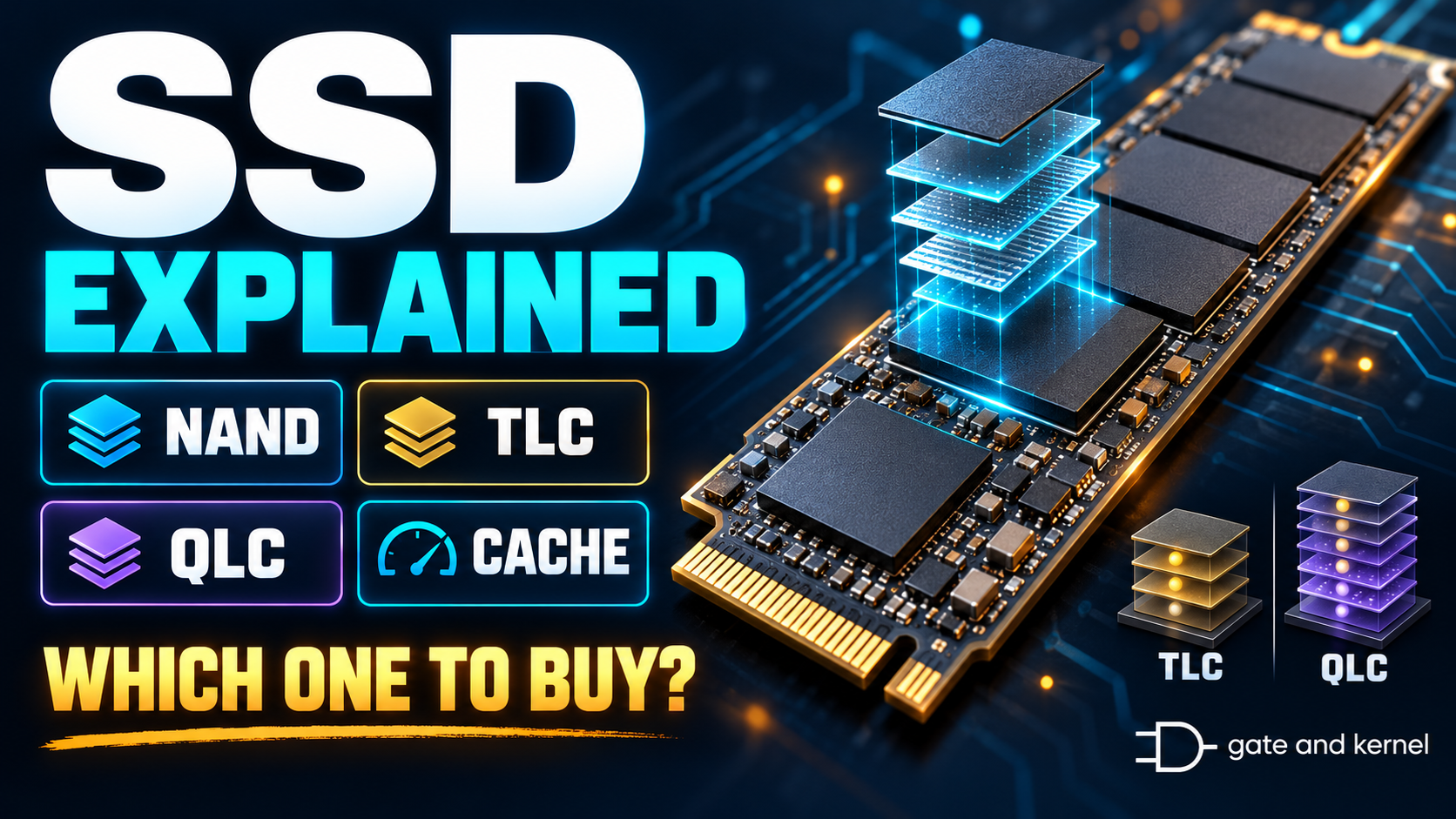
One may maintain its performance during a long video transfer. Another may begin quickly and then slow down. A higher-priced model might offer features useful for a demanding workstation, while a less expensive drive could be entirely adequate for everyday applications.
The differences come from more than the connection. NAND flash, controller design, caching, firmware, temperature, and available free space all contribute to the result.
Choosing an SSD becomes easier when these features are connected to practical questions: what will the drive store, how will it be used, and what is currently making the computer wait?
Chapter 1 — What Is Inside an SSD?
An SSD contains NAND flash memory and a controller. Some models also include dedicated DRAM. These components cooperate, but they perform different jobs.
The NAND flash holds persistent data. The controller communicates with the computer, manages access to the flash, corrects errors, and coordinates internal maintenance.
The computer requests logical storage addresses. The controller maps those addresses to physical locations in the NAND. This mapping allows data to move internally without forcing the operating system to track every physical change.
If dedicated DRAM is present, it can support controller metadata and other buffering tasks. It should not be confused with the NAND holding the user’s files.
This is why an SSD is more than a collection of memory chips attached to a connector. Its behavior depends on the controller, firmware, and memory working together. Two drives with the same interface can therefore deliver different levels of responsiveness and sustained performance.
Chapter 2 — What SLC, MLC, TLC, and QLC Mean
NAND flash stores information using electrical charge states that influence a memory cell’s threshold voltage. Different designs distinguish different numbers of states.
SLC stores one bit per cell, requiring two states. In common SSD terminology, MLC means two bits per cell and four states. TLC stores three bits using eight states. QLC stores four bits using sixteen states.
Putting more bits in each cell increases storage density. However, distinguishing more states makes programming and reading more demanding, and generally introduces endurance and performance tradeoffs.
These terms do not describe four entirely separate generations where the newest automatically replaces everything before it. They describe different ways to balance capacity, cost, performance, and endurance. Micron’s NAND guide treats these as distinct design choices with different characteristics.
For a buyer, the flash type is useful information, but it is not a complete verdict. A drive’s controller, capacity, caching strategy, and intended workload also matter. Avoid judging an entire SSD from the TLC or QLC label alone.
Chapter 3 — What 3D NAND and V-NAND Mean
The number of bits per cell is only one aspect of NAND design. Another is the physical arrangement of the memory cells.
Older planar NAND placed cells mainly across a two-dimensional surface. 3D NAND builds a vertical structure with many layers, allowing more storage capacity within a given chip footprint.
These are different classifications. TLC describes how many bits a cell stores. 3D NAND describes the memory structure. A drive can therefore use 3D TLC NAND or 3D QLC NAND.
V-NAND is Samsung’s name for its vertical NAND technology. It belongs within the broader category of 3D NAND; it is not an alternative to TLC or QLC.
A higher layer count can contribute to density improvements, but it does not directly tell you how fast a finished SSD will run in your computer. The controller, interface, firmware, and workload remain important. Treat layer count as a manufacturing characteristic rather than a standalone performance score.
Chapter 4 — Why SSD Write Speed Can Suddenly Drop
Many consumer SSDs use part of their NAND in a faster, one-bit-per-cell mode to create an SLC cache. The underlying drive may still use TLC or QLC for its main storage.
Incoming data can be written quickly to this cache. The controller later reorganizes it into the denser storage arrangement.
For short bursts, this can work very well. Saving documents or installing a small application may finish before the cache becomes a limiting factor.
A long transfer is different. If incoming data fills the available cache faster than the controller can clear it, the drive must handle more work at its lower sustained rate. The transfer can begin quickly and then slow noticeably.
Cache size can also depend on available free space and firmware policy. Consequently, the same SSD may behave differently when it is mostly empty and when it is nearly full.
For video work or other large transfers, performance after the cache fills can be more informative than the highest advertised burst speed.
Chapter 5 — How DRAM and HMB Differ from an SLC Cache
An SLC cache stores incoming data temporarily in a faster NAND mode. Dedicated DRAM serves a different role and often helps the controller manage address mappings and other frequently accessed information.
Some NVMe SSDs without dedicated DRAM support Host Memory Buffer, or HMB. This allows the controller to use a small portion of the computer’s RAM for certain management data.
HMB does not turn all available system memory into a large SSD write cache. It is also not the same as storing incoming files in SLC-mode NAND.
A DRAM-less SSD is not automatically unsuitable for everyday use. Its performance depends on the complete design and the workload. However, heavier or more varied storage activity can reveal differences that a short sequential benchmark does not show.
When comparing drives, keep the questions separate: does the drive have dedicated DRAM, does it support HMB, and how does its NAND write cache behave? These features address different parts of SSD operation.
Chapter 6 — Sequential Speed, Random Access, and Latency
Sequential performance describes transferring data through a continuous range of logical addresses. It is relevant to tasks such as reading a large video file or writing a large disk image.
Random performance describes requests to scattered addresses. Applications and operating systems often generate many small requests, so this behavior matters for everyday responsiveness.
Latency measures how long an individual request takes. IOPS measures the number of input/output operations completed per second. Neither is meaningful without knowing the request size and testing conditions.
Queue depth is another important condition: it describes how many requests are outstanding. A high queue-depth test can show the drive’s ability to handle parallel work without representing a typical interactive desktop task.
This explains why a drive with a much higher sequential rating may produce only a modest improvement when launching an application. The application may generate small requests, spend time processing data, or find much of its content already cached in RAM.
Read benchmarks as descriptions of particular workloads, not universal rankings of how fast the computer will feel.
Chapter 7 — What Happens When Files Are Deleted?
Deleting a file normally causes the file system to release its space for reuse. With suitable support, the operating system can also send TRIM or equivalent deallocation information telling the SSD which logical blocks no longer contain useful data.
This helps the controller manage its flash memory. NAND generally programs data in pages but erases larger blocks. Updating information can therefore require writing new data elsewhere and later reclaiming old space.
Garbage collection gathers still-valid data where necessary so that blocks containing obsolete data can be erased and reused. This internal work is one reason available free space can affect sustained performance.
TRIM does not mean every deleted byte is immediately and securely erased. It is a storage-management mechanism, not a promise of secure data destruction.
For normal use, allowing the operating system to manage SSD optimization and leaving reasonable free space is more useful than repeatedly trying to apply traditional hard-drive maintenance habits to an SSD.
Chapter 8 — Endurance, Temperature, and Drive Health
SSD endurance is often specified using TBW, or terabytes written. This is a rated amount of host-written data associated with the product’s endurance specification and warranty conditions.
TBW is not a precise countdown to failure. A drive does not necessarily stop working the moment it reaches that figure, and a drive below it can still fail for other reasons. Warranty duration and other conditions must also be checked.
Temperature is another consideration. During sustained work, an SSD may reduce performance to remain within its thermal limits. Cooling requirements depend on the drive and installation; a heatsink must also physically fit the computer.
Health tools can report information such as temperature, writes, spare capacity, and device warnings, depending on the drive and connection. These reports are useful signals, but they cannot guarantee that a drive will remain healthy.
Backup decisions should not depend on a health percentage. Important data needs an independent copy even when the SSD appears to be operating normally.
Chapter 9 — Choose the Drive for the Workload
Begin with compatibility. Confirm the interface, supported physical dimensions, available slot or bay, and any restrictions documented by the computer or motherboard manufacturer.
Next, choose enough capacity for applications, files, temporary work, and future growth. Buying a faster drive that is too small can create a new problem without solving the original one.
For an older computer running from a mechanical system drive, a compatible SSD is often the most meaningful storage upgrade. For a computer already using an SSD, first identify whether the problem is storage speed, insufficient RAM, limited capacity, or something else.
For video editing and repeated large transfers, investigate sustained write behavior, cooling, and performance at the capacity you intend to buy. Different capacities within the same product family can behave differently.
For large archives, capacity and the backup arrangement may matter more than peak transfer speed. An HDD can remain useful alongside an SSD rather than being replaced in every role.
Finally, compare warranty terms and credible tests that match your workload. A specification is useful only when it answers a question relevant to your computer.
Conclusion — Buy a Useful Improvement
A good SSD choice balances compatibility, capacity, responsiveness, sustained performance, endurance, and cost.
NAND type describes how cells store information. 3D NAND describes their physical organization. The controller and firmware manage the device. DRAM, HMB, and SLC caching support different parts of its operation.
No single number captures all of those relationships. A high sequential speed cannot compensate for an incompatible connection, insufficient capacity, or a system that is constantly short of RAM.
Identify what makes your computer wait, choose a drive that addresses that limitation, and keep independent backups of important files. That approach is more reliable than buying whichever SSD has the largest speed printed on the box.