Following a Command Through the Entire Linux System
Have you ever wondered what actually happens inside Linux when you type a command and press Enter?
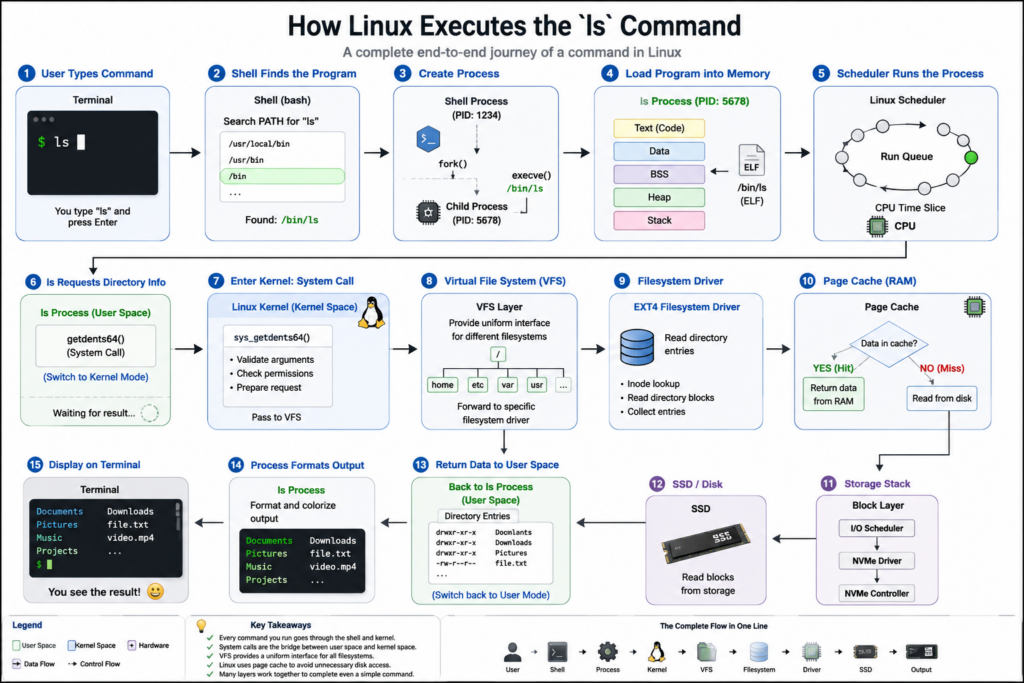
For example:
ls
It looks simple.
You type two letters.
A list of files appears.
Done.
But behind the scenes, Linux performs dozens of operations involving the shell, the kernel, memory management, the scheduler, the virtual file system, device drivers, and even the storage hardware.
In this video, we’re going to follow a single command through the entire Linux system and see exactly what happens from the moment you press Enter until the results appear on your screen.
Let’s begin.
Chapter 1 — The User Presses Enter
Imagine you open a terminal and type:
ls
Then you press Enter.
At this moment, nothing has been executed yet.
The terminal sends the command text to the shell.
The shell may be Bash, Zsh, or another command interpreter.
The shell is simply a program waiting for user input.
Its job is to read commands and launch programs.
The shell receives the text “ls” and begins processing it.
The first question is:
Where is the ls program located?
Chapter 2 — The Shell Searches for ls
The shell looks through the PATH environment variable.
For example:
/usr/local/bin
/usr/bin
/bin
The shell searches these directories until it finds an executable file named ls.
Typically it finds:
/bin/ls
or on newer systems:
/usr/bin/ls
Now the shell knows which program must be executed.
But the shell cannot simply run the program directly.
Instead, it asks the Linux kernel for help.
This is where things start getting interesting.
Chapter 3 — Creating a New Process
Linux runs programs as processes.
To execute ls, the shell first creates a new process.
Traditionally this happens through the fork system call.
The kernel creates a copy of the current shell process.
At this point two processes exist:
The parent shell.
The child process.
The child then executes another system call:
execve()
This tells Linux:
Replace this child process with the ls program.
The kernel loads the executable file into memory.
The child process is no longer a shell.
It has become the ls program.
Linux assigns it a Process ID, also known as a PID.
A new process now exists and is ready to run.
Chapter 4 — Loading the Program into Memory
The kernel now loads the executable file.
The executable contains machine instructions that the CPU can understand.
Linux reads the binary file from storage and maps it into virtual memory.
Several memory regions are created.
Code segment.
Data segment.
Heap.
Stack.
The process now has its own virtual address space.
One important feature of Linux is process isolation.
Every process believes it owns its own memory.
In reality, the kernel carefully manages and protects memory for all processes.
This prevents programs from accidentally corrupting each other.
The ls process is now prepared for execution.
Chapter 5 — The Scheduler Takes Control
At this point the process exists.
But having a process does not mean it runs immediately.
The CPU may already be busy running many other processes.
Perhaps your browser is open.
Maybe a music player is running.
Maybe system services are working in the background.
The Linux scheduler decides which process receives CPU time.
The scheduler places the new ls process into a run queue.
When its turn arrives, the CPU begins executing its instructions.
This happens incredibly quickly.
Usually within microseconds.
The ls program is now officially running.
Chapter 6 — The Program Needs Directory Information
The purpose of ls is simple.
List the contents of a directory.
To do that, ls needs information about files and folders.
However, user programs cannot directly access the disk.
Applications are not allowed to communicate directly with storage devices.
Instead, they must ask the kernel.
The ls process issues a system call requesting directory information.
The CPU switches from User Mode into Kernel Mode.
Control is transferred to the Linux kernel.
The kernel now handles the request.
Chapter 7 — Enter the Virtual File System
Linux supports many different file systems.
EXT4.
XFS.
Btrfs.
NFS.
FAT.
And many others.
Applications should not need to know which file system is being used.
To solve this problem Linux uses the Virtual File System, commonly called VFS.
The VFS acts as a universal interface.
The ls command talks to VFS.
VFS talks to the actual file system driver.
This design allows applications to work without modification across many different storage technologies.
The kernel asks VFS:
Please provide the contents of this directory.
VFS forwards the request to the appropriate file system.
Chapter 8 — Is the Data Already Cached?
Before reading the disk, Linux checks something very important.
The Page Cache.
Linux aggressively caches file data in RAM.
Memory is much faster than storage devices.
If the directory information is already cached, Linux can immediately return the data.
No disk access is required.
This is one reason Linux systems feel fast.
Many file operations never touch the storage device at all.
If the data is found in memory, the kernel skips directly to the next step.
If not, Linux must access the storage device.
Chapter 9 — Reading the Storage Device
Suppose the required information is not cached.
The kernel sends a request through several layers.
Virtual File System.
File System Driver.
Block Layer.
Device Driver.
Storage Hardware.
For example:
VFS.
EXT4 Driver.
Block Layer.
NVMe Driver.
SSD.
The SSD controller receives the request and reads the required blocks.
The data is transferred into memory.
The kernel verifies the data structures.
The requested directory entries are extracted.
The information is now available inside kernel memory.
Chapter 10 — Returning Data to User Space
The kernel has completed the operation.
Now it must return the results.
The directory information is copied from kernel space into user space.
The CPU switches back from Kernel Mode to User Mode.
Execution resumes inside the ls process.
The ls program now has access to the directory contents.
It begins formatting the output.
File names.
Directories.
Permissions.
Colors.
Columns.
Depending on command options.
Everything you see on the screen is generated by the ls program itself.
Chapter 11 — Displaying the Output
The final step is displaying text.
The ls process sends output to standard output.
Commonly called stdout.
The terminal emulator receives this text.
The terminal renders characters on the screen.
Finally you see something like:
Documents
Downloads
Pictures
Videos
Projects
The operation is complete.
From the user’s perspective, it took less than a second.
But internally Linux performed process creation, memory management, scheduling, system calls, file system operations, caching decisions, device communication, and output rendering.
All for a simple ls command.
Chapter 12 — Why This Matters
At first glance, ls seems trivial.
But it demonstrates nearly every major Linux subsystem.
The shell interprets commands.
The kernel creates processes.
The scheduler allocates CPU time.
Memory management creates virtual address spaces.
System calls bridge user space and kernel space.
VFS provides file system abstraction.
Device drivers communicate with hardware.
The page cache improves performance.
The terminal displays results.
Understanding this flow helps explain how Linux works internally.
The same architecture is used when launching web browsers, databases, web servers, and even cloud applications.
The only difference is scale.
A large application follows the same path.
It simply performs millions of operations instead of one.
Conclusion
Let’s summarize the complete journey.
You type:
ls
The shell finds the executable.
The kernel creates a process.
The executable is loaded into memory.
The scheduler assigns CPU time.
The process requests directory information.
The kernel enters the Virtual File System.
Linux checks the page cache.
If necessary, storage devices are accessed.
Data returns to user space.
The terminal displays the results.
This entire sequence happens in milliseconds.
And that is how Linux executes a command.
Once you understand this journey, many Linux concepts suddenly become much easier to understand, including processes, memory management, file systems, system calls, device drivers, and kernel architecture.
In future videos, we’ll follow other Linux operations such as reading a file, creating a process, allocating memory, and handling network packets.
Thanks for watching.