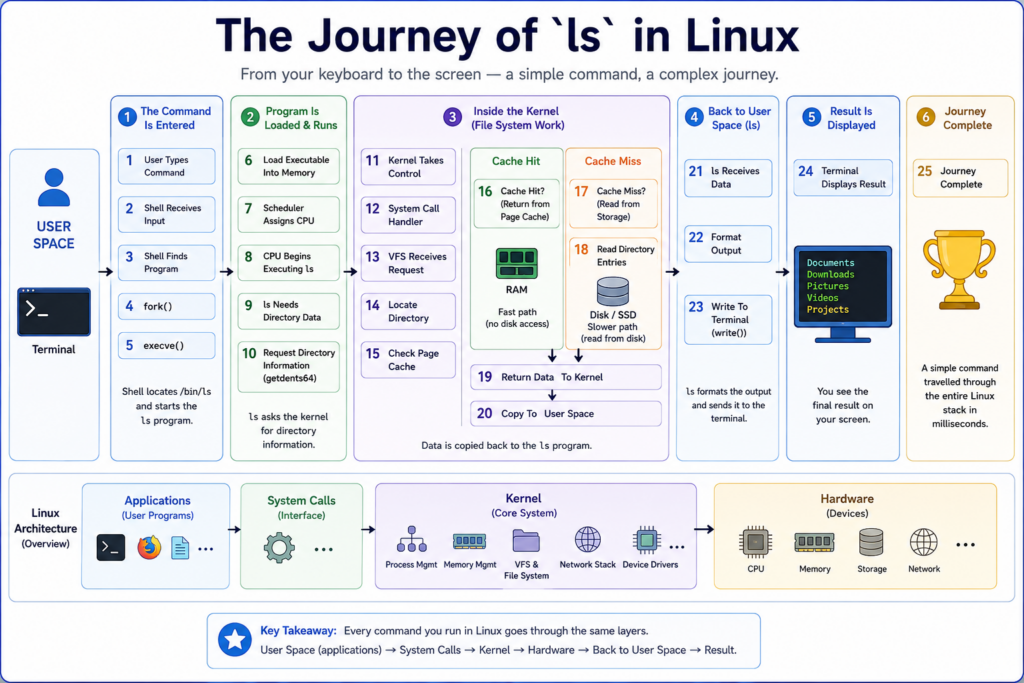
How Linux Works
Following the Journey of a Simple ls Command
Introduction — Understanding Linux Architecture
How does Linux actually work?
Every day, millions of people use Linux without thinking about what happens behind the scenes.
They type commands.
They open files.
They launch applications.
They browse websites.
And everything seems to happen instantly.
But inside the operating system, a complex sequence of events takes place.
To understand Linux, we must first understand its architecture.
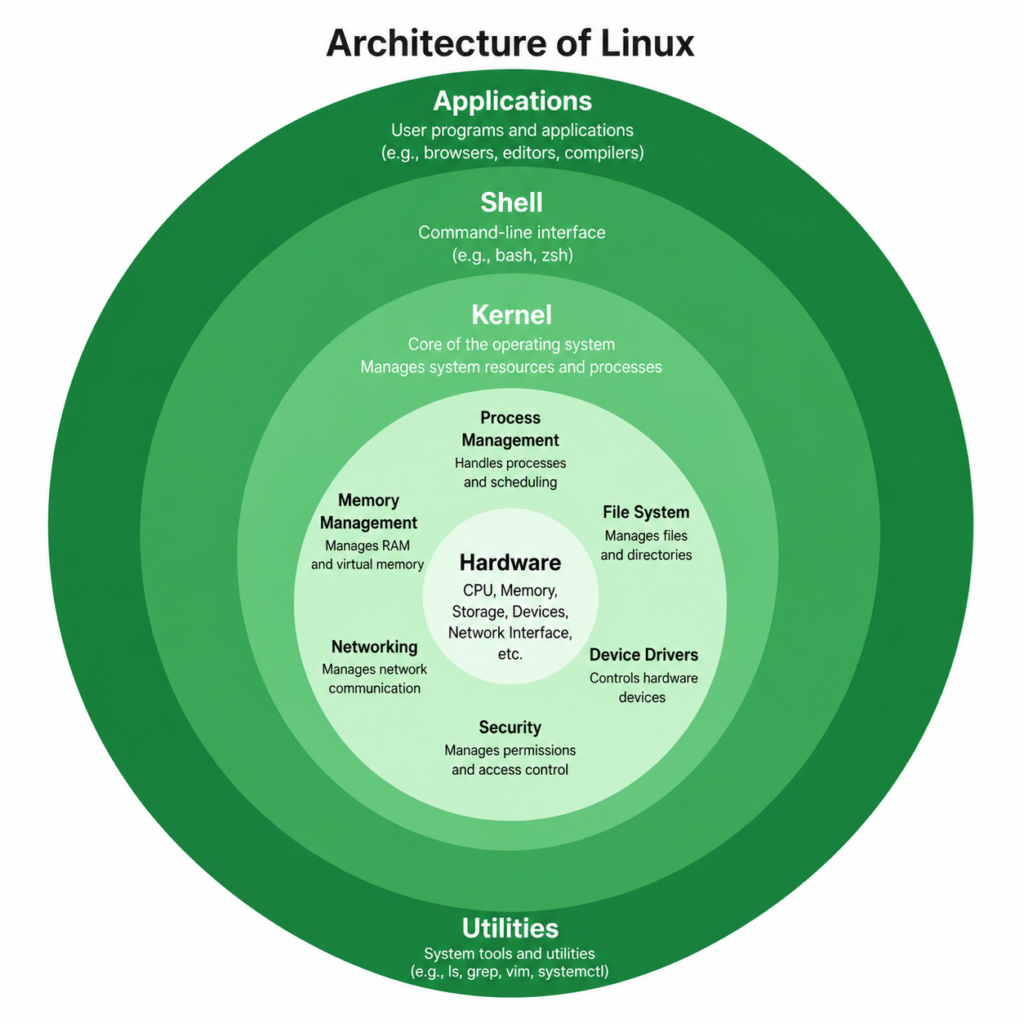
Linux is built using a layered design.
At the top are applications.
Applications include programs such as ls, bash, Python, Firefox, and thousands of others.
Applications run in what is called User Space.
User Space is isolated and protected.
Applications cannot directly access hardware.
Instead, whenever a program needs memory, files, networking, or hardware access, it must ask the Linux kernel.
The kernel is the core of the operating system.
It manages processes, memory, filesystems, networking, and device drivers.
The kernel runs in a privileged area called Kernel Space.
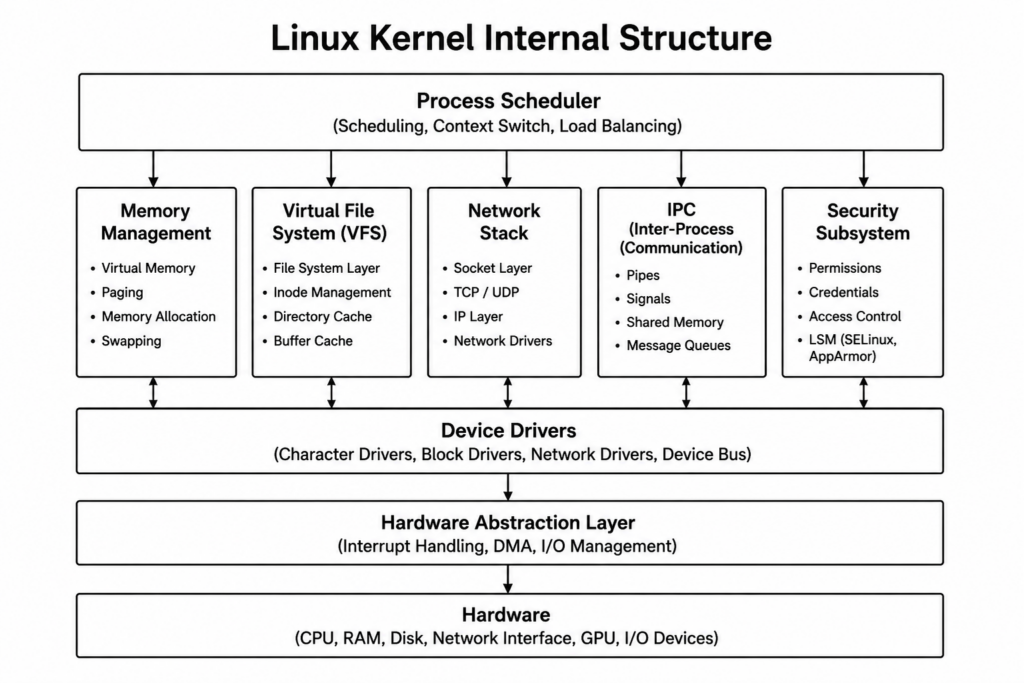
Communication between applications and the kernel happens through system calls.
A system call acts as a gateway between User Space and Kernel Space.
When an application makes a request, the kernel performs the work and then returns the result.
The hardware never talks directly to applications.
Applications talk to the kernel.
The kernel talks to the hardware.
This design provides security, stability, and portability.
Now let’s watch Linux work in real time.
We’ll follow one of the simplest commands in Linux.
The ls command.
A command that simply lists files in a directory.
Although it appears simple, this command travels through almost every major subsystem of Linux.
Let’s begin.
Step 1 — User Types Command
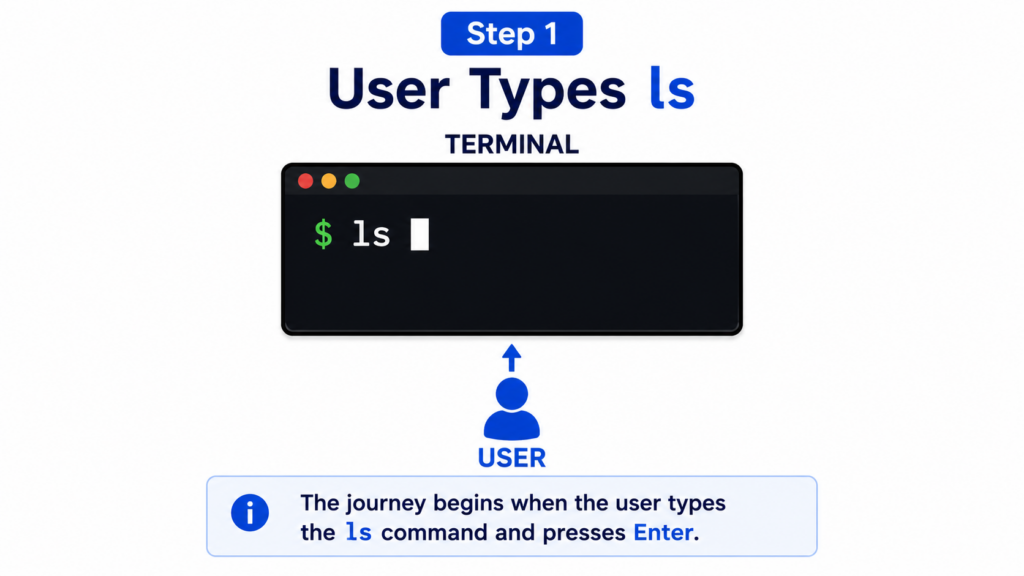
Our journey begins when the user opens a terminal window.
At the command prompt, the user types:
ls
and presses Enter.
This seems like a very simple action.
But from this moment forward, Linux starts a chain of operations that will involve the shell, the kernel, memory management, the filesystem, and the terminal itself.
Everything starts with a single key press.
Step 2 — Shell Receives Input
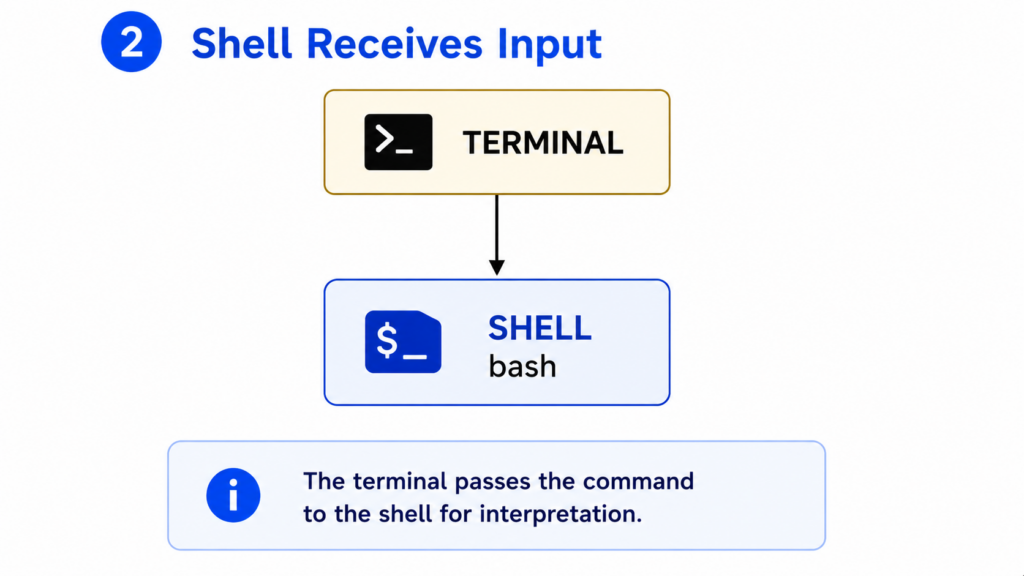
The terminal itself does not execute commands.
Its job is simply to display text and collect keyboard input.
When the user presses Enter, the command is passed to the shell.
The shell may be Bash, Zsh, Fish, or another command interpreter.
The shell becomes responsible for understanding what the user typed.
The shell now examines the command and determines what action should be taken.
At this point, Linux has not yet started the ls program.
The shell is still deciding how to handle the request.
Step 3 — Shell Finds Program
The shell must determine where the ls executable is located.
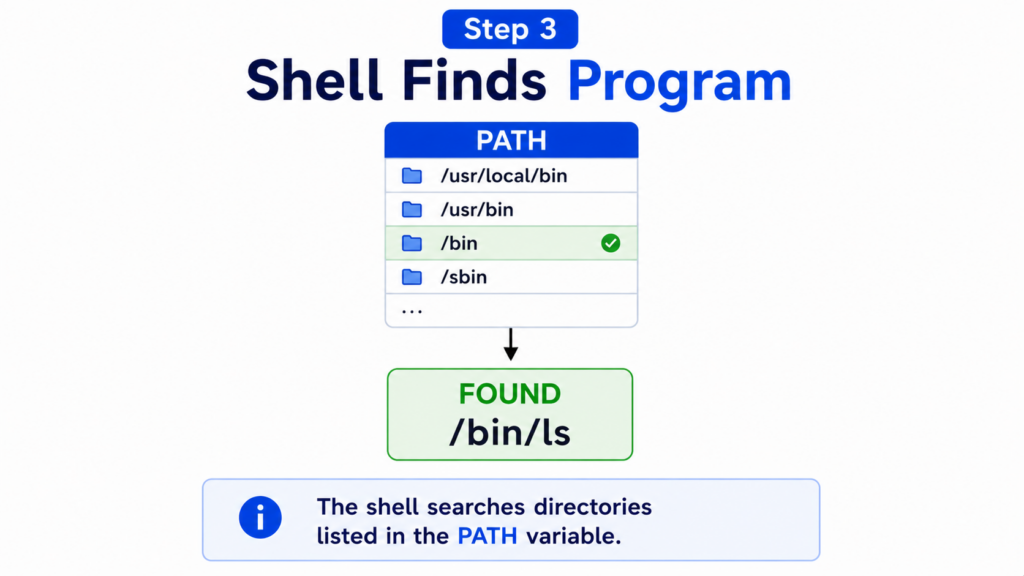
To do this, it searches the directories listed in the PATH environment variable.
The PATH variable contains a list of directories that may contain executable programs.
Linux checks each directory one by one.
Eventually, the shell finds:
/bin/ls
This tells the shell exactly which executable file should be launched.
The command name has now been translated into a real program stored on disk.
The shell is ready to execute it.
Step 4 — Create Child Process
Before launching the program, the shell creates a new process.
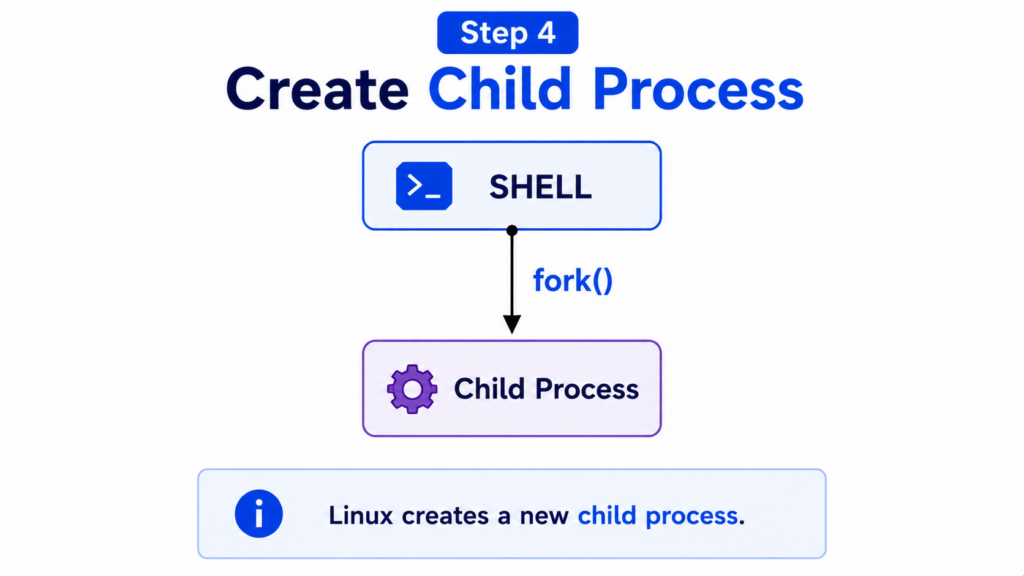
Linux uses a system call called fork().
The fork() system call creates a copy of the shell process.
This new process is called the child process.
At this moment, there are two processes.
The original shell process remains alive and waits for the command to finish.
The child process will become the ls program.
This design allows the shell to continue running after the command completes.
Process creation is one of the most fundamental operations in Linux.
Almost every command you run begins with fork().
Step 5 — Load ls Program
The child process is currently just a copy of the shell.
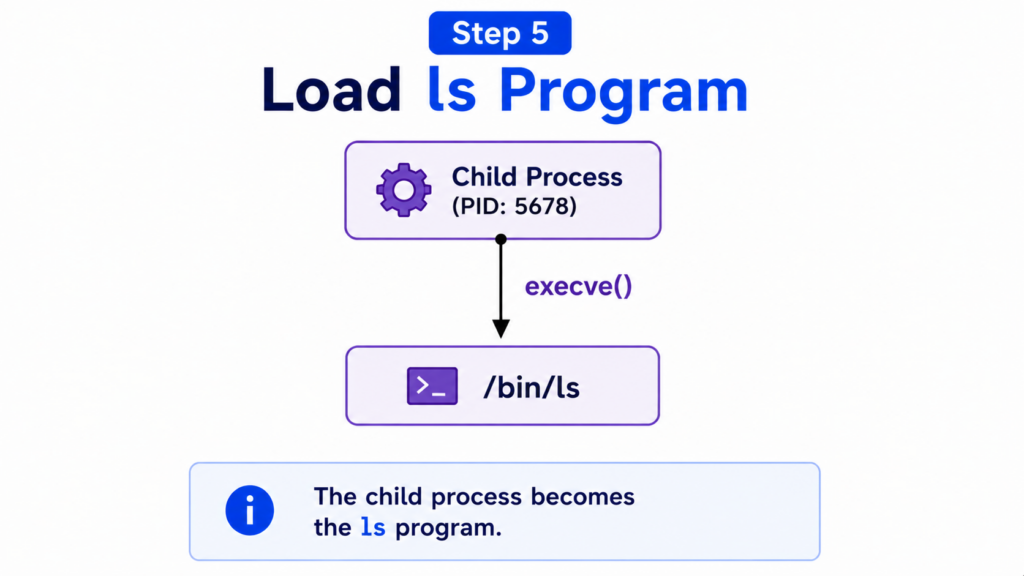
To become the ls program, Linux uses another system call.
This system call is called execve().
The execve() call replaces the current process image with a new executable.
The shell code disappears.
The contents of /bin/ls replace it.
The process ID remains the same.
But the program itself has changed completely.
The child process is now officially the ls program.
Linux is ready to load the executable into memory and begin execution.
Step 6 — Load Executable Into Memory
Although the child process has become the ls program, the executable code is still stored on disk.
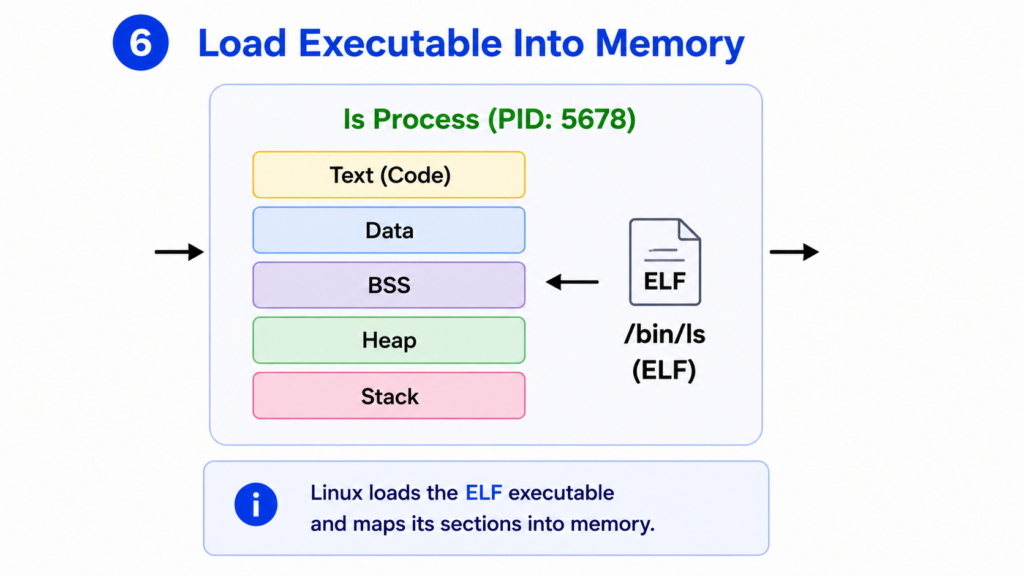
Linux must now load the program into memory.
The executable file follows the ELF format.
ELF stands for Executable and Linkable Format.
It is the standard executable format used by Linux.
The kernel reads the ELF file and creates a virtual memory layout for the process.
Several memory regions are created.
The Text segment contains executable machine instructions.
The Data segment contains initialized global variables.
The BSS segment contains uninitialized global variables.
The Heap is used for dynamic memory allocation.
The Stack stores function calls, local variables, and return addresses.
At this point, the process has its own virtual address space.
The ls program is now fully loaded into memory and ready to run.
Step 7 — Scheduler Assigns CPU
Linux may be running hundreds or even thousands of processes at the same time.
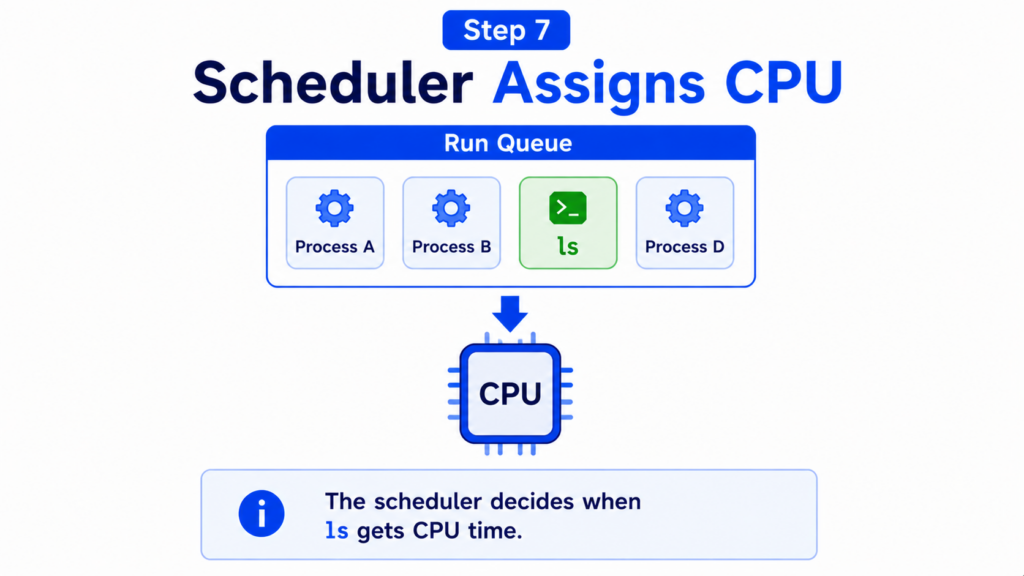
Only a limited number of CPU cores are available.
The kernel scheduler decides which process gets CPU time.
Every runnable process waits in a scheduling queue.
The scheduler constantly evaluates priorities, fairness, and system load.
When the scheduler selects the ls process, it assigns CPU time to it.
This may happen almost instantly.
On a modern computer, the delay is usually measured in microseconds.
The ls process now has permission to execute instructions on the CPU.
The journey continues.
Step 8 — CPU Begins Executing ls
For the first time, the CPU begins executing instructions from the ls program.
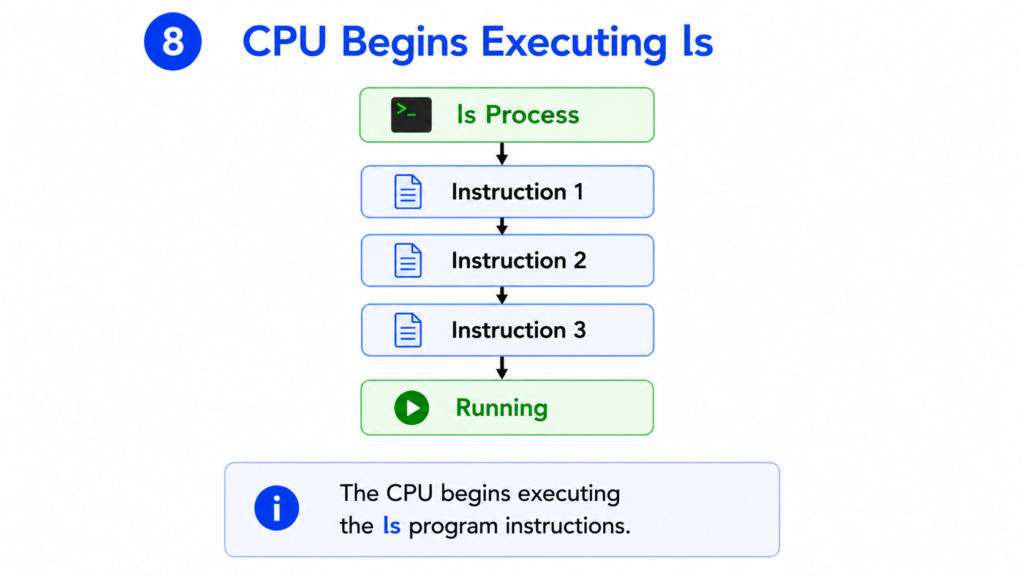
Machine instructions stored in the Text segment are fetched from memory.
The CPU executes them one by one.
Fetch.
Decode.
Execute.
This cycle happens billions of times every second.
The ls program starts initializing its internal data structures.
It prepares memory.
It processes command-line arguments.
It determines which directory should be listed.
At this stage, the program itself is running normally in User Space.
But there is a problem.
The ls program does not actually know what files exist inside the directory.
That information belongs to the kernel.
The program must ask Linux for help.
Step 9 — ls Needs Directory Data
The purpose of ls is to display directory contents.
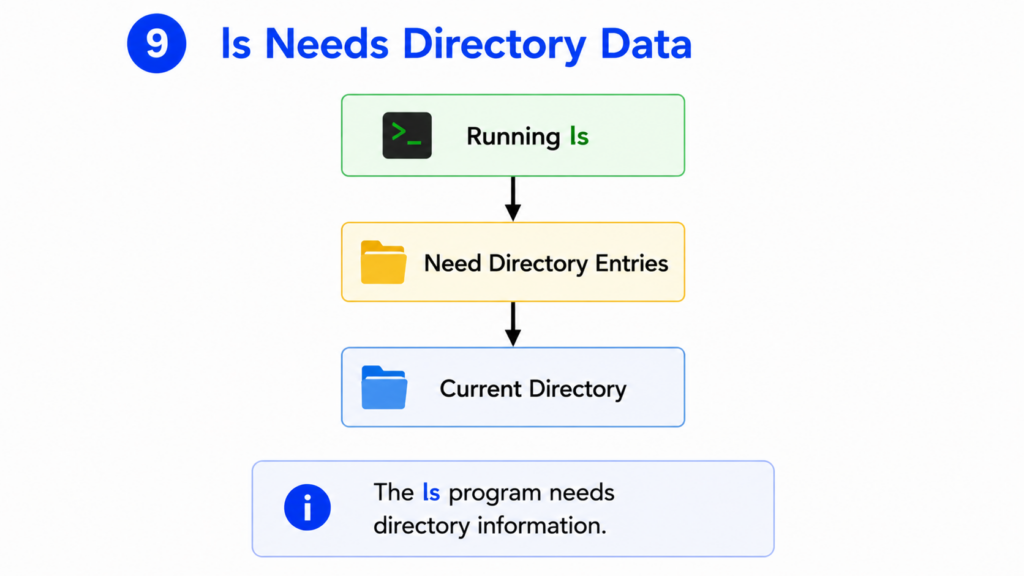
To do that, it needs information about files and directories.
For example, it needs names such as:
Documents
Downloads
Pictures
Videos
Projects
The ls program cannot simply read this information directly from the disk.
User Space programs are not allowed to access storage devices directly.
Only the kernel can do that.
Therefore, ls must request directory information from Linux.
This is the moment where User Space and Kernel Space begin interacting.
The program is about to cross one of the most important boundaries in the operating system.
The system call boundary.
Step 10 — Request Directory Information
To obtain directory entries, the ls program performs a system call.
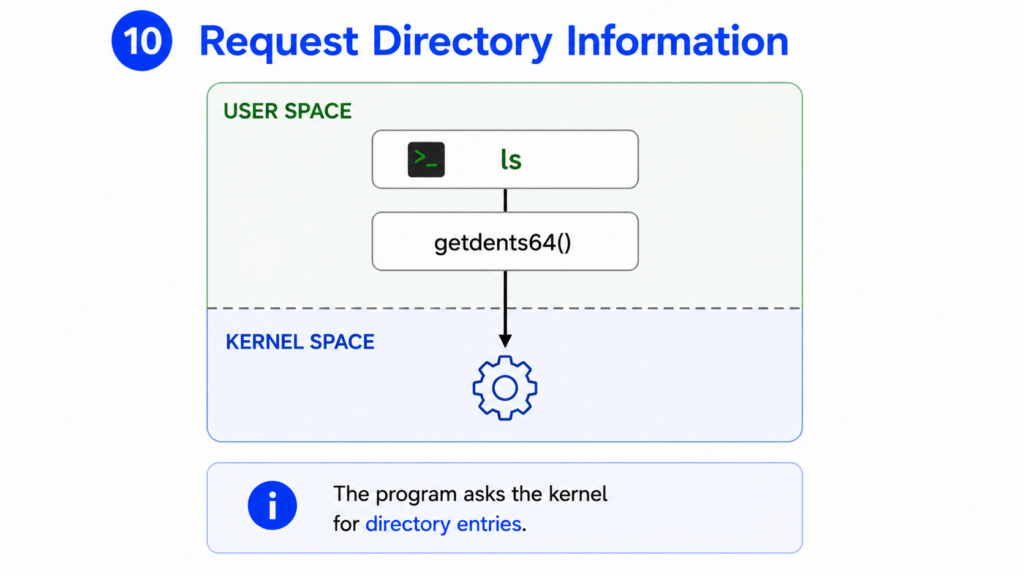
On modern Linux systems, this system call is typically getdents64().
The purpose of getdents64() is simple.
It asks the kernel to return directory entries.
From the perspective of the ls program, this looks like an ordinary function call.
But internally, something much more significant happens.
The CPU prepares special registers.
Execution switches from User Space to Kernel Space.
Control is transferred to the Linux kernel.
The kernel now takes responsibility for handling the request.
The ls program pauses and waits for the result.
Everything that happens next occurs inside the Linux kernel itself.
We have now reached one of the most important transitions in the entire operating system.
User Space is handing control to Kernel Space.
Step 11 — Kernel Takes Control
The getdents64() system call has been issued.
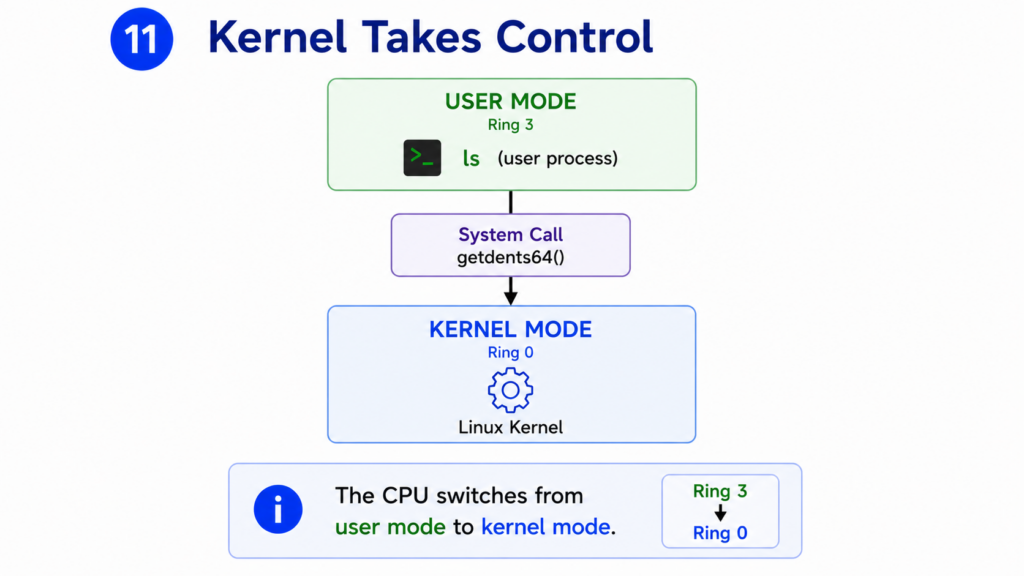
Control now leaves User Space and enters Kernel Space.
This transition is performed directly by the CPU.
Modern processors support multiple privilege levels.
Applications normally run in User Mode.
The Linux kernel runs in Kernel Mode.
Kernel Mode provides unrestricted access to memory, devices, interrupts, and system resources.
When the system call instruction executes, the CPU performs a privilege switch.
Execution jumps into the Linux kernel.
The CPU saves the current User Space context.
The kernel begins executing its own code.
At this moment, the ls process is no longer actively running.
Instead, the kernel is running on behalf of the ls process.
The request is now entirely under kernel control.
This transition happens thousands of times every second on a typical Linux system.
Most users never notice it.
But this boundary between User Space and Kernel Space is one of the most important security mechanisms in the entire operating system.
Step 12 — System Call Handler
The kernel has received the system call.
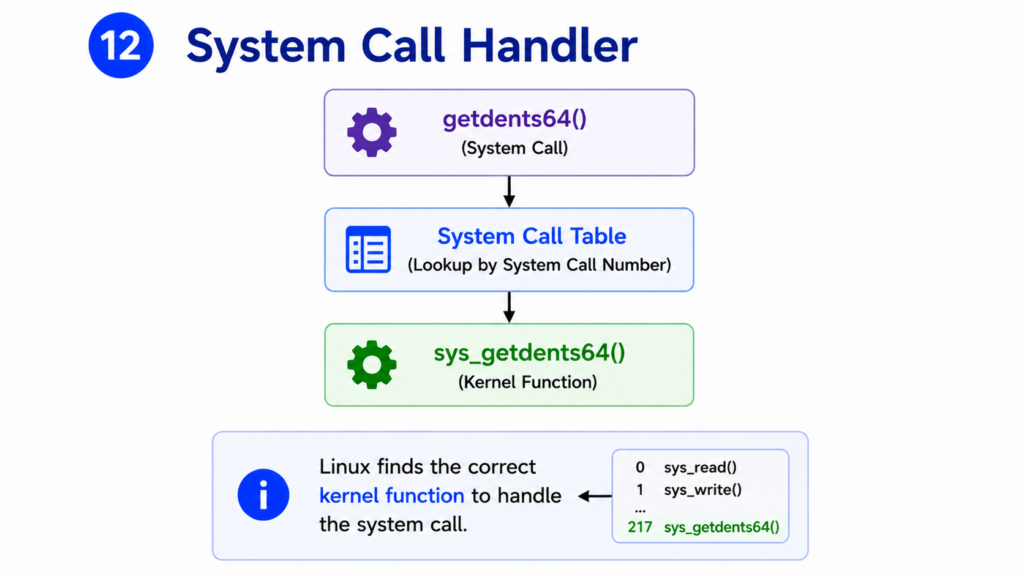
But Linux supports hundreds of different system calls.
How does it know which one was requested?
The answer is the System Call Table.
Each system call has a unique number.
When the CPU enters the kernel, Linux examines this number.
The kernel looks up the corresponding entry in the system call table.
For our request, Linux finds:
sys_getdents64()
This kernel function is responsible for retrieving directory entries.
The kernel now transfers control to the correct handler.
The request has officially entered the Linux filesystem subsystem.
The journey is moving deeper into the operating system.
Step 13 — VFS Receives Request
The filesystem request is now passed to the Virtual File System.
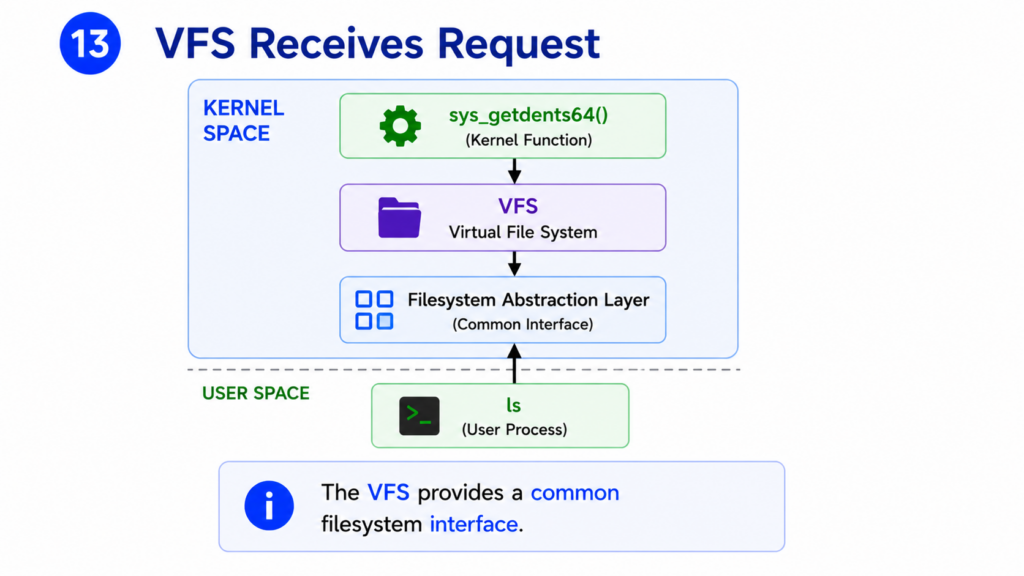
Usually called the VFS.
The VFS is one of the most important components inside Linux.
Linux supports many filesystems.
ext4
XFS
Btrfs
F2FS
NFS
and many others.
Applications do not need to know which filesystem is being used.
Instead, every request passes through the VFS.
The VFS provides a common interface.
From the perspective of the ls program, every filesystem looks the same.
The VFS hides the implementation details.
This abstraction allows Linux to support dozens of filesystems while presenting a single consistent interface to applications.
The VFS now begins processing the directory lookup request.
Step 14 — Locate Directory
Before Linux can return directory entries, it must locate the directory itself.
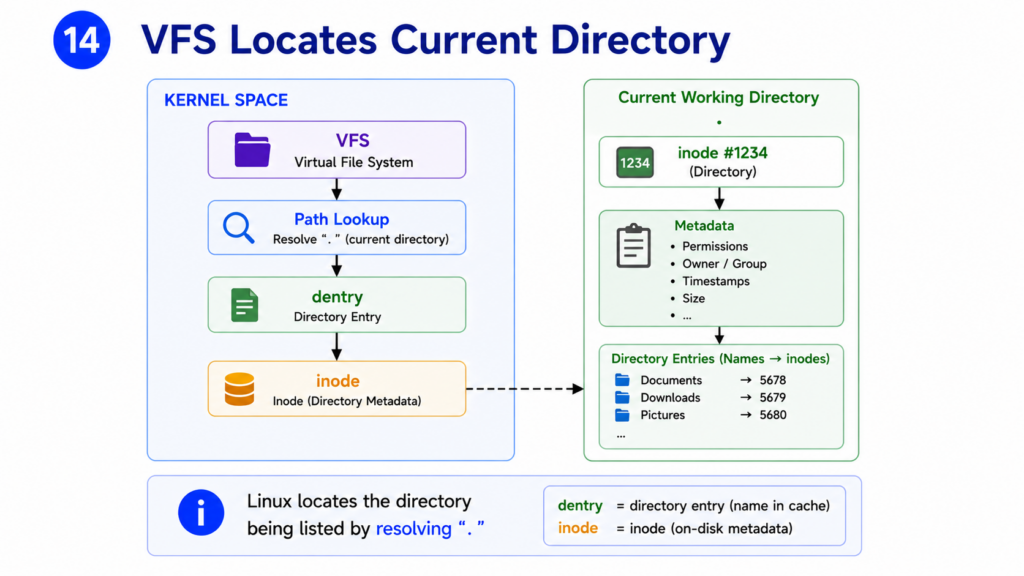
Files and directories are not identified by their names internally.
Instead, Linux uses structures called inodes.
An inode contains metadata about a file or directory.
This includes ownership, permissions, timestamps, and pointers to data blocks.
The VFS follows the directory path and locates the inode representing the current directory.
This inode becomes the starting point for the lookup operation.
The kernel now knows exactly which directory the ls command wants to examine.
But the actual directory entries may or may not already be in memory.
Linux performs one more optimization before reading storage.
It checks the Page Cache.
Step 15 — Check Page Cache
Reading from storage devices is expensive.
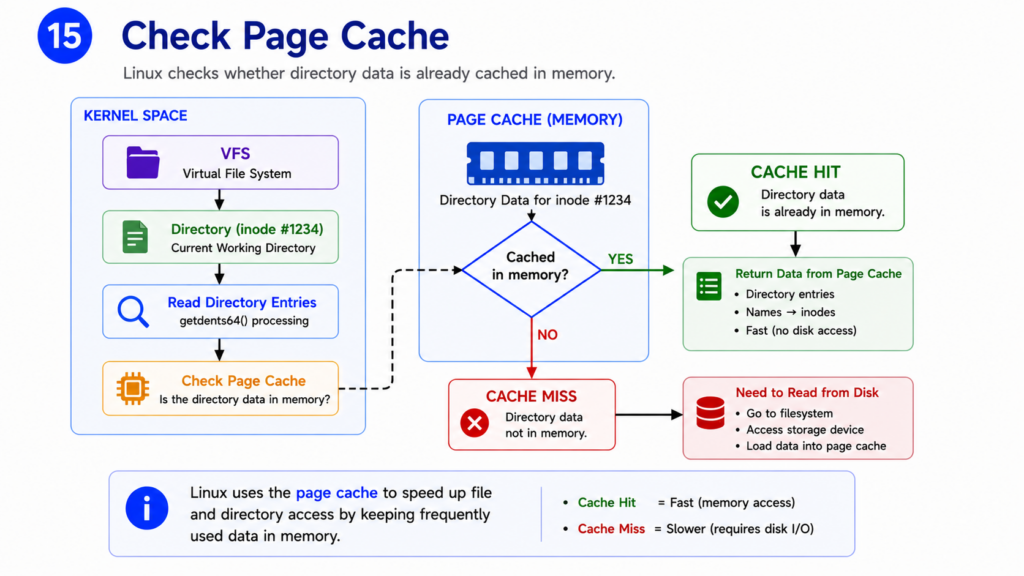
Even a fast SSD is much slower than RAM.
To improve performance, Linux aggressively caches filesystem data in memory.
This cache is called the Page Cache.
Before accessing storage, Linux checks whether the requested directory data is already cached.
If the data is found in memory, Linux can return it immediately.
No disk access is required.
This is called a Cache Hit.
If the data is not present, Linux must read it from the filesystem.
This is called a Cache Miss.
The Page Cache is one of the reasons Linux performs so well.
Many filesystem operations never reach the storage device at all.
Instead, Linux serves them directly from memory.
Now the kernel must determine whether the requested directory information is already cached or whether it needs to be retrieved from storage.
Step 16 — Cache Hit
Suppose the Page Cache already contains the directory information.
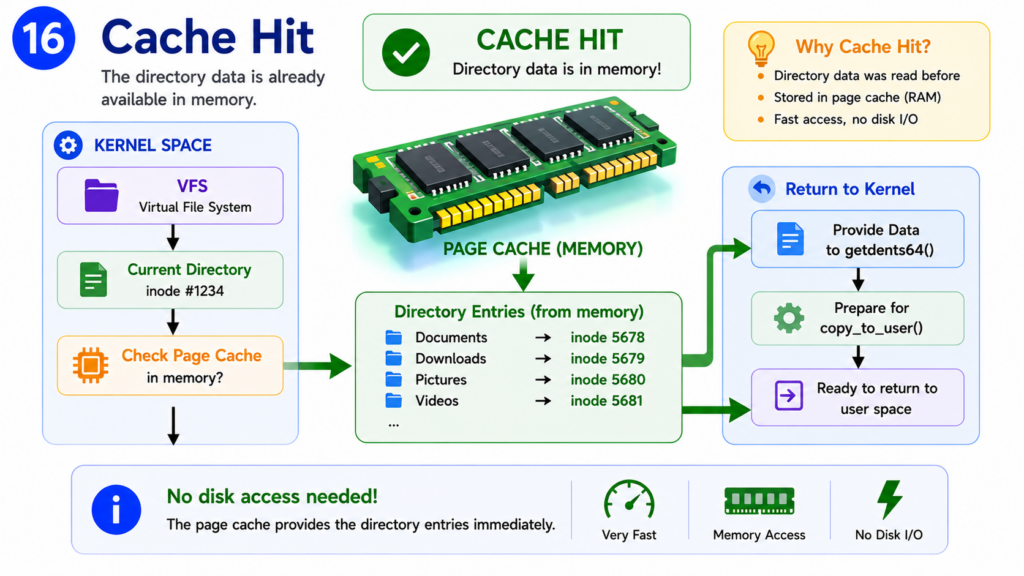
In that case, Linux does not need to access the storage device at all.
The kernel simply retrieves the cached directory entries directly from memory.
This operation is extremely fast.
Accessing RAM typically takes only nanoseconds.
By comparison, even a modern SSD is significantly slower.
This is one of the reasons Linux systems often feel faster the second time a command is executed.
The first execution may require reading storage.
Subsequent executions often use cached data.
If the requested directory information is already in memory, Linux can immediately continue processing the request.
The directory entries are ready to be returned.
However, if the data is not cached, Linux must take a longer path.
This leads to a Cache Miss.
Step 17 — Cache Miss
If the Page Cache does not contain the required directory information, Linux must retrieve it from the filesystem.
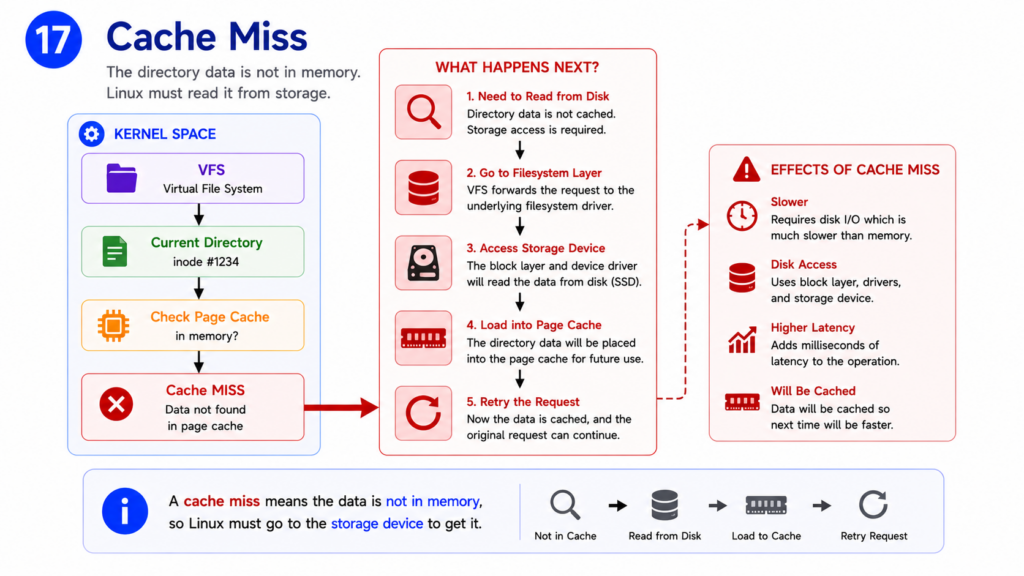
This situation is called a Cache Miss.
A cache miss does not mean something is wrong.
It simply means Linux must obtain the data from storage.
The kernel now requests the directory information from the filesystem.
This may involve reading data from an SSD, a hard drive, a network filesystem, or another storage device.
Compared to RAM, storage access is relatively slow.
This is why caching is so important.
The filesystem now begins locating the actual directory records stored on disk.
The kernel waits while the data is retrieved.
Step 18 — Read Directory Entries
The filesystem locates the requested directory and begins reading its contents.
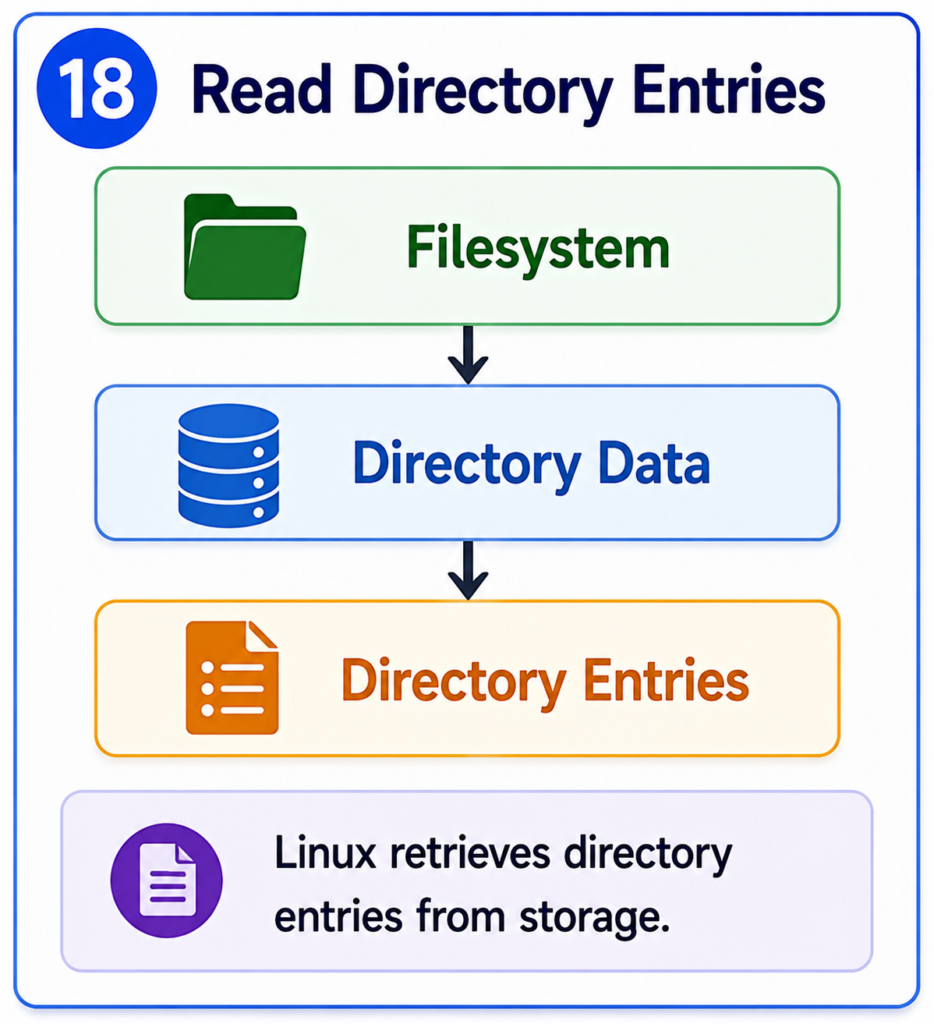
Internally, a directory is simply a special type of file.
Instead of storing user data, it stores directory entries.
Each entry contains information such as:
File name.
Directory name.
Associated inode number.
Additional metadata references.
The filesystem reads these directory records and reconstructs the list of entries.
For example, it may discover:
Documents
Downloads
Pictures
Videos
Projects
These are the entries that the ls command ultimately wants to display.
The filesystem now has the information required to satisfy the request.
Step 19 — Return Data To Kernel
Once the directory entries have been retrieved, the filesystem returns the information to the kernel.
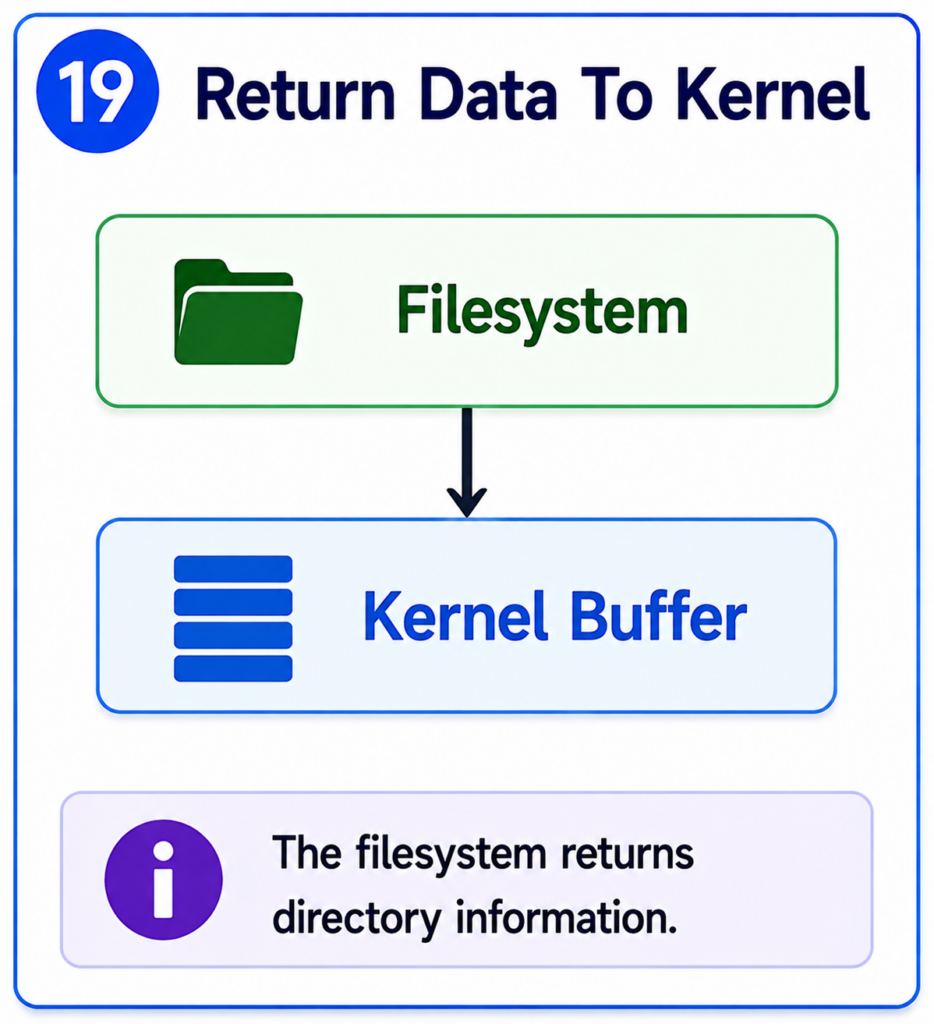
The data is placed into kernel memory buffers.
At this stage, the information is still entirely inside Kernel Space.
The ls process cannot access it directly.
The kernel may perform additional validation and processing.
It verifies that the operation completed successfully.
It checks permissions and internal consistency.
The request is nearly complete.
The kernel now prepares to return the directory entries to the waiting ls process.
Step 20 — Copy To User Space
Applications run in User Space.
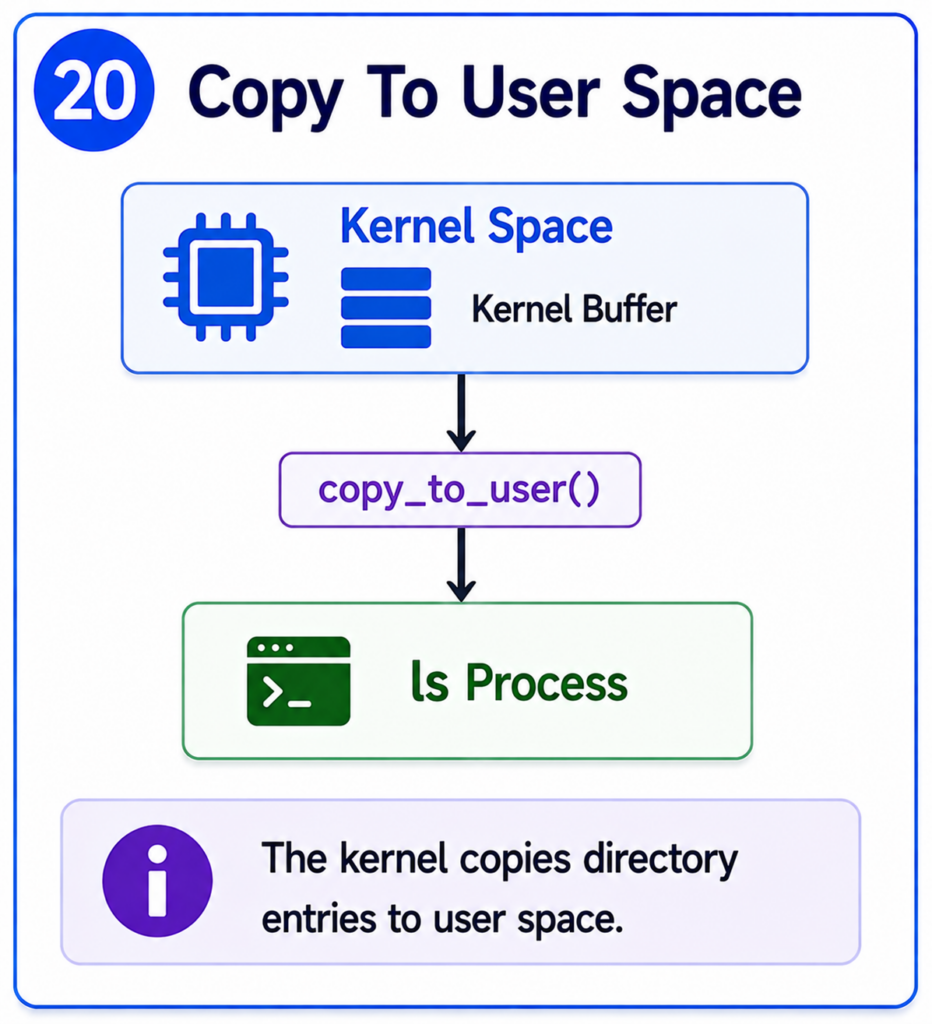
The directory entries currently reside in Kernel Space.
Therefore, Linux must transfer the data across the User Space and Kernel Space boundary.
To do this, the kernel copies the directory information into memory owned by the ls process.
This operation is often performed using internal mechanisms such as copy_to_user().
The kernel carefully validates memory addresses before performing the copy.
This protects the system from invalid memory access and security vulnerabilities.
Once the copy operation is complete, the directory entries become available to the ls process.
The system call can now return.
Control leaves the kernel.
The CPU switches back into User Mode.
The ls program resumes execution exactly where it left off.
For the first time, the program now has the information it originally requested.
The directory contents are finally available in User Space.
Step 21 — ls Receives Data
The system call has completed.
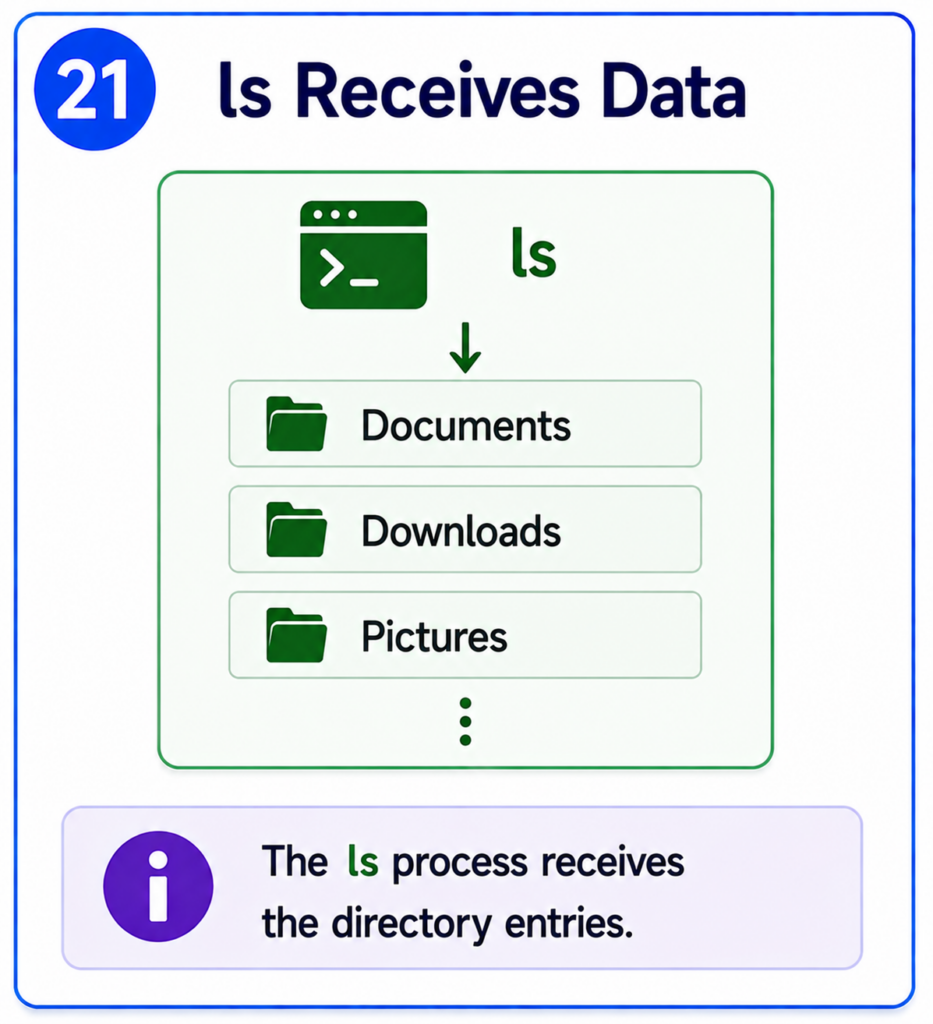
The kernel has returned the directory entries to User Space.
The CPU is now running the ls process again.
For the first time, the ls program has access to the directory information it requested.
The raw directory entries contain information such as file names and inode references.
At this point, the data is not yet formatted for display.
It is simply a collection of directory records returned by the kernel.
The job of retrieving the data is finished.
Now the job of presenting the data begins.
The ls program starts processing the directory entries and preparing them for output.
Step 22 — Format Output
The raw directory entries returned by the kernel are not designed for human readers.
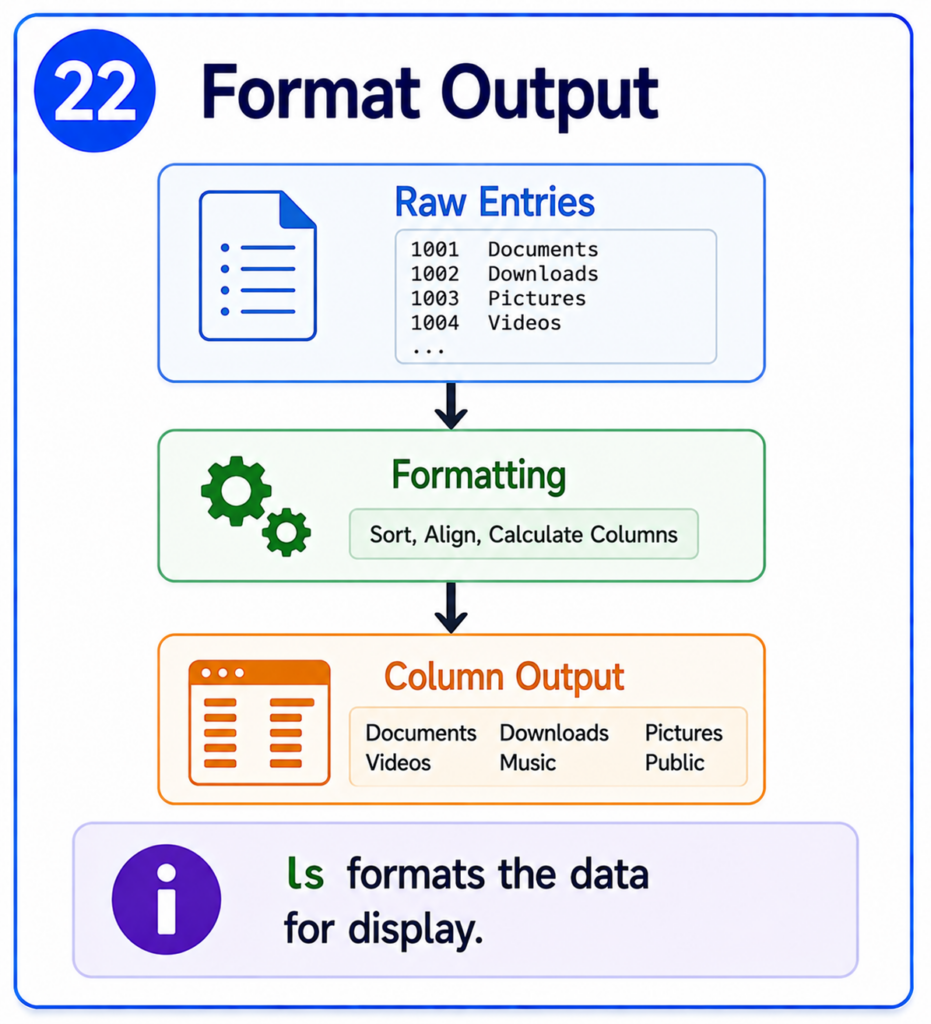
They are designed for software.
The ls program must convert this information into a readable format.
Depending on command-line options, ls may perform additional work.
It may sort entries alphabetically.
It may group directories separately from files.
It may display colors.
It may show permissions.
It may display file sizes and timestamps.
It may arrange the output into columns.
All of these formatting decisions happen inside the ls program itself.
The kernel’s job was simply to provide directory information.
The presentation layer belongs to the application.
After formatting is complete, the output is ready to be displayed.
Step 23 — Write To Terminal
The ls program now has formatted text.
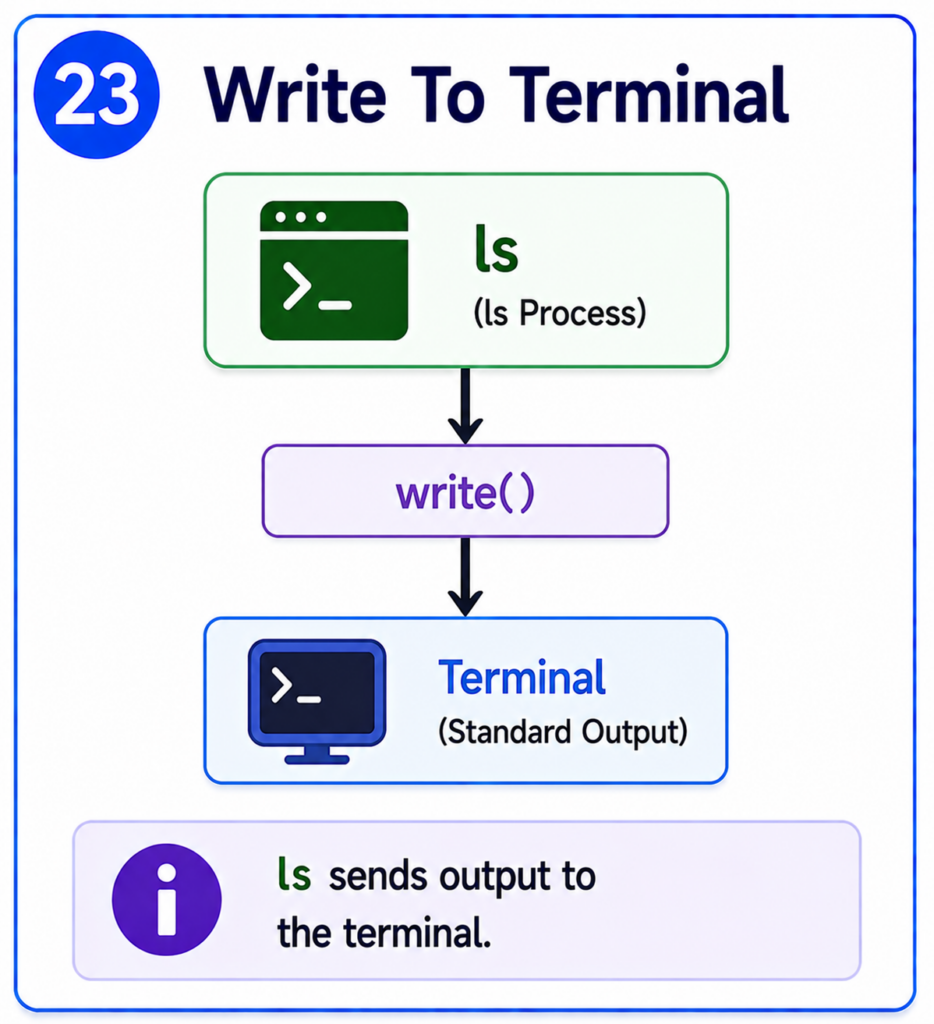
But users still cannot see it.
The program must send the output somewhere.
Normally this destination is standard output, often called stdout.
The ls process performs another system call.
This time it uses write().
The write() system call sends the formatted text to the terminal.
Once again, Linux briefly enters Kernel Space.
The kernel receives the output and routes it to the appropriate terminal device.
The text is now moving toward the screen.
The final stage of the journey is about to occur.
Step 24 — Terminal Displays Result
The terminal receives the text generated by ls.
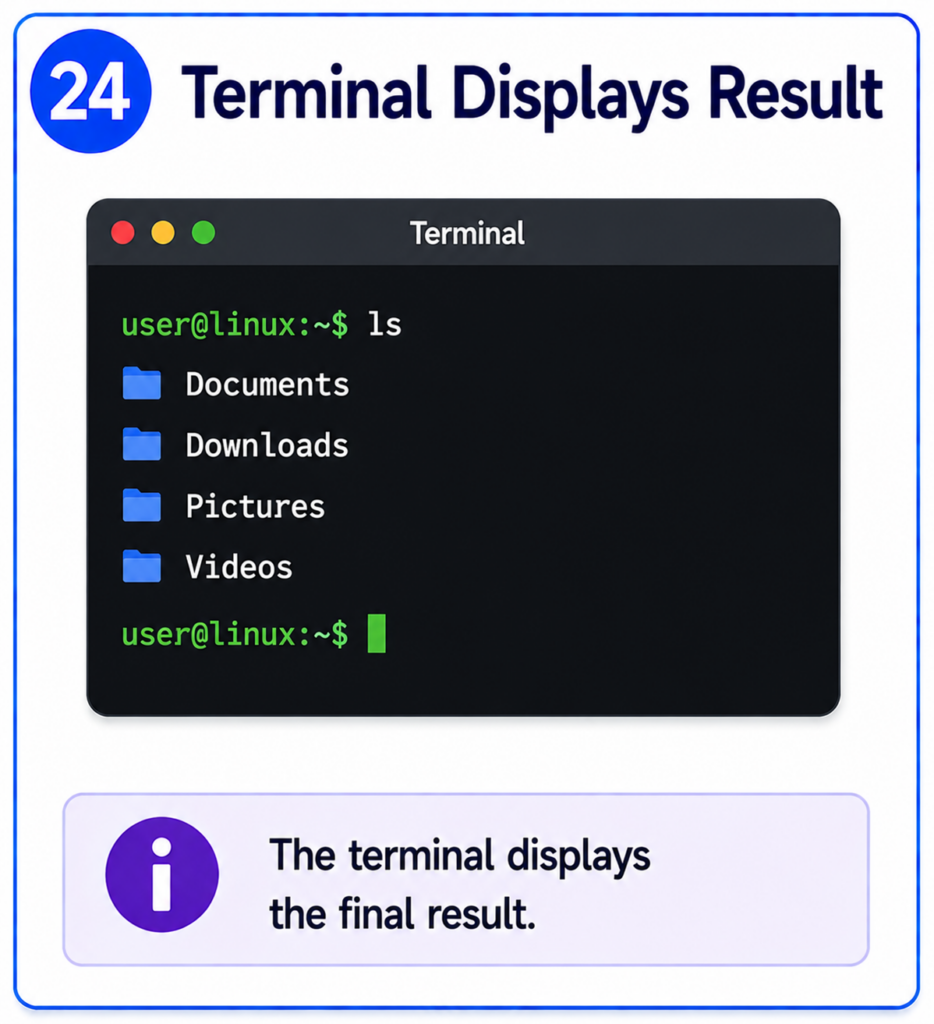
It interprets characters, colors, line breaks, and formatting instructions.
The terminal then renders everything on the screen.
Finally, the user sees:
Documents
Downloads
Pictures
Videos
Projects
From the user’s perspective, the operation appears instant.
The command was typed.
The results appeared.
The entire process usually takes only a few milliseconds.
Yet behind this simple interaction lies a sophisticated operating system coordinating applications, memory, filesystems, processes, and hardware.
The journey is complete.
The ls command has successfully displayed the contents of the directory.
Step 25 — Journey Complete
Let’s review what just happened.
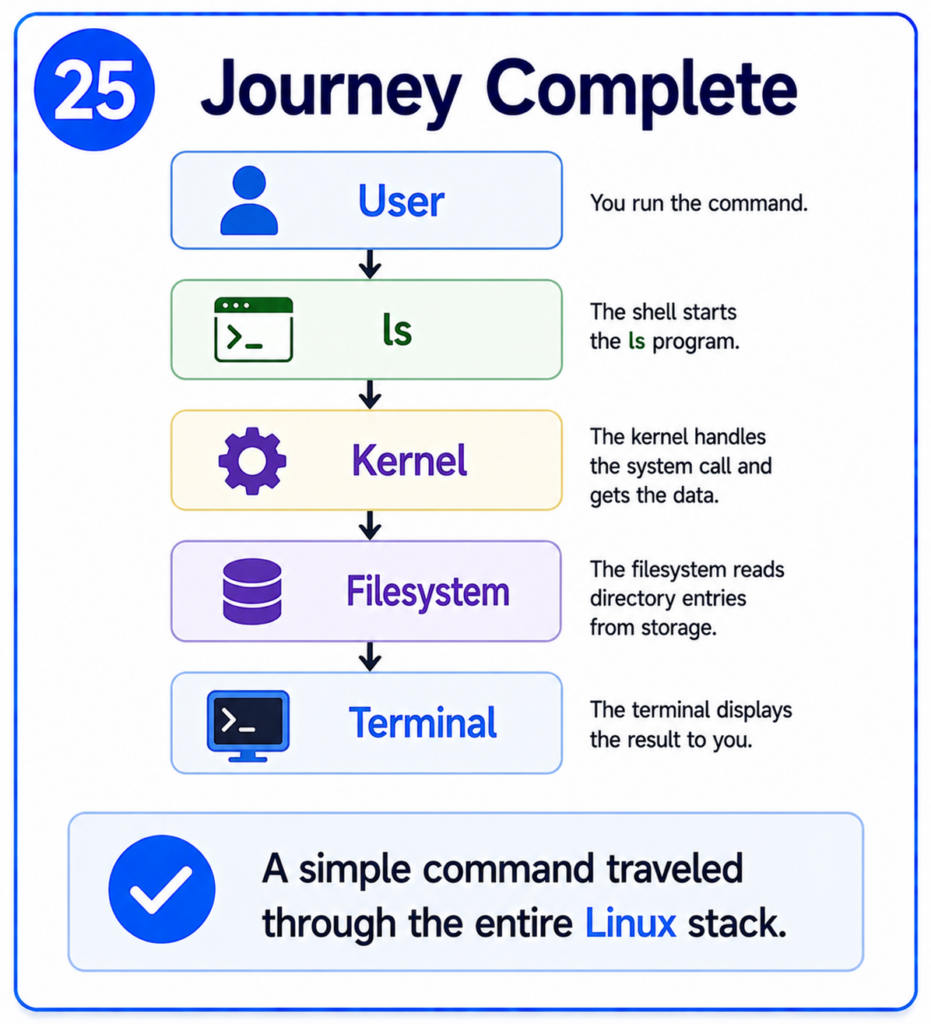
The user typed a command.
The shell received the input.
The shell searched the PATH variable.
Linux created a child process using fork().
The child process became the ls program through execve().
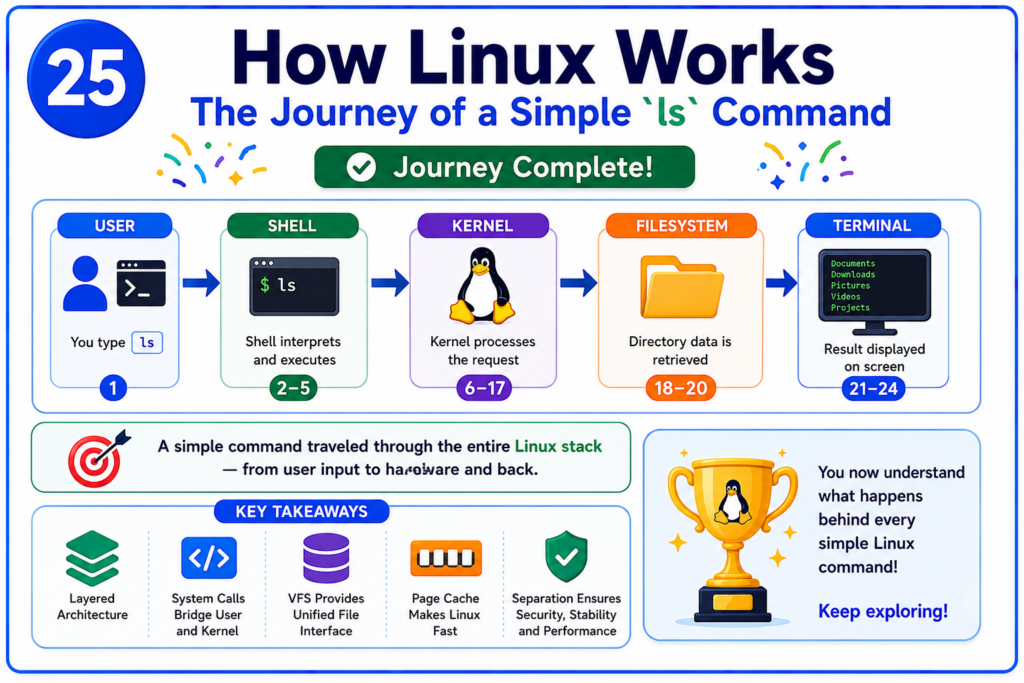
The kernel loaded the executable into memory.
The scheduler assigned CPU time.
The CPU began executing instructions.
The ls program requested directory information.
A system call transferred control into the kernel.
The kernel located the appropriate system call handler.
The Virtual File System processed the request.
Linux located the directory inode.
The Page Cache was checked.
Directory entries were retrieved.
The data returned through the kernel.
The information was copied back into User Space.
The ls program formatted the results.
The output was written to the terminal.
The terminal displayed the final result.
All of this happened because of a single command:
ls
This journey demonstrates nearly every major subsystem inside Linux.
Processes.
Memory management.
System calls.
The scheduler.
The Virtual File System.
The Page Cache.
Kernel Space.
User Space.
And terminal I/O.
Most users never see these components.
But every command relies on them.
Understanding this flow is one of the best ways to understand Linux itself.
Because once you understand how a simple command works, you begin to understand how the entire operating system works.
Applications talk to the kernel.
The kernel talks to the hardware.
The hardware performs the work.
And Linux coordinates everything in between.
That is how Linux works.
And all of it started with two simple characters:
ls