Git is a version control system.
That sounds technical, but the idea is simple:
Git helps you track changes to files over time, return to older versions, and work safely with other people on the same project.
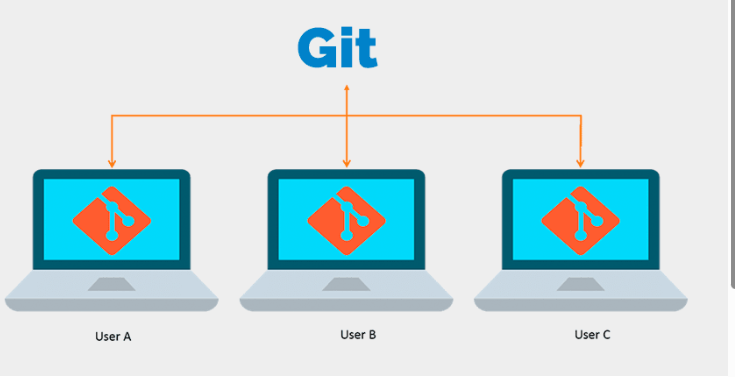
It is used most often for software development, but Git can also manage:
- scripts
- documentation
- configuration files
- FPGA projects
- hardware design files
- website code
- research notes
If you create files that change over time, Git can help.
The Simplest Way to Understand Git
Imagine you are building a project.
On day 1, everything works.
On day 2, you make changes.
On day 3, something breaks.
On day 4, you want the version from day 1 back.
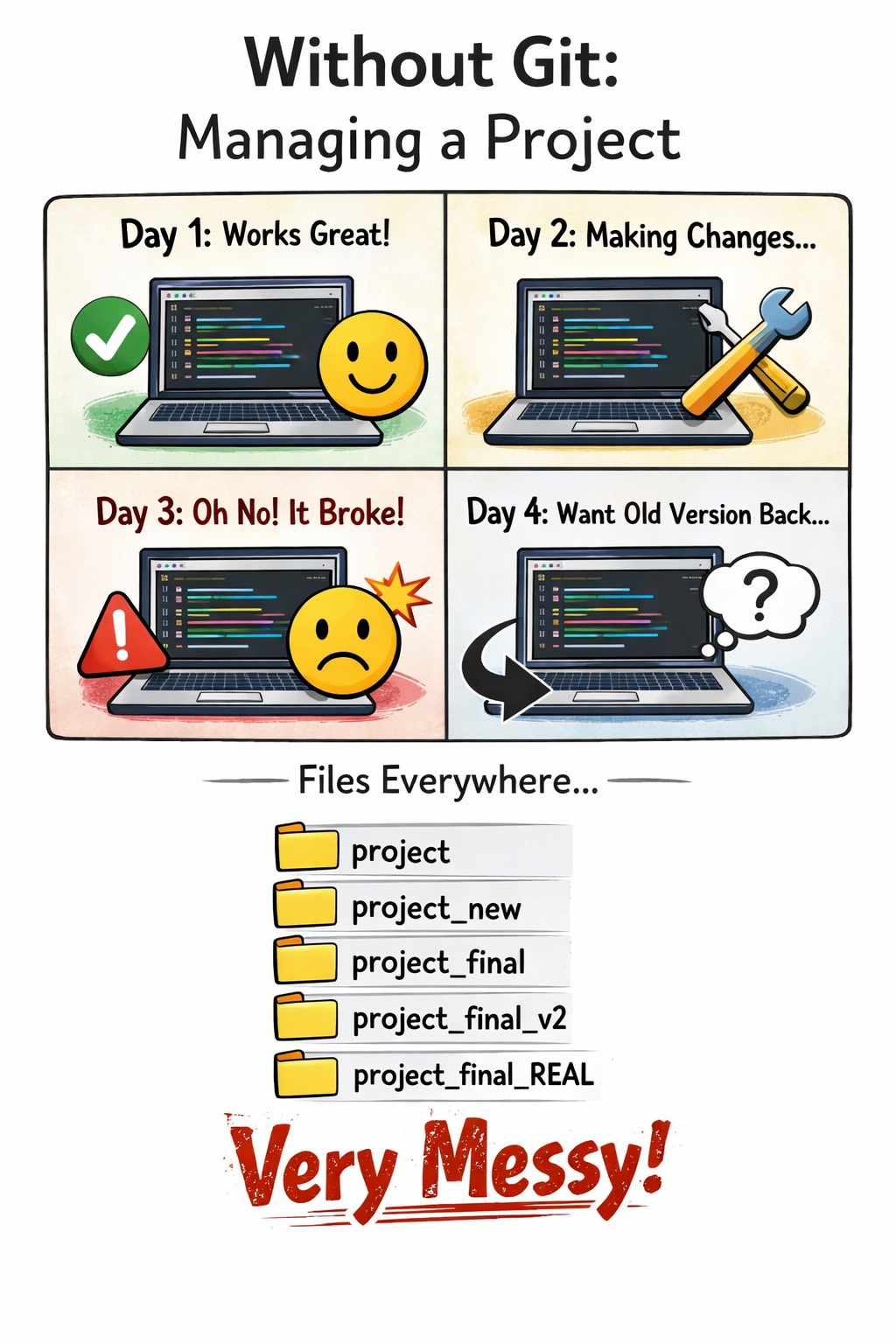
Without Git, people often do this:
projectproject_newproject_finalproject_final_v2project_final_REAL
This gets messy very quickly.
Git solves that problem by giving you a structured history of your work.
What Git Actually Does
Git does four very important things:
1. Tracks changes
Git records what changed in your files over time.
2. Saves versions
You can create saved checkpoints of your project.
3. Lets you go back
If you break something, you can return to an earlier version.
4. Helps people collaborate
Multiple people can work on the same project without constantly overwriting each other.
Why Git Matters
Git is important because most real projects are not built in one step.
They grow through:
- experiments
- mistakes
- fixes
- feature additions
- collaboration
- refactoring
Git makes that process safe and manageable.
Without Git, even a small project can become confusing. With Git, even a large project becomes more organized.
Git Is Not GitHub
A lot of beginners mix these up.
Git
Git is the tool.
GitHub
GitHub is a website/platform that hosts Git repositories online.
So:
- Git = version control engine
- GitHub = online hosting and collaboration platform
Other similar platforms include:
- GitLab
- Bitbucket
Git works perfectly fine without GitHub. GitHub just makes sharing and collaboration easier.
What Is a Repository?
A repository, often called a repo, is a project folder managed by Git.
It contains:
- your files
- your project history
- your saved versions
- your branches
You can think of a repository as:
a project plus its complete change history
The Core Idea: Snapshots, Not Just Backups
Git does not simply make random copies of files.
Instead, Git records snapshots of your project at important points.
These snapshots are called:
Commits
A commit is a saved point in your project’s history.
Each commit is like saying:
“This is the state of my project right now, and I want to record it.”
Good commits let you:
- understand what changed
- restore working versions
- compare one state to another
- debug problems more easily
A Real-World Analogy
Think of Git like a combination of:
- a time machine
- a save system in a game
- a collaboration log
- a project history notebook
Every commit is a save point.
If something goes wrong later, you can go back.
The Three Main Areas in Git
To understand Git, it helps to know the three basic areas:
1. Working Directory
This is where you actively edit files on your computer.
It is your normal project folder.
2. Staging Area
This is where you prepare changes before saving them officially.
You can think of it as:
a waiting area for changes you want to include in the next commit
3. Repository
This is where committed project history is stored.
Basic Git Workflow
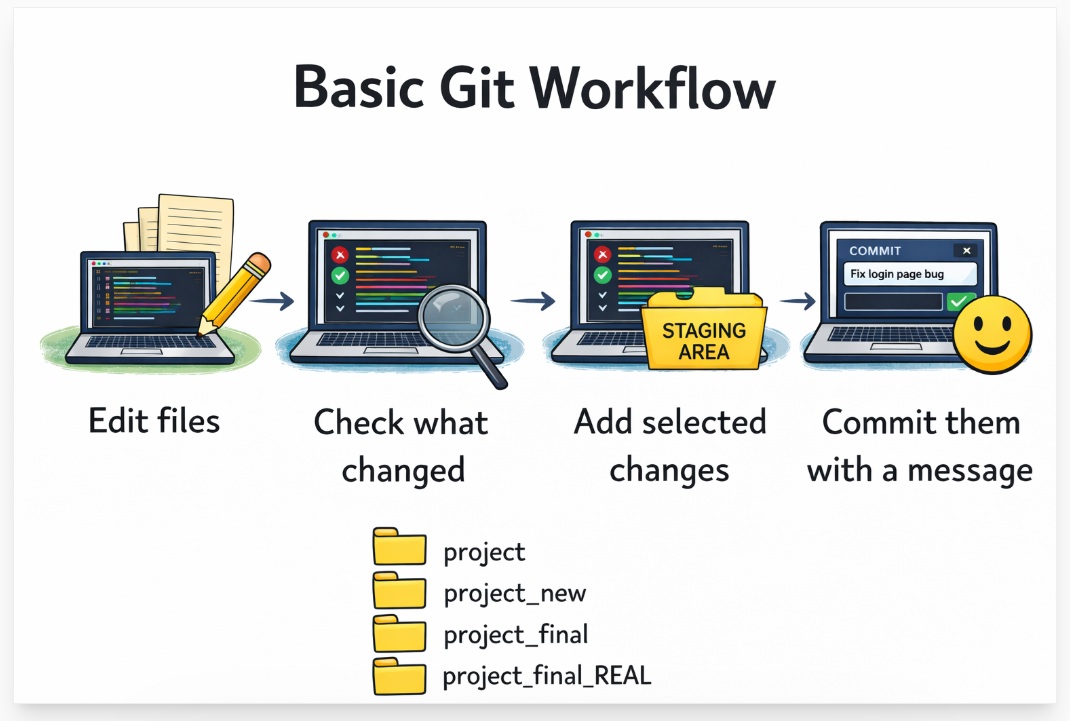
A very common Git workflow looks like this:
- Edit files
- Check what changed
- Add selected changes to the staging area
- Commit them with a message
Example:
git status
git add .
git commit -m "Fix login bug"
This means:
git status
shows what changedgit add .
puts changed files into the staging areagit commit -m "Fix login bug"
saves a snapshot with a message
Why Commit Messages Matter
A commit message explains what the commit does.
Bad message:
git commit -m "stuff"
Better message:
git commit -m "Add UART receive logic"
Good commit messages make project history readable.
They help both you and other people understand the purpose of each saved step.
What Git Tracks
Git is especially good at tracking text-based files, such as:
.c.cpp.py.v.sv.vhd.md.txt.html.css.js
This is one reason Git is excellent for:
- software development
- FPGA design
- embedded systems
- Linux projects
- documentation
Git can store binary files too, but it is most powerful with text files.
Branches: One of Git’s Best Features
A branch is a separate line of development.
You can think of a branch as:
a parallel path where you can work without disturbing the main project
For example:
main= stable primary versionfeature-uart= new UART featurefix-reset-bug= bug fix work
You can test ideas in a branch, and when they are ready, merge them back into the main branch.
Why Branches Are So Useful
Branches let you:
- try new ideas safely
- build new features without breaking the main version
- fix bugs independently
- allow multiple people to work at the same time
This is a huge reason Git became so important.
What Is Merging?
Once work on a branch is finished, you usually bring it back into the main branch.
That process is called:
Merge
Example:
- You create a branch called
feature-display - You build the display logic there
- When it is done, you merge it into
main
Now the main project includes that new feature.
What Is a Merge Conflict?
Sometimes two branches change the same line in different ways.
Git then cannot decide automatically which version is correct.
That is called a:
Merge conflict
A conflict is not Git failing.
It is Git saying:
“I found two competing changes here. Please choose what you want.”
Then you manually resolve it.
Local vs Remote
Git can be used only on your own computer, but many teams also use a remote repository.
A remote repository is a version stored online, usually on a platform like GitHub.
Local repository
The version on your computer
Remote repository
The version stored on a server or platform online
Push and Pull
When you work with a remote repository, two important actions are:
git push
Sends your local commits to the remote repository
git pull
Gets the latest changes from the remote repository to your local machine
Simple memory trick:
- push = send up
- pull = bring down
Clone
If a repository already exists online, you can copy it to your own machine using:
git clone <repository-url>
This downloads the project and its history.
You can think of cloning as:
“Give me my own local copy of this Git repository.”
What Happens Inside Git Conceptually
At a high level, Git builds a graph of project history.
Each commit:
- points to a specific project state
- usually links to earlier commits
- helps Git understand how the project evolved
This makes Git fast, efficient, and powerful.
Git is not just storing files.
It is storing relationships between versions.
The Most Important Beginner Commands
Here are the most useful starting commands.
Start a new Git repository
git init
Check repository status
git status
Add all changed files to staging
git add .
Add one specific file
git add filename.txt
Commit changes
git commit -m "Your message here"
View commit history
git log
Show the differences in files
git diff
Create a new branch
git branch feature-name
Switch to another branch
git switch feature-name
Create and switch in one step
git switch -c feature-name
Merge a branch into the current one
git merge feature-name
Download a repository
git clone <url>
Send changes to remote
git push
Pull changes from remote
git pull
Example: A Simple Git Session
Let’s say you create a project folder and start using Git.
Step 1: Initialize Git
git init
Now Git starts tracking the folder.
Step 2: Create a file
Maybe you create:
main.py
Step 3: Check status
git status
Git will tell you that main.py is untracked.
Step 4: Add it
git add main.py
Step 5: Commit it
git commit -m "Add initial Python file"
Now that version is saved in Git history.
Step 6: Modify the file later
You add more code, then:
git status
git diff
git add main.py
git commit -m "Add user input handling"
Now you have two commits in history.
You can inspect them with:
git log
Why Git Is So Valuable for Debugging
Imagine this situation:
- Monday: code works
- Tuesday: code still works
- Wednesday: code fails
With Git, you can compare the good version and the broken version.
You can ask:
- What changed?
- Which file caused the issue?
- Which commit introduced the bug?
This makes debugging much easier.
Git for Teams
When multiple people work together, Git becomes even more important.
Without Git, teams would constantly overwrite each other’s work.
With Git, people can:
- work in separate branches
- review each other’s changes
- merge completed work
- keep a clean development history
This is one reason almost every professional software team uses Git.
Git for FPGA and Hardware Projects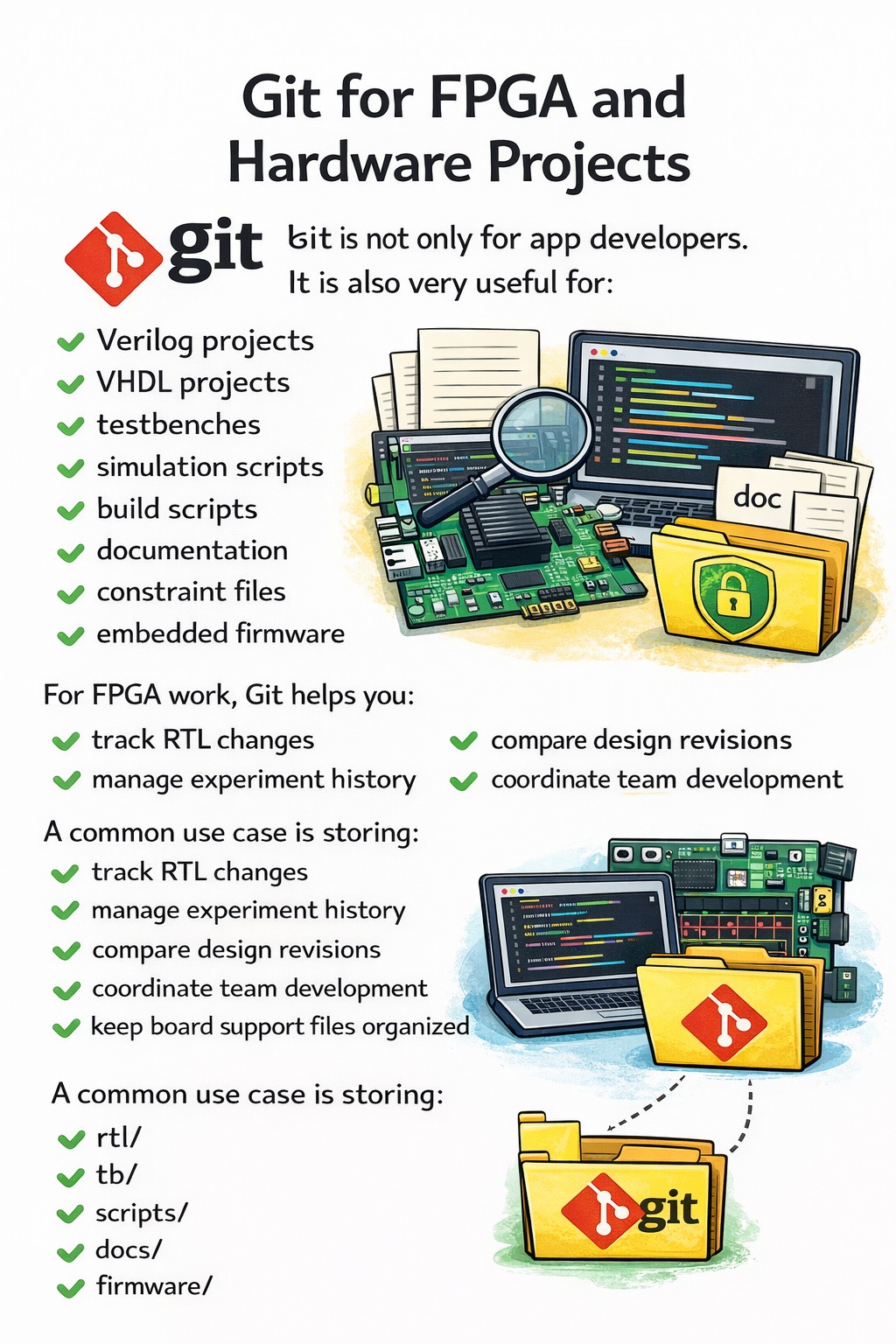
Git is not only for app developers.
It is also very useful for:
- Verilog projects
- VHDL projects
- testbenches
- simulation scripts
- build scripts
- documentation
- constraint files
- embedded firmware
- hardware/software co-design
For FPGA work, Git helps you:
- track RTL changes
- manage experiment history
- compare design revisions
- coordinate team development
- keep board support files organized
A common use case is storing:
rtl/tb/scripts/docs/firmware/
in one Git repository.
What Git Does Not Automatically Solve
Git is powerful, but it does not magically solve everything.
It does not:
- write good code for you
- automatically organize your project well
- prevent all conflicts
- replace communication in a team
Git is a tool.
Its power depends on how well you use it.
Good Git Habits
Here are some best practices for beginners:
Commit often
Do not wait until you changed 100 things.
Small commits are easier to understand and safer.
Write clear commit messages
Say what changed and why.
Use branches
Do not experiment directly on your main branch unless the change is tiny.
Check status frequently
Run:
git status
often.
Review changes before committing
Use:
git diff
to inspect what actually changed.
Common Beginner Mistakes
1. Forgetting to commit
You make many changes, but never save a clean checkpoint.
2. Writing useless commit messages
Messages like “update” or “fix stuff” are not helpful later.
3. Working only on main
This is risky for larger changes.
4. Not understanding staging
Some beginners do not realize that git add chooses what will go into the next commit.
5. Panicking when there is a conflict
Conflicts are normal. They do not mean your project is ruined.
A Very Simple Mental Model
Here is an easy way to remember Git:
Working directory
Where you edit files
git add
Marks changes to be included
git commit
Saves a checkpoint
branch
A separate line of work
merge
Combines lines of work
push
Uploads your commits
pull
Downloads new commits
Why Git Became So Dominant
Git became the standard because it is:
- fast
- distributed
- reliable
- flexible
- excellent for branching and merging
Before Git, other version control systems existed, but Git made collaboration and history management much more efficient.
That is why it became central to modern software and open-source development.
One-Sentence Definition
Git is a distributed version control system that tracks changes in files, saves project history, and enables safe collaboration.
The Short Beginner Roadmap
If you want to learn Git in the right order, study it like this:
Stage 1: Absolute basics
git initgit statusgit addgit commitgit log
Stage 2: Understanding changes
git diff- file tracking
- staging area
Stage 3: Branching
git branchgit switchgit merge
Stage 4: Remote work
git clonegit pushgit pull
Stage 5: Team workflow
- pull requests
- code review
- branch strategies
Final Summary
Git is one of the most important tools in modern computing.
It helps you:
- track changes
- save versions
- undo mistakes
- experiment safely
- collaborate with others
It is not just for programmers.
It is for anyone whose files evolve over time and need structure.
The core idea is simple:
Git does not just store files. It manages change.
A Strong Closing Line
If you are serious about coding, FPGA, embedded systems, Linux, or technical projects in general:
learning Git is not optional — it is foundational.