Introduction
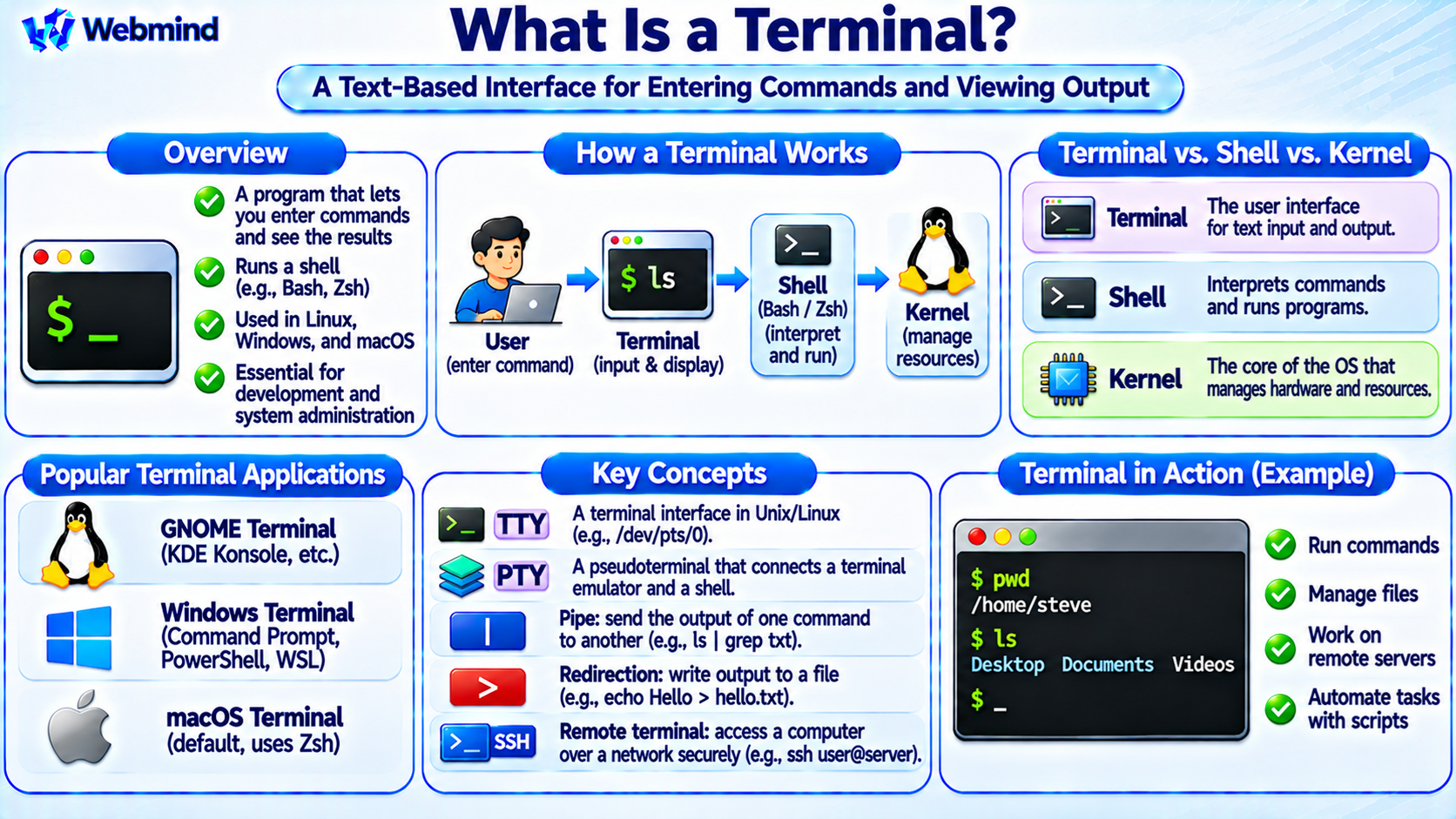
A terminal is a text-based interface that allows users to interact with a computer by entering commands and viewing their output.
In modern operating systems, a terminal usually refers to a terminal emulator, a software application that provides access to a command-line environment.
Terminals are widely used in Linux, Windows, macOS, servers, and software development environments.
Popular examples include GNOME Terminal, Windows Terminal, Konsole, and macOS Terminal.
A terminal normally runs a command-line shell, such as Bash, Zsh, or PowerShell.
The shell interprets commands, while the terminal handles text input and output.
Understanding terminals is an important foundation for learning operating systems, Linux administration, shell scripting, and software development.
How Does a Terminal Work?
A terminal provides an interface through which users can enter text commands and view results.
For example, a Linux user may open a terminal and type:
pwd
The command displays the current working directory.
When the user presses Enter, the terminal sends the input to the running shell.
The shell interprets the command and executes the appropriate operation.
If the command launches an external program, that program uses operating-system services to perform its work.
The resulting output is sent back to the terminal, which displays the text.
This process allows users to control applications and operating-system functions without relying on graphical menus.
Terminal vs. Shell: What Is the Difference?
A terminal and a shell are related but different programs.
Terminal: Provides the interface for entering commands and displaying text output.
Shell: Interprets commands, launches programs, manages variables, and supports scripting.
For example, GNOME Terminal can run Bash or Zsh.
The terminal provides the window, text display, keyboard input, and related interface features.
Bash or Zsh processes the commands entered inside that window.
Similarly, Windows Terminal can run PowerShell, Command Prompt, or supported Linux shells through Windows Subsystem for Linux (WSL).
A terminal is therefore not the same as a shell, even though the two are often used together.
Terminal vs. Kernel
The kernel is the core component of an operating system.
It manages hardware resources, processes, memory, file systems, and device access.
A terminal is an application that provides a text-based interface.
When a user enters a command, the shell or another terminal-based program may request services from the kernel through system calls.
For example, reading a file requires operating-system file-access services.
The terminal displays the result, but the kernel manages the underlying resources.
This separation helps explain how command-line interactions reach the operating system.
What Is a Terminal Emulator?
Historically, computer terminals were physical devices containing a keyboard and display.
They connected to larger computers and allowed users to interact with programs running on those systems.
Modern terminal emulators reproduce much of this functionality using software.
A terminal emulator can display text, interpret terminal control sequences, handle keyboard input, and support interactive command-line programs.
Many terminal emulators also provide features such as tabs, scrolling, font customization, color themes, and copy-and-paste support.
Examples include GNOME Terminal, Konsole, Windows Terminal, and Apple’s Terminal application.
What Is a TTY?
TTY stands for Teletypewriter, a term originating from early text communication devices.
In Unix and Linux systems, TTY commonly refers to terminal-related device interfaces.
Linux provides virtual consoles and terminal devices that allow programs to communicate through terminal input and output.
For example, the command:
tty
displays the terminal device associated with the current standard input, when one is available.
The output may resemble /dev/pts/0.
This indicates a pseudoterminal device rather than a physical keyboard-and-display terminal.
The TTY concept remains important in Linux terminal handling and process management.
What Is a Pseudoterminal (PTY)?
A pseudoterminal, commonly abbreviated PTY, is a software mechanism that provides terminal-like communication between processes.
It typically consists of a master side and a slave side.
A terminal emulator communicates through the master side, while a shell or another interactive application uses the slave side as its terminal.
The operating system provides terminal-related behavior such as input processing and control operations.
This arrangement allows interactive applications to behave as though they are connected to a traditional terminal.
Pseudoterminals are widely used by graphical terminal emulators, SSH sessions, and other remote command-line environments.
What Is a Linux Terminal?
A Linux terminal provides access to a shell and command-line utilities.
For example, an Ubuntu desktop commonly uses a terminal application with Bash as the configured interactive shell.
Users can execute commands such as:
ls
cd
mkdir
cat
ps
These commands allow users to inspect files, change directories, create folders, display information, and examine processes.
Linux terminals are especially useful for system administration, software development, server troubleshooting, and automation.
Many Linux servers do not have graphical desktop environments, making terminal-based administration particularly important.
What Is Windows Terminal?
Windows Terminal is a modern terminal emulator developed by Microsoft.
It provides a unified interface for command-line environments such as PowerShell, Command Prompt, and supported WSL distributions.
Windows Terminal supports tabs, multiple panes, Unicode text, configurable profiles, and visual customization.
For example, a user can open PowerShell in one tab and Ubuntu through WSL in another.
Windows Terminal itself is not PowerShell.
PowerShell is a command shell and scripting environment, while Windows Terminal provides the interface used to interact with it.
What Is macOS Terminal?
macOS includes a Terminal application that provides access to Unix command-line tools.
Modern macOS systems commonly use Zsh as the default interactive shell.
Users can execute commands to manage files, inspect processes, run development tools, and automate tasks.
For example, the command:
pwd
displays the current working directory.
The command:
ls
lists files and directories.
macOS also supports alternative terminal emulators such as iTerm2.
Because macOS is built on a Unix-based operating-system foundation, many command-line concepts are similar to those used on Linux.
What Is a Command Prompt?
A command prompt is a visual indication that a shell is ready to accept another command.
For example, a Bash prompt may end with the dollar sign $.
A PowerShell prompt commonly begins with PS followed by a location and a greater-than symbol.
The exact appearance can be customized.
The term Command Prompt also refers to the Windows command interpreter environment commonly associated with cmd.exe.
A prompt is not a separate operating-system component. It is part of the command-line interface presented by a shell or command interpreter.
What Are Standard Input, Output, and Error?
Command-line programs commonly use three standard data streams.
Standard Input (stdin): Receives input data, often from the terminal.
Standard Output (stdout): Carries normal program output.
Standard Error (stderr): Carries diagnostic messages and error information.
In Unix-like systems, these streams are conventionally associated with file descriptors 0, 1, and 2.
For example, a program may read keyboard input from standard input and display results through standard output.
Shells can redirect these streams to files or connect them to other programs.
This design is fundamental to Unix command-line operation.
What Are Pipes and Redirection?
Terminals provide an environment in which users interact with shells that support pipes and redirection.
A pipe connects the output of one command to the input of another.
For example:
ls | grep txt
This passes the output of ls to grep, which selects lines containing the text txt.
Redirection allows output to be written into files.
For example:
echo Hello > hello.txt
writes Hello into a file named hello.txt.
These operations are performed by the shell and operating system, not by the terminal emulator alone.
They allow command-line utilities to be combined into useful workflows.
What Is a Remote Terminal?
A remote terminal allows users to interact with a computer over a network.
One common method is Secure Shell (SSH).
SSH provides encrypted communication between a client and a remote system.
For example, a Linux administrator may connect to a remote server using:
ssh username@server.example.com
After authentication, the user may receive an interactive shell session on the server.
Commands entered locally are executed on the remote system, and their output is returned over the encrypted connection.
Remote terminals are widely used in server administration, cloud computing, networking, and development.
What Is Terminal Multiplexing?
A terminal multiplexer allows multiple terminal sessions to be managed within a single terminal connection.
Popular Unix terminal multiplexers include tmux and GNU Screen.
These tools can create multiple sessions or windows and allow users to switch between them.
They can also keep processes running within managed sessions after a user disconnects, provided the remote system continues operating.
For example, an administrator may use tmux to maintain several server-management sessions over SSH.
Terminal multiplexers are useful for remote development, monitoring, and long-running command-line tasks.
Terminal vs. Graphical User Interface
A terminal and a Graphical User Interface (GUI) provide different methods of interacting with a computer.
Terminal: Primarily uses text commands and command-line applications.
GUI: Uses windows, icons, menus, buttons, and other visual controls.
Graphical interfaces are convenient for many everyday tasks.
Terminals are particularly effective for automation, remote administration, text processing, and repeatable operations.
For example, renaming hundreds of files may be easier through a carefully written script than through manual graphical operations.
Modern operating systems support both approaches, allowing users to choose the interface best suited to each task.
Why Are Terminals Important for Developers?
Software developers frequently use terminals to run compilers, execute tests, manage Git repositories, and work with programming tools.
For example, a developer may use a terminal to execute Python, compile C code, or launch a local development server.
Terminals are also widely used in container environments, cloud platforms, and Continuous Integration and Continuous Delivery (CI/CD) workflows.
Command-line tools make it possible to automate operations and reproduce development procedures.
However, commands should be reviewed carefully because some operations can modify or delete files.
Understanding the terminal environment helps developers work more efficiently and safely.
Advantages of Using a Terminal
Direct Command Access: Allows users to execute system utilities and development tools.
Automation: Works with shell scripts to repeat complex operations.
Remote Administration: Supports SSH and other remote-management environments.
Low Resource Requirements: Command-line environments can operate without a complete graphical desktop.
Powerful Tool Integration: Pipes and redirection allow programs to exchange data.
Repeatability: Commands and scripts can document procedures that are executed consistently.
These advantages make terminals important in modern computing.
Limitations of Terminals
Terminals also have several limitations.
Learning Curve: Users must learn command names, options, and shell syntax.
Command Errors: Incorrect commands may modify or delete important data.
Limited Graphical Interaction: Some tasks are easier through visual applications.
Environment Differences: Commands and shell behavior vary between operating systems.
Configuration Complexity: Advanced terminal and shell setups may require additional configuration.
Despite these limitations, terminals remain valuable tools for technical users.
Conclusion
A terminal is a text-based interface that allows users to enter commands and view output from command-line programs.
Modern terminals are usually software terminal emulators that run shells such as Bash, Zsh, or PowerShell.
The terminal manages text input and display, while the shell interprets commands and launches programs. The operating-system kernel provides the underlying system services.
Terminals are widely used in Linux, Windows, macOS, server administration, software development, and cloud computing.
Understanding terminals provides an important foundation for studying operating systems, Linux, shells, system calls, command-line tools, and automation.