Introduction
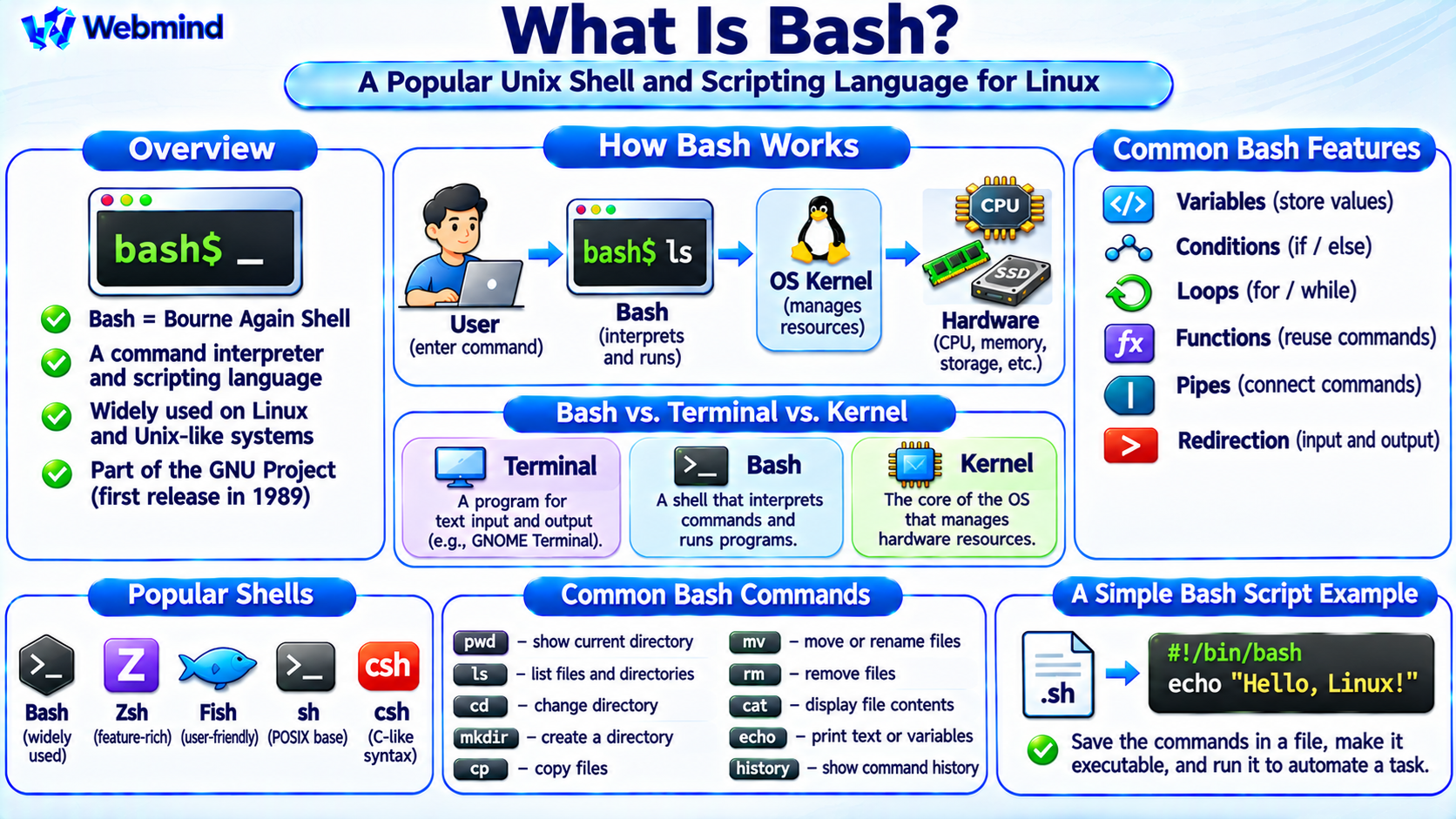
Bash, short for Bourne Again Shell, is a command-line shell and scripting language widely used in Linux and other Unix-like operating systems.
It allows users to execute commands, manage files, launch programs, and automate system administration tasks.
Bash was developed as part of the GNU Project, with its first release in 1989.
It was designed as a free software replacement for the original Unix Bourne Shell.
Today, Bash is commonly used on Linux desktops, servers, development environments, and cloud computing systems.
Understanding Bash is an important foundation for learning Linux, shell scripting, system administration, and software development.
How Does Bash Work?
Bash acts as a command interpreter between the user and the operating system.
When a user enters a command, Bash reads the input, interprets its syntax, and determines what operation to perform.
For example, the command:
ls
lists files and directories in the current location.
Bash normally locates and launches the external ls program, which requests file-system information from the operating-system kernel.
Bash also provides built-in commands that execute directly within the shell.
This combination of external programs, built-in commands, variables, and scripting features makes Bash a powerful interface for operating-system operations.
Bash vs. Terminal vs. Kernel
Bash, a terminal, and the Linux kernel are different components.
Terminal: Provides a graphical or text-based environment for entering commands and displaying output.
Bash: Interprets commands, launches programs, and executes shell scripts.
Kernel: Manages CPU scheduling, memory, hardware devices, processes, and other protected operating-system resources.
For example, GNOME Terminal may start a Bash session.
The user enters a command, Bash interprets it, and the requested program uses kernel services to perform its operations.
Bash normally runs in user space rather than kernel space.
Basic Bash Commands
Bash users commonly work with command-line utilities and shell built-ins.
pwd: Displays the current working directory.
ls: Lists files and directories.
cd: Changes the current directory.
mkdir: Creates directories.
cp: Copies files and directories.
mv: Moves or renames files.
rm: Removes files or directories.
cat: Displays or combines file contents.
echo: Prints text or variable values.
history: Displays commands stored in the shell’s command history.
For example:
mkdir linux-practice
creates a directory named linux-practice.
The command:
cd linux-practice
changes the shell’s current directory.
These commands form the foundation of everyday Linux command-line work.
What Are Bash Built-in Commands?
Bash includes commands implemented directly inside the shell.
Examples include cd, alias, export, read, set, and history.
A built-in command does not normally require Bash to launch a separate executable program.
For example, cd must change the working directory of the current shell process.
If a separate child process changed its own directory, the parent Bash session would remain in its original location.
Bash also supports external utilities such as grep, find, and sort.
Some command names, including echo and printf, may exist as both shell built-ins and external programs.
What Is Bash Scripting?
Bash scripting allows users to store commands in a text file and execute them as a program.
A Bash script commonly begins with:
#!/bin/bash
This line is called a shebang and identifies the interpreter to use when the script is executed directly on a compatible system.
For example, a simple script may contain:
#!/bin/bash
echo "Hello, Linux!"
When executed, the script prints the message to the terminal.
Bash scripts can contain variables, loops, conditional statements, functions, and other programming constructs.
They are widely used for server administration, backups, application deployment, and development automation.
What Are Variables in Bash?
Variables store values that can be used by commands and scripts.
For example:
name="Linux"
This assigns the text Linux to a variable named name.
The command:
echo "$name"
displays its value.
Bash variables normally store strings, although the shell also supports integer arithmetic and array types.
Quoting variable expansions is important because unquoted values may undergo word splitting and filename expansion.
For example, "$name" preserves the expanded value as a single argument in ordinary command contexts.
What Are Environment Variables?
Environment variables provide information that can be passed from a shell to programs it launches.
Common environment variables include:
PATH: Lists directories searched for executable programs.
HOME: Identifies the user’s home directory.
USER: Commonly contains the current user’s login name.
SHELL: Commonly identifies the user’s configured login shell.
For example:
echo "$HOME"
displays the home directory.
The command:
export MY_VAR="Hello"
creates or updates a variable and marks it for inclusion in the environment of subsequently launched programs.
Environment variables are widely used for application configuration and development tools.
What Are Pipes in Bash?
A pipe connects the standard output of one command to the standard input of another.
The pipe operator is represented by |.
For example:
ls | grep txt
This passes the output of ls to grep, which selects lines containing the text txt.
A more complex pipeline can combine multiple commands.
For example:
ps aux | grep nginx
displays process information and filters lines containing nginx.
Pipelines are useful because they allow smaller command-line tools to work together.
However, ordinary grep matching is text-based, so a pipeline does not necessarily identify a process or filename with perfect precision.
What Is Input and Output Redirection?
Bash supports redirection operators that control where commands receive input and send output.
The > operator redirects standard output to a file, replacing its existing contents.
For example:
echo "Hello" > hello.txt
writes Hello into hello.txt.
The >> operator appends output to a file.
For example:
echo "Linux" >> hello.txt
adds another line to the file.
The < operator redirects standard input from a file.
Bash can also redirect standard error, which is commonly represented by file descriptor 2.
These mechanisms are essential for shell scripting and command-line automation.
What Are Conditional Statements in Bash?
Bash supports conditional execution using constructs such as if, elif, and else.
Conditions typically examine command exit statuses.
A successful command normally returns exit status 0, while a nonzero status generally indicates failure or another defined condition.
For example, a script may use a conditional statement to check whether a file exists.
If the file exists, the script may process it. Otherwise, it may display an error message.
Bash supports test expressions using commands such as test, [ ], and the Bash [[ ]] conditional construct.
Conditional statements allow scripts to make decisions based on system conditions.
What Are Loops in Bash?
Loops allow Bash scripts to repeat operations.
Common loop types include for, while, and until.
A for loop can process a collection of values or filenames.
A while loop repeats commands while a specified condition remains successful.
An until loop repeats commands until its condition becomes successful.
For example, a script may use a loop to process multiple log files or check the status of a service.
Loops are especially useful when automating repetitive Linux administration tasks.
What Are Bash Functions?
A Bash function groups commands into a reusable unit.
For example, a script may define a function that displays system information or performs a backup operation.
Functions can accept positional arguments and return an exit status.
They help organize complex shell scripts into smaller, reusable sections.
However, Bash functions differ from functions in languages such as Python or C.
A Bash function’s return command specifies an exit status, not an arbitrary string or object.
Other results can be communicated through standard output, variables, or files.
What Are Bash Aliases?
An alias provides a shorter name or replacement for a command.
For example:
alias ll='ls -l'
defines ll as a shorthand for ls -l.
Aliases are commonly used to simplify frequently entered commands.
They can be defined interactively or placed in Bash configuration files.
For more complex behavior involving arguments and control logic, Bash functions are generally more suitable than aliases.
Aliases are primarily an interactive convenience rather than a complete scripting mechanism.
What Is the .bashrc File?
Bash uses startup files to configure shell sessions.
The file ~/.bashrc is commonly read when an interactive non-login Bash shell starts.
It may contain aliases, shell functions, prompt settings, and environment configuration.
Login shells may read files such as /etc/profile, ~/.bash_profile, or ~/.profile, depending on the system and Bash startup rules.
For example, users may add an alias or modify the PATH environment variable in an appropriate startup file.
Changes can be applied to a current shell session by sourcing the relevant configuration file, such as:
source ~/.bashrc
Users should review configuration changes carefully because incorrect startup commands can affect shell behavior.
What Is Command History in Bash?
Bash can maintain a history of previously entered commands.
The history built-in displays commands available in the current history list.
Users can commonly press the Up Arrow key to recall previous commands.
Bash also supports history expansion, reverse searching, and interactive command editing.
For example, pressing Ctrl+R in a typical Bash interactive session starts a reverse history search.
These features help users work efficiently without repeatedly typing long commands.
History settings and persistence depend on shell configuration.
Bash vs. Zsh vs. Fish
Bash is one of several shells available on Linux and Unix-like systems.
Bash: Widely used for Linux administration, scripting, and development automation.
Zsh: Provides extensive interactive customization and powerful completion features.
Fish: Emphasizes usability with features such as autosuggestions and syntax highlighting.
Bash and Zsh share many shell concepts, but their scripting syntax and behavior are not identical.
Fish uses a different scripting language and does not aim to be POSIX shell compatible.
Bash is often a practical choice for Linux scripting because it is widely available and extensively documented.
However, scripts intended for maximum portability may target POSIX sh rather than Bash-specific features.
Bash in Linux Server Administration
Bash is widely used to manage Linux servers.
Administrators use it to inspect system information, manage files, monitor processes, and configure services.
For example, Bash commands can launch tools such as systemctl, journalctl, ss, and df on supported Linux systems.
Scripts can automate backups, log processing, software updates, and routine maintenance.
Remote administrators commonly access Bash sessions through SSH.
Because Linux servers often operate without graphical desktops, command-line shells remain essential tools for managing production systems.
Bash in Software Development and DevOps
Developers use Bash to compile software, run tests, manage Git repositories, and automate build processes.
Bash scripts are also commonly used in Continuous Integration and Continuous Delivery (CI/CD) systems.
For example, a script may install dependencies, run unit tests, build an application, and prepare deployment files.
Container images and cloud environments frequently include shell-based automation.
However, some minimal Linux environments provide a different default shell, such as Dash or BusyBox ash.
Scripts should therefore use the correct interpreter and avoid assuming that Bash is installed everywhere.
Is Bash a Programming Language?
Yes. Bash is both a command interpreter and a scripting language.
It supports variables, arithmetic expressions, functions, conditional statements, loops, arrays, and other programming features.
However, Bash is primarily designed for command execution and automation rather than large general-purpose software applications.
Languages such as Python are often more suitable for complex data structures, extensive application logic, and large software projects.
Bash remains particularly effective when a task involves launching system utilities, manipulating files, and connecting command-line programs.
Choosing the right language depends on the task.
Why Is Bash Important?
Bash provides a powerful and flexible way to interact with Linux systems.
It allows users to combine existing utilities, automate repetitive tasks, and control software development workflows.
Its widespread availability makes it especially valuable for system administrators, developers, and cloud engineers.
Understanding Bash also helps users learn important operating-system concepts, including processes, environment variables, file permissions, input/output streams, and command execution.
For beginners, learning Bash provides a practical introduction to Linux administration and automation.
Conclusion
Bash, or Bourne Again Shell, is a GNU command-line shell and scripting language widely used in Linux and Unix-like environments.
It interprets commands, launches programs, manages shell variables, and supports scripting constructs such as loops, conditions, functions, pipes, and redirection.
Bash is essential for Linux system administration, software development, server management, and automation.
Although it is not the same as the Linux kernel or terminal, Bash provides a convenient interface for interacting with operating-system services.
Understanding Bash provides an important foundation for studying Linux, Unix, shell scripting, command-line tools, system administration, and DevOps.