Introduction
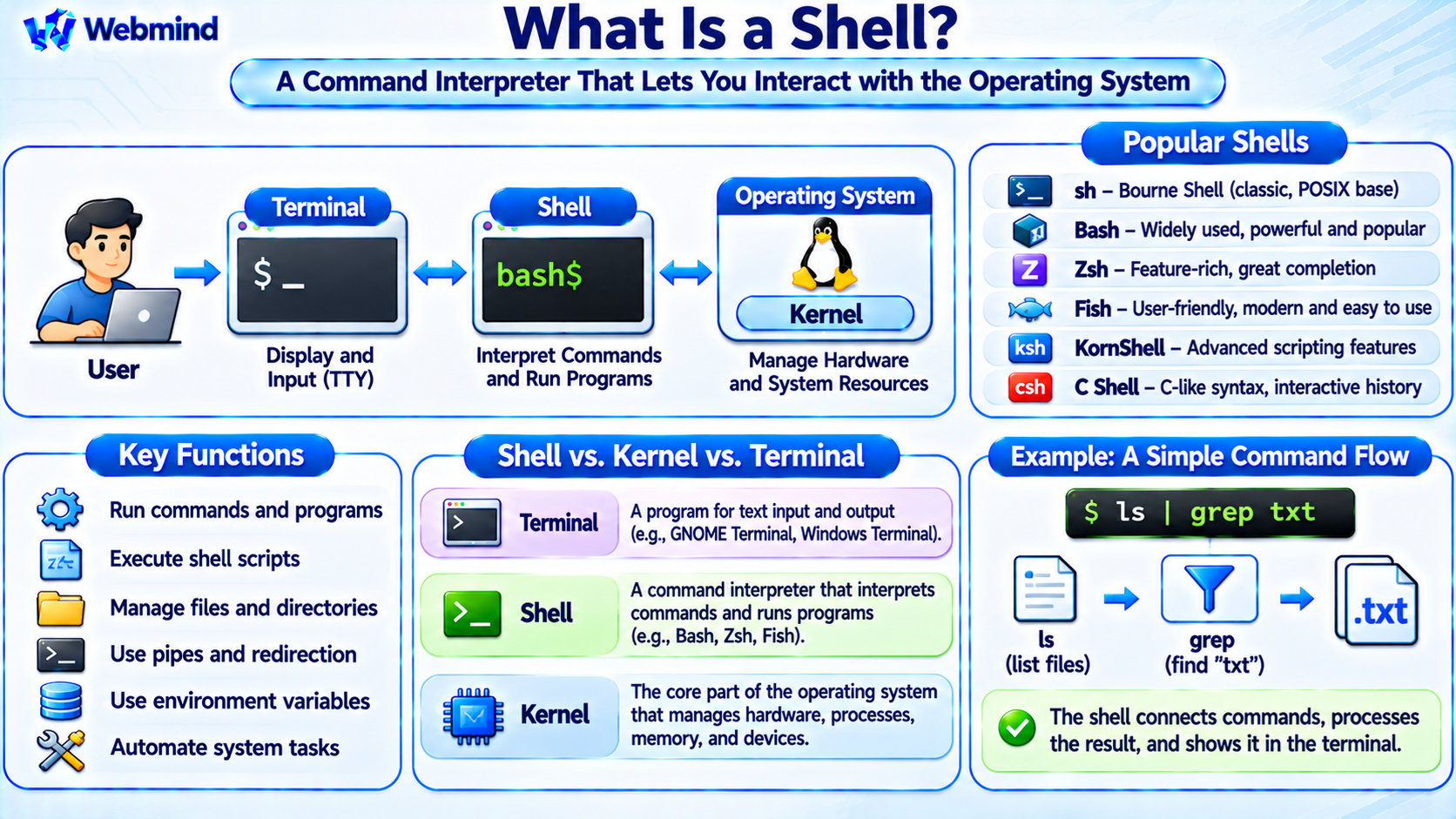
A shell is a program that provides an interface between users and an operating system.
It allows users to execute commands, launch applications, manage files, and automate tasks through scripts.
In Linux and Unix-like systems, a shell is commonly used through a command-line interface (CLI).
Popular shells include Bash, Zsh, Fish, Dash, KornShell, and C Shell.
For example, a user can enter ls to list files or pwd to display the current working directory.
Shells are essential tools for Linux administration, software development, server management, and automation.
How Does a Shell Work?
A shell accepts commands from a user or a script, interprets their syntax, and performs the requested operations.
When a user enters a command, the shell determines whether it is a built-in command, a function, or an external executable program.
For an external program, the shell normally creates a process and requests the operating system to execute it.
For example, entering ls in Bash typically launches the external ls utility.
The utility requests file-system information through operating-system interfaces, and the results are displayed in the terminal.
The shell therefore acts as an interpreter and command environment rather than directly controlling computer hardware.
Shell vs. Kernel: What Is the Difference?
A shell and a kernel perform different functions within an operating system.
Kernel: The core operating-system component responsible for managing CPU scheduling, memory, devices, processes, and protected system resources.
Shell: A user-space program that interprets commands and provides an interface for interacting with the operating system.
For example, when a user executes a file-management command, the shell interprets the command and may launch a utility.
The utility then uses system calls to request file operations from the kernel.
The shell is not part of the kernel and generally runs without kernel privileges.
This separation is a fundamental feature of Unix-like operating systems.
Shell vs. Terminal: What Is the Difference?
A terminal and a shell are related but separate components.
Terminal: A program that displays text and allows users to enter commands. Examples include GNOME Terminal, Windows Terminal, Konsole, and macOS Terminal.
Shell: The command interpreter running inside the terminal.
For example, opening a terminal on Ubuntu commonly starts Bash, depending on the user’s configuration.
The terminal handles the display and user interaction, while Bash interprets commands.
A terminal can run different shells, and a shell can also execute scripts without an interactive terminal.
Understanding this distinction helps explain how command-line environments operate.
Main Types of Linux and Unix Shells
Bourne Shell (sh)
The Bourne Shell was developed by Stephen Bourne for Unix.
It introduced important shell scripting concepts, including variables, control structures, and command substitution.
Today, /bin/sh often refers to a POSIX-compatible shell implementation rather than the original Bourne Shell.
On many Debian and Ubuntu systems, /bin/sh is linked to Dash.
Bash (Bourne Again Shell)
Bash is a GNU shell widely used in Linux environments.
It supports command history, tab completion, variables, functions, scripting, and interactive command editing.
Bash is commonly used for system administration and shell automation.
Zsh (Z Shell)
Zsh is a feature-rich shell known for its powerful completion system, customization, and interactive capabilities.
It is the default interactive shell on modern macOS systems.
Zsh is also popular among Linux developers who prefer advanced command-line customization.
Fish (Friendly Interactive Shell)
Fish emphasizes an accessible interactive experience.
It provides features such as autosuggestions, syntax highlighting, and convenient command completion.
However, Fish scripting syntax differs from POSIX shell syntax, so traditional shell scripts may require modification.
KornShell (ksh)
KornShell was developed by David Korn.
It combines features of the Bourne Shell with additional scripting and interactive capabilities.
KornShell has been used extensively in Unix administration and enterprise environments.
C Shell (csh)
C Shell uses command syntax influenced by the C programming language.
It introduced interactive features such as command history and aliases.
The improved Tenex C Shell, commonly called tcsh, extends C Shell with additional interactive capabilities.
C Shell scripting is less commonly recommended for new portable shell scripts because its syntax and behavior differ from POSIX shells.
What Are Shell Built-in Commands?
A shell built-in is a command implemented directly inside the shell program.
For example, cd changes the shell’s current working directory.
Because changing directories affects the shell process itself, cd is normally implemented as a built-in command.
Other common Bash built-ins include echo, export, alias, read, and history.
External commands, such as many implementations of ls, grep, and find, are separate executable programs.
The shell searches for external programs using directories specified in the PATH environment variable.
Some command names exist as both built-ins and external utilities.
What Is Shell Scripting?
Shell scripting allows users to place commands into a file and execute them as a sequence of operations.
For example, a shell script can create directories, copy files, process text, and run other programs.
A Bash script commonly begins with a shebang line such as:
#!/bin/bash
This identifies the interpreter to use when the script is executed directly on systems that support the shebang mechanism.
Shell scripts support variables, conditional statements, loops, functions, and command substitution.
They are widely used to automate Linux administration, application deployment, backups, and software builds.
What Are Pipes and Redirection?
Shells provide mechanisms for connecting commands and controlling input and output.
A pipe, represented by |, sends the standard output of one command to the standard input of another.
For example:
ls | grep txt
This command passes the output of ls to grep, which selects lines containing the text txt.
Output redirection uses symbols such as > and >>.
For example:
echo Hello > hello.txt
writes the text Hello into a file named hello.txt, replacing its previous contents if the file already exists.
These features make shells powerful tools for combining smaller utilities into more complex operations.
What Are Environment Variables?
Environment variables provide configuration information to processes.
A shell can define variables and export them to programs it launches.
Common environment variables include:
PATH: Specifies directories searched for executable programs.
HOME: Identifies the user’s home directory.
USER: Commonly contains the current user’s login name.
SHELL: Commonly identifies the user’s configured login shell.
For example, entering echo $HOME in Bash displays the value of the HOME variable.
Environment variables are widely used in software development, application configuration, and system administration.
Interactive vs. Non-Interactive Shells
A shell can operate in interactive or non-interactive mode.
Interactive Shell: Accepts commands directly from a user and normally provides a command prompt.
Non-Interactive Shell: Executes commands from a script or another automated source.
For example, opening a terminal and typing Linux commands normally uses an interactive shell.
Running a Bash script through an automated build system generally uses a non-interactive shell.
Different shell startup files and configuration rules may apply depending on whether a shell is interactive, non-interactive, or operating as a login shell.
This distinction is important when troubleshooting shell environment settings.
What Is a Login Shell?
A login shell is started as part of a user login session or explicitly invoked in login mode.
It may read system-wide and user-specific startup configuration files.
For example, Bash login shells commonly read files such as /etc/profile and an appropriate user profile file.
Interactive non-login Bash shells commonly read ~/.bashrc.
These files can define environment variables, aliases, functions, and command-line preferences.
The exact startup behavior depends on the shell and operating-system configuration.
Shells in Linux Server Administration
Shells are essential for managing Linux servers.
System administrators use shell commands to inspect processes, manage files, configure services, and diagnose problems.
For example, commands such as ps, top, ss, and journalctl provide useful system information on supported Linux systems.
Shell scripts can automate recurring maintenance tasks, backups, and application deployments.
Remote administrators commonly use SSH to access a Linux server and operate a shell session.
Because many servers do not require graphical desktop environments, command-line shells remain important administration tools.
Shells in Software Development
Developers use shells to compile software, run tests, manage source-code repositories, and automate build processes.
For example, a developer may run Git commands, execute a compiler, or start a Python program from a shell.
Shell scripts are also commonly used in Continuous Integration and Continuous Delivery (CI/CD) systems.
However, scripts should be written carefully because quoting errors, unexpected file names, and unchecked command failures can cause problems.
Portable scripts generally target a defined shell language, such as POSIX sh, rather than assuming that every shell supports identical syntax.
How Can You Check Your Linux Shell?
On Linux, the following command commonly displays the configured login shell:
echo $SHELL
To inspect information about the current shell process in many environments, use:
ps -p $$
In Bash, $$ expands to the shell’s process ID.
A system may have several shells installed, and users can choose which shell to run.
For example, entering bash starts Bash if it is installed and available through the command search path.
Typing exit normally leaves the current shell session.
These simple commands are useful for understanding the command-line environment.
Why Is the Shell Important?
The shell provides a flexible interface for controlling and automating operating-system tasks.
It allows users to combine commands, process files, manage applications, and interact with system services without requiring a graphical interface.
Shell scripting is particularly useful for repetitive operations and remote server administration.
Although modern operating systems provide graphical tools, shells remain essential in Linux development, cloud infrastructure, embedded systems, and system administration.
Understanding shell concepts also helps users work with programming tools, build systems, and automation environments.
Conclusion
A shell is a command interpreter that provides an interface between users and an operating system.
Common Linux and Unix shells include Bash, Zsh, Fish, Dash, KornShell, and C Shell.
Shells support command execution, scripting, environment variables, pipes, redirection, and process management.
Unlike the kernel, which manages protected hardware resources, the shell operates as a user-space program that interprets commands and launches applications.
Understanding shells provides an important foundation for learning Linux, Unix, operating systems, command-line administration, scripting, and software development.